ZBrushCentral

Z Brush 4r7 tips ,,(Zmodeler)(nan mesh)(array mesh)(zremesher2.0)

DaimondoZModler Bridge Issue
Having issues with the bridge modifier in the ZModler palette. Seems I keep getting an “S” curve after bridging two connected polys in whatever action I choose. I did set up a separate ZModel cube and the bridging worked fine, so I have no idea what the issue is with this mesh.

Its hard to say for sure looking at what your doing, but your trying to bridge to polygons, on a right angle? If your trying to get them so it create a right angle specificly, you’d be better off deleting the polygons there, and bridging the edges across. Or, looking at your settings there, bring the resolution down until you get the results. Its worth noting tho, you may end up with an extra polygon edge hidden doing it the way your trying, rather than the expected result. In many cases, I prefer to use Edge bridging, because I get a more predictable result - unless I am merging two polygons across a gap.
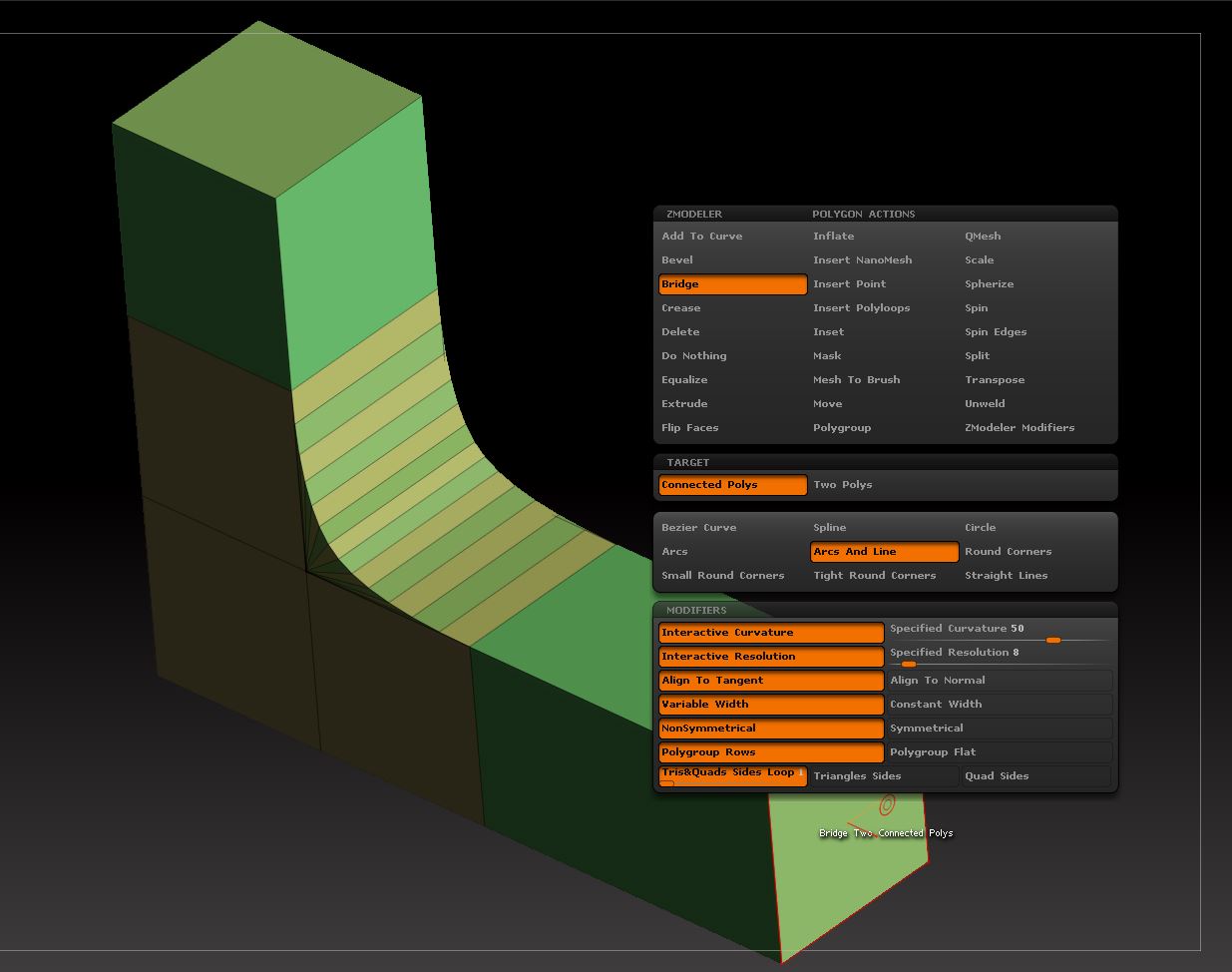
Neither the angle or the resolution seems to alter the S curvature outcome. And as I mentioned earlier, the S curve occurs on the other bridge actions as well. What is bizarre is that I only have this issue with this particular mesh; working on a different ZModler cube the bridge action works fine. Attached is an image with the desired result.

Attachments

Capture2.JPG

I have been able to duplicate your issue and here is what I discovered. In the version of the cube where you are achieving the concave curve you desire you have additional polys on both ends of the desired bridge polys. By doing this it works as you wish. If you have no additional poly on one end and one additional poly on the other (as in your first example) you generate an S curve. If you have no additional polys on either end of the bridge polys you get a convex bridge. This functionality actually gives you more options when ZModeling. If you don’t require the additional polys after you create your concave curve just QMesh them away.

ZBrush Document.jpg

Seems I’m still having issues with the bridge action. Though the outer curve works fine (see attached), the inward bridge action evidently does not.

Attachments

Capture.JPG

Capture2.JPG

Did you make sure you had poly’s extending beyond the two poly’s you are attempting to bridge? See before and after images below

Bridge_01.jpgBridge_02.jpg

Hi Daimondo,

If I understand your issue correctly it seems to me that you need to look at neighboring polygons (reddish in my example) especially when choosing the Align To Tangent version of the Poly Bridge Action.
Here’s a comparison of the effects and as you can see the S curve is created when you choose the Align to Tangent option and the neighboring polys (red) are parallel to each other.

All of the below actions are created by moving the cursor outward (that is to the right in this case).

The concave curve in the second row is due to the curve being aligned to tangent of two red polys facing each other at 90 degrees and still dragged outward - to the right (and not aligned to normal dragged inward - to the left - that would give an overlapping geometry as in your later example).

If my explanation is not clear then I hope the image is :smiley:

Bridge actions.jpg

1 Like

Heys Guys

Does anyone know of a way to use the Zmodeler brush in conjuction with the normal brushes on a low poly model. I can’t seem to sculpt on a figure without using dynamesh.

Thanks,
Chris

Wow, very astute! I think you solved my issue. Thanks for taking the time to demonstrate. Perhaps they can add the vital information you’ve provided to their ZBrush Docs for ZModeler. Thanks!

:wink:

Chris, not sure if I can help since I’m not an expert, but using Zmodeler brush on anything other than a very low-poly model is not really recommended. You are, after all, manipulating individual polys and even a “basic” model could have tens of thousands of polys. Is that what you were asking?

Hey lensman888

Thats the thing I want to sculpt low poly with an imported low poly base mesh but can’t seem to get the brushes to interact the same way as I do with a higher polycount mesh, which I use dynamesh with brushes

Chris, so if I’m still not understanding you I apologise. You have a low poly model and want to use your brushes on it but they are not responding the same way as a Dynameshed model, correct? If so, the reason is simple. Brushes pull and push poly surfaces, vertices, etc around to get the shape you want. Low poly models simply cannot get the shapes/details you want by virtue of the fact that they are low poly! When you dynamesh a model you are then creating tens of thousands of much smaller polys to move around… Think of a box of oranges as being one polygon; no matter how much you move that box around it ain’t gonna be nothing but a box in a different position. Now remove that box and you are left with dozens of oranges (smaller polys) that you can move into many different shapes.

Sorry if I’m being too simplistic here. I just have no idea of your level of useage with Zbrush or if I’m understanding your problem.

Thanks lensman888 yeah a little too simplistic but I understand you gotta cast a wide net,lol. Yeah, I figured as much but was hoping for some magical solution that I wasn’t aware of,lol.

Thanks for your help I appreciate you taking the time to respond. I’ll probably have to dynamesh sculpt with bushes, then decamate or zremesher then breakout the zmodeler bush. In the end most likely have to playaround and find whats the most efficient workflow for me. Thanks once again.

No problem, Chris. I think you’ll find that most peoples workflow with the zmodeler is to use it to create the base mesh. I suppose you could also create a new tool using zmodeler and “add” that part to your first decimated tool… depending on what you’re trying to do, of course. In any event good luck and no need to reply.

https://www.youtube.com/watch?v=9M9f9fg9wDQ&list=PLMjnnUF3eJFeGI5qFVeYd7ffnBhvnG76B&index=56

So, every time I try this I seem to get a different result, sometimes the edge goes UP and sometimes the edge goes ALONG. It doesn’t seem to matter which way I drag the cursor, the edge just does what it wants to. If I drag it up real high and then hit shift I would expect the edge to stick to the vertical axis, but nope, it goes along the horizontal one - and vice versa. Once it’s decided which one it’s gonna follow there’s nothing I can do to get it to go along the other axis.

Anyone else seen this happen and what the hell am I doing wrong ?

cheers - Aten.

https://youtu.be/3K7szAUFxng
New Point collapse brush for low poly medeling. Because in zmodeller not function collapse massive point. You can dowload http://merk-design.com/point-callapse

Hello guys, I,m looking for a tool in zmodeler like the spherify in max to extrude a perfect cylinder from this shape, in max I used to select all vertex and apply spherify then I extrude the edges.

Thanks in advance.

wrdMEg0.jpg

Hello guys, I,m looking for a tool in zmodeler like the spherify in max to extrude a perfect cylinder from this shape, in max I used to select all vertex and apply spherify then I extrude the edges.

Thanks in advance.

Masking everything but the open edges, and doing a clip circle center does the job for me.

Thanks a lot, I always forget to use this function in conection with zmodeler, it´s really a good help together with masking, it works like a charm :wink:

Hello,
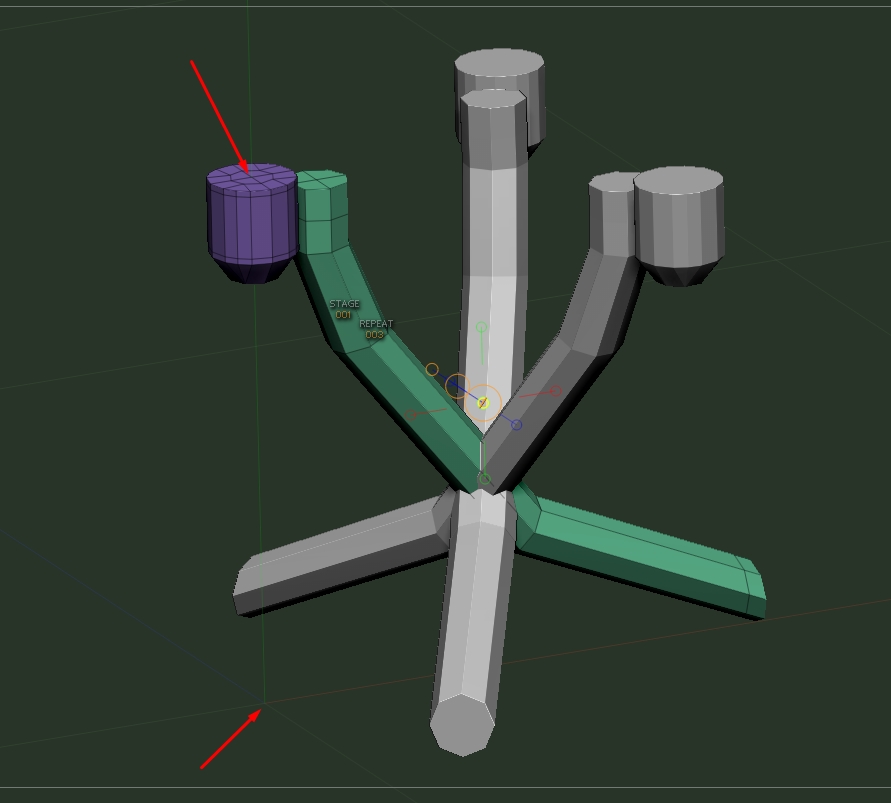
two questions about Array mesh and pivot.
It seems to me Array mesh uses the pivot of the bounding box of the subtool for all operations.
Instead I would like to know if:

  1. is it possible to snap the pivot point to mesh points for a better alignment?
  2. or is it possible to reset the pivot point to the <0, 0, 0> of the object even if the subtool will change shape?
    As you can see in the image, I would like to have the pivot in one of the two locations pointed by arrows.
    I mean, I’m creating the legs for this floor lamp and using array mesh to instance the modelled one.
    Is it possible to change the pivot numerically and not guessing with Pivot XYZ section?

Thank you

Screenshot_111.jpg