ZBrushCentral

ZBRUSH TO MAYA PROBS....help.....

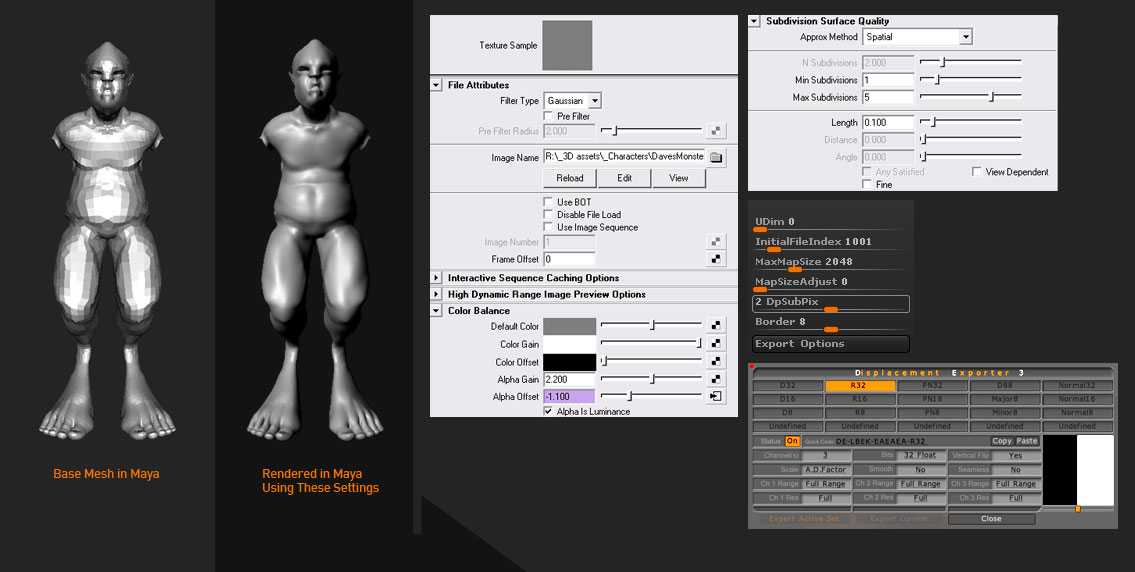
Hey guys, I have sculpt a mesh from maya in zbrush, now i would like to render the mesh in maya with displacement maps. I have followed all of scott spencers tutorials, but i just cant seem to get it to work correctly. I know im just missing a step, but i have gone back multiple times and just can figure it out. Here is everything in maya and my settings…

[attach=111089]sgprobs.jpg[/attach]

I followed the tutorials exactly…im not sure what im missing but as you can see, its not rendering correctly. Below is what is should look like…

[attach=111090]good.jpg[/attach]

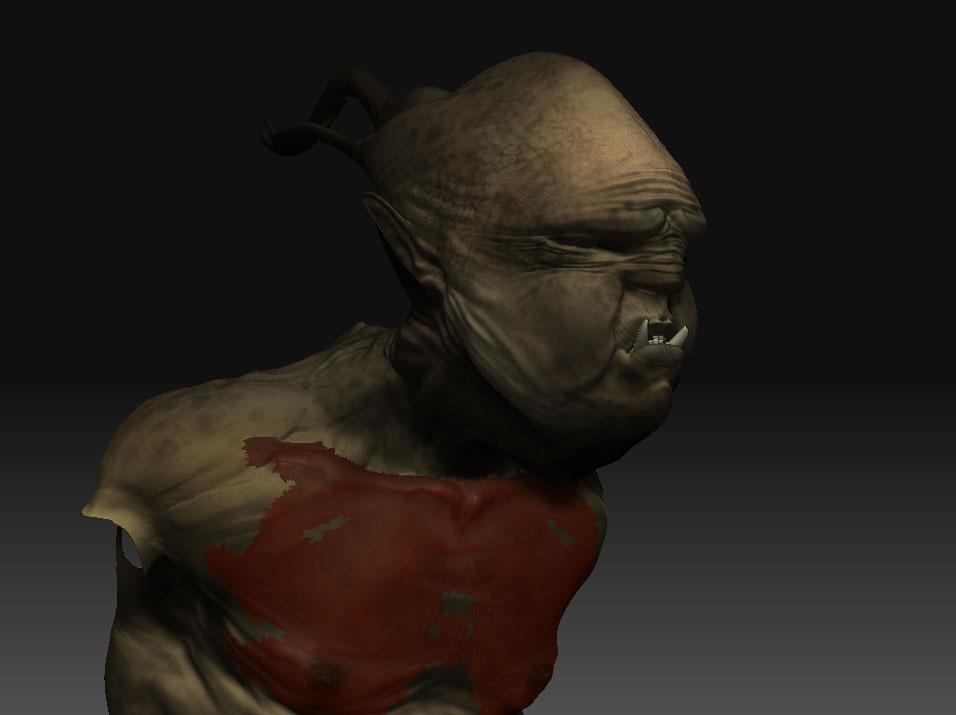
excuse the red mat…im not sure what the prob is there either, but no matter now many times i change the MAT, the red remains there…

Any help would be greatly appreciated!!!

Attachments
sgprobs.jpg

good.jpg

Hey,
make sure in that Maya you go to Window --> Settings/Preferences --> Preferences: Select Rendering and check “Use Maya-Style alpha detection” and that the Preferred renderer is Mental Ray. Also, after you apply the approximation, run this line of script :

addAttr -ln miExportCCMesh -at bool mentalraySubdivApprox1;

hey

turn off the filter on the file and try doing the displacement as adaptive. you could also try using parametric approximation. Does not make a huge difference but only one slider to deal with.

paul

PixolClay>> thank you so much… i was have the same probs that blackStat1k have… yeah the render preference setting solve it… i don’t know why i didn’t see any one mention it in any tutorial… i was suffering form that probs for more than week searching in internet…

thank u so much

Hi Limponi,

Yes, getting the “Use Maya-Style alpha detection” checkbox ON is the FIRST thing any decent tutorial out there
should announce as an option really :wink:

To apply your custom MatCap/Material overall(and get rid of the default Red Material showing through still) in ZBrush, try:

Clearing all masking first: CTRL-SHIFT-A
Then check on M (next to Rgb in menu).
Next, choose the MatCap/Material you need, and then apply Fill Color from the Color Palette…
(Be sure to turn OFF any existing texture (map) first, if you have one already). Should work :slight_smile:

Chris