ZBrushCentral

Zbrush/Maya endless displacement troubles

Hello,

So forgive any redundancy but I have searched for hours and not found any resolution to this. the tutorials just aren't working like they're supposed to. I even downloaded the pixolator head and went through the scott spencer tutorial step by step and it just wouldn't come out like it did I think the sum of my issues is how do I get it to not displace at certain points. So here's my critter, and this is the best Ive managed to get him [](http://javascript%3Cb%3E%3C/b%3E:zb_insimg%28%27170758%27,%27creaturehandfaceboth.jpg%27,1,0%29) and the displacement map is attached, edited in photoshop a lot, losing a ton of detail to just get the features to show up at all in maya

The alpha gain and offset are already way low, at .020 and .010 respectively, I have tried the expression to link the two, and having it at negative half doesn’t do it either. Also I’m using Maya 2008 and Zbrush 3.5

If anyone could shed any insights they’d be greatly appreciated because I feel like I have clicked every button and tweaked everything inside out and Im still not getting anywhere

the actual maya file is here as well if that could help

Attachments
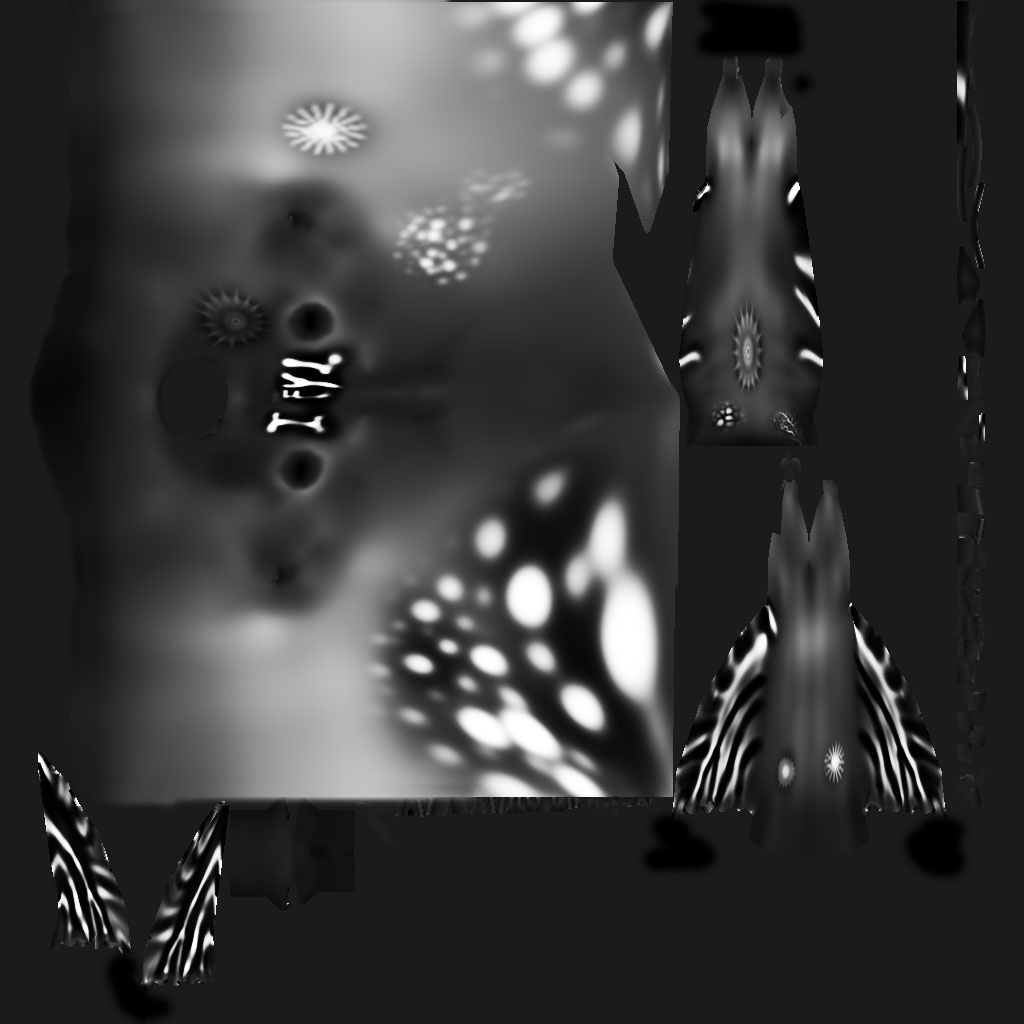
creaturedisplacement.jpg

It sounds like you’re not restoring your base/cage mesh before you create the displacement map.

When you subdivide a model, it contracts. When you return to level 1, that shrinkage carries back down to the first level. If you then immediately create a displacement map without restoring the base mesh the result will be that the map is created with stronger values than are necessary for the original model. This results in puffiness when you render.

Also, the displacements are calculated under the assumption that the model will have subdivision smoothing applied to it for the render. This is another factor that requires that the base mesh be restored or a cage mesh created.

If you do a search here at ZBC for other places where I’ve used “restore” and “displacement” you’ll find a ton of times that I’ve given step by step instructions to help you out. :slight_smile:

and it works! still plenty of tweaking to do, but using the cage feature seemed to get it in the actual realm of reality.

Just one button I missed, i guess, thanks for the help!