ZBrushCentral

Uv textuing

I was going through Ken"s uv tutorials.

To aasign uv mapping to whole body, he uses uvmapper .

But I am currently using zsphere model which wont be exported as it will be reposed in zbrush only.

How do I texture a part of the body properly ?

Heres the problem I am having while using a bmp texture, painting is not a problem,but applying another texture becomes one because of uv mapping.

Today is sunday Aurick wont be coming online, if any other senior member is online then pls help out.

any tips or tutorials?

[UV-PROBLEM.jpg]
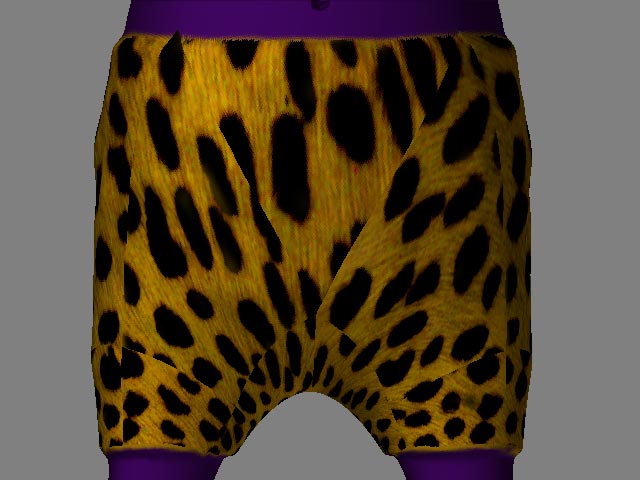
hi,

I tend to prefer auv or guv tiles. In order to use them you need to first create a blank texture in the size you plan to texture at in a power of two…ie 1024x1024. then go to tools>texture and select auv or guv. These options give you the least distortion free uv’s possible.

Then ya could select hide the parts you don’t want to have that texture…use projection master and the deco brush to apply your chosen texture.

thats just one way.

The above mesh has been textured using auv tiling.

Maybe I am doing something wrong with painting the texture using deco brush.

Any zscript tutorial on how to use deco brush or other brushes to apply imported texture properly ?

Here I mean to use deco brush on a zsphere model and not a skin mesh, hence I cannot use convert polymesh option of deco brush.

Soi any tutorials on zsphere model itself ?

Maybe this will help.

Well I went through all the zscripts there.

Its not showing how to texture a part of model using deco brush.

Like the inbuild deco brush tutorial shows how to apply texture on a flat surface of a reptile using shift drag option.

But on a round surface it creates seams when rotated using pm.

Any tutorials on that ?

Till now I have only seen people using zbrush to create skin texturing with flat colors blended. But not applying pattern textures on the model it self.

Whenever you use Projection Master you need to keep what you paint facing the camera as much as possible. No brush can get around this fact. It’s due solely to the principles of topology and projection painting.

If your paint strays to parts of the model that are angled very far from the camera you will get distortions. Period.

Unless you’re painting a cube you’re going to have to paint a bit of the model w/o it being perfectly aligned.

About how much of an angle can you get away with?

Can Sven’s Map it plugin can help in this ?

NO plugin can change this. It’s like I explained before – this is an inherent aspect of projection painting.

Let me give an example:

Place a ball (Sphere3D) on the table (your canvas) and look at it from directly above the table (the camera’s point of view). Now take a large piece of rubber and stretch it out parallel to the camera. This is the equivalent of you painting on the canvas. Move that rubber straight down to the table: this is the projection step, where the model is picked up off the canvas. Can you do this without the rubber stretching? No. The more the ball angles to the side, the more the rubber stretches.

Projection painting always gives the best results when the surface faces toward the camera. The more it angles away from the camera, the more the texture will stretch. Period. This is why the Fade option was created in Projection Master. It allows the texture transfer to fade as the model angles away from the camera, so that the area that will be most distorted don’t receive texture.

Hmm.

Object of Interest

Sven

Lol I never use the fade option because it creates seams :cry: .

Maybe I have to start using it with smoothing options. :wink:

Sven does that mean guv tiling works better here ?