ZBrushCentral

Urgent Help Required In UVW and Exporting/Importing

Ok now here is the problem.

I apply UVW mapping in 3ds max, export it to zbrush. But there it looses the mapping coordinates. And when I apply UV coordinates there in Zbrush, I am not able to change the plane axis.

So my questions are:

1. How do I import and export from max to zbrush and retain my uvw coordinates.
2. Does anyone know any tutorial to about how to model in 3DS Max,
apply UVW coordinates,
Export it to Zbrush retaining the UVW coordinates,
Do the detailing in the model and texture,
Bring it back to max retainin the UVW coordinates, textures
and normal and displacement maps.

i

Zbrush will retain whatever uv’s are assigned to it before you import it.

I don’t have max but from numerous threads I have read, you are gonna want to find and download 3dsmax(your version here) plugin called something like max2obj and obj2max.

if you do a search on either of those two here or on max and zbrush, I reckon quite a few threads will turn up that should give you links to those converters and help you with max and zbrush as well.

hope that gives you a start til someone with max comes along.

Check in the help and troubleshooting section, there are several threads on this sort of problem, I post my settings for using the max2obj plugin here:

http://www.zbrushcentral.com/zbc/showthread.php?t=22153

As noted in the thread certain settings in the max 7 built in obj exporter may or may not be different. As for Zbrush it always seems to export the UVs just fine.

Regarding assigning mapping in ZBrush, the Planar, Spherical and Cylindrical mapping types will be based on the object’s view in the Tool>Preview. You can click and drag in the preview window to change the way that the mapping is applied.

Hi aurick…that would normally be true but there seems to be a bug with the uvc mapping. Svengali started a thread here asking about it and I posted pics of my results…yeah it didn’t matter what way my model faced in preview for a uvc mapped object.

Try pressing Store when you have the angle that you want. Does that make a difference?

Hi Ami and Aurick,

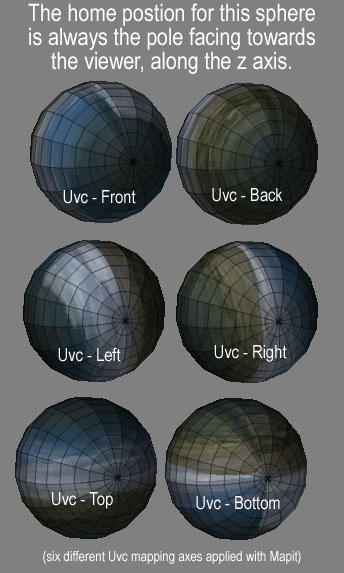
One of the basic functions of the Mapit Script is the built-in choice of MAPPING ORIENTATION that lets you select the axis along which you apply the UVC, UVS or UVP mapping.

Make sure you are working with a polymesh model. (The script warns you if you aren’t and immediately gives you the choice to convert the existing model.)

The Mapit procedure then would be:

  1. Press the Ft button so the model is facing FRONT.
  2. Turn on the Polygrid so you can see the polys and the pole of your object during the remapping.
  3. choose a map image that shows a distinct orientation… in the example I chose Txtr04.
  4. Press the RE-MAP button, which activates a popup window where you can choose the mapping projection you want applied.
  5. For example you might press the Uvc Button (applying Cylindrical mapping) in the first popup note window.
  6. In the following popup note window choose the axis that your current texture is to be mapped along - For example you might press LEFT. The mapping is immediately reconstructed with the Cylindrical projection applied and displayed along an axis from the Left side of the object. Notice that the polygrid is still facing FRONT.

(what happens internally, is the object is temporarily re-oriented using the Rotate slider 90 degrees Y axis command, at which point the Uvc mapping is applied, and then the script, again using the Rotate slider command -90 degrees Y axis, sets the object back to its original direction.)

To see how this works, click on the RE-MAP button SEVERAL TIMES, selecting Uvc, then different orientations, Front, back, left, right… etc. You’ll see the map gets applied along a different axis each time. Of course the polymesh’s orientation does NOT change.

Sven

Attachments
Uvc mapping example.jpg