ZBrushCentral

Unified skin or better?

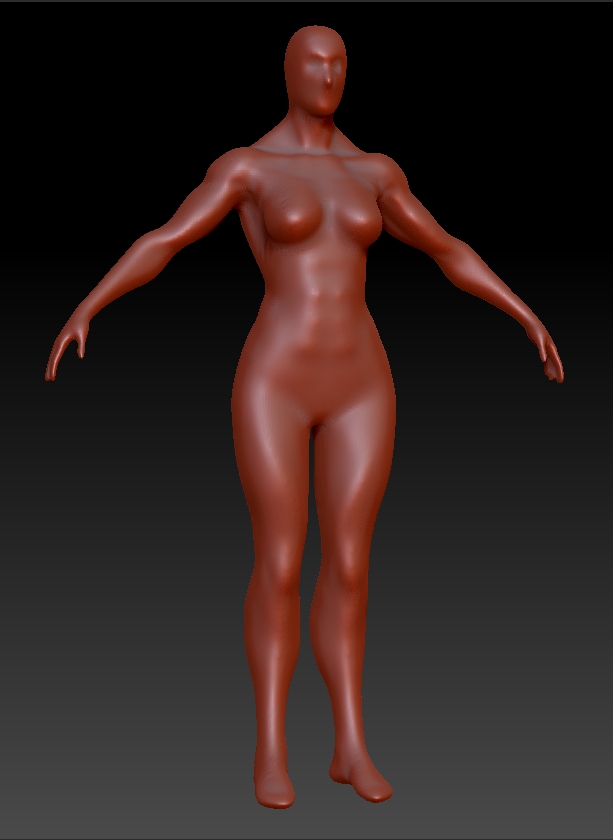
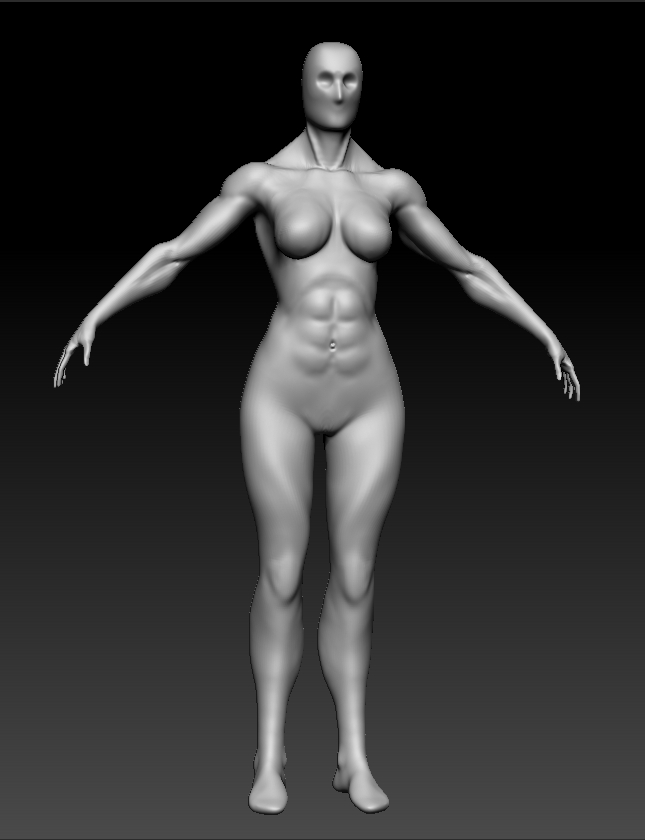
Right, so I’m working on the body sculpt of a muscular female.

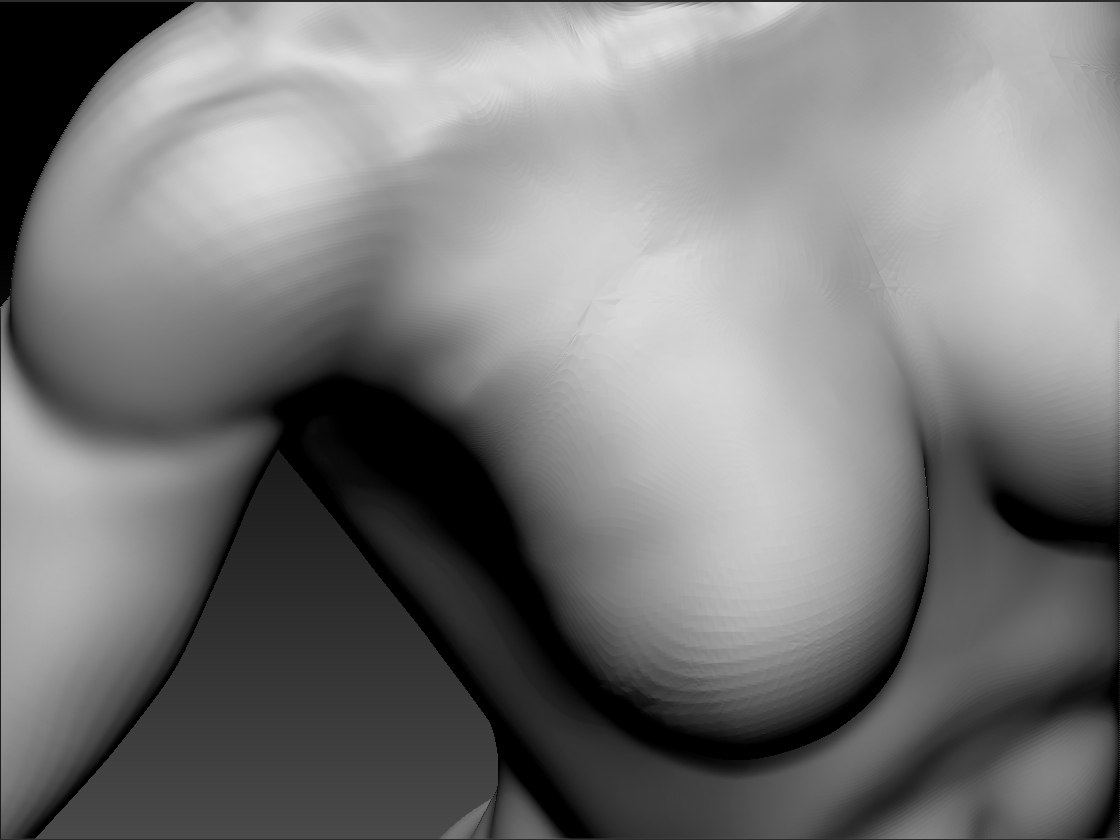
She’s fine everywhere but her breasts,

see that little bump right under her shoulder right above her breast? I need to get rid of that. I’ve tried smoothing it over, but whenever I do that, the breast just sucks back up to the chest and they loose their shape and become a parking lot. So I turned to unified skin to smooth this chick out.

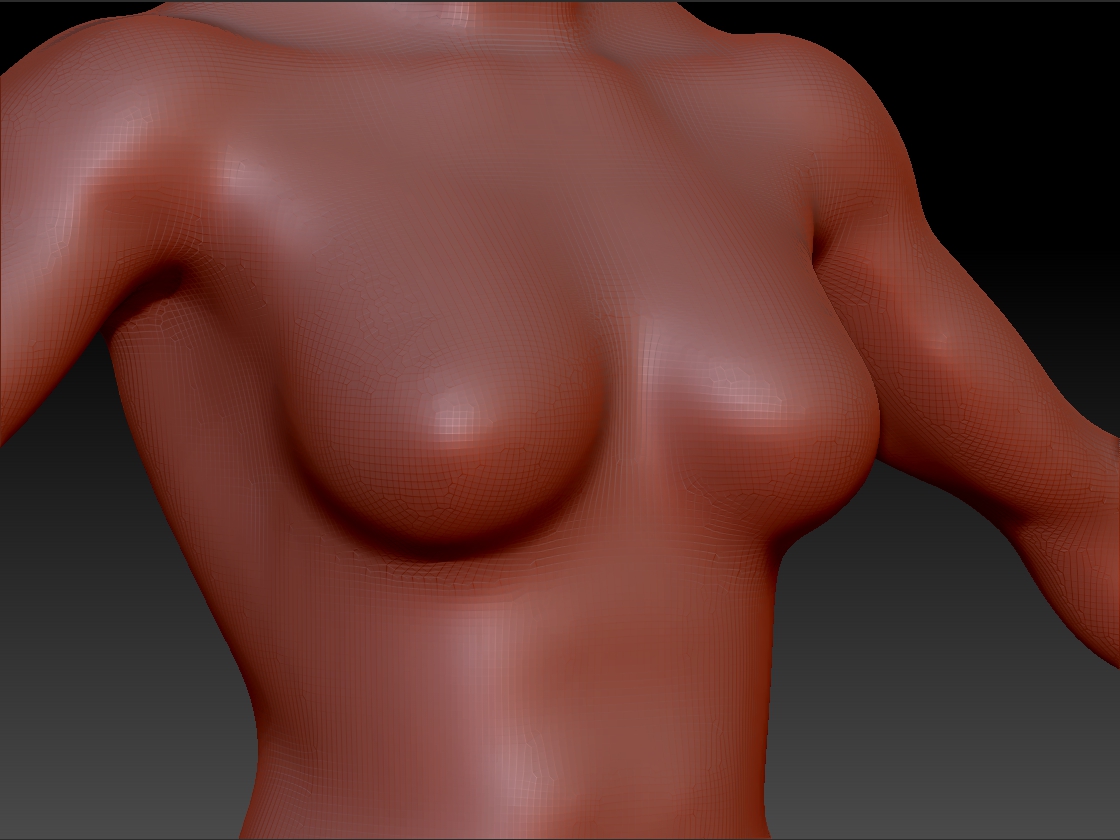
The result:

She loses all her little details like abs and stuff, (but I can resculpt that if y’all don’t know a better solutuion) BUT-

Her breast’s look pretty damn good, it’s just…

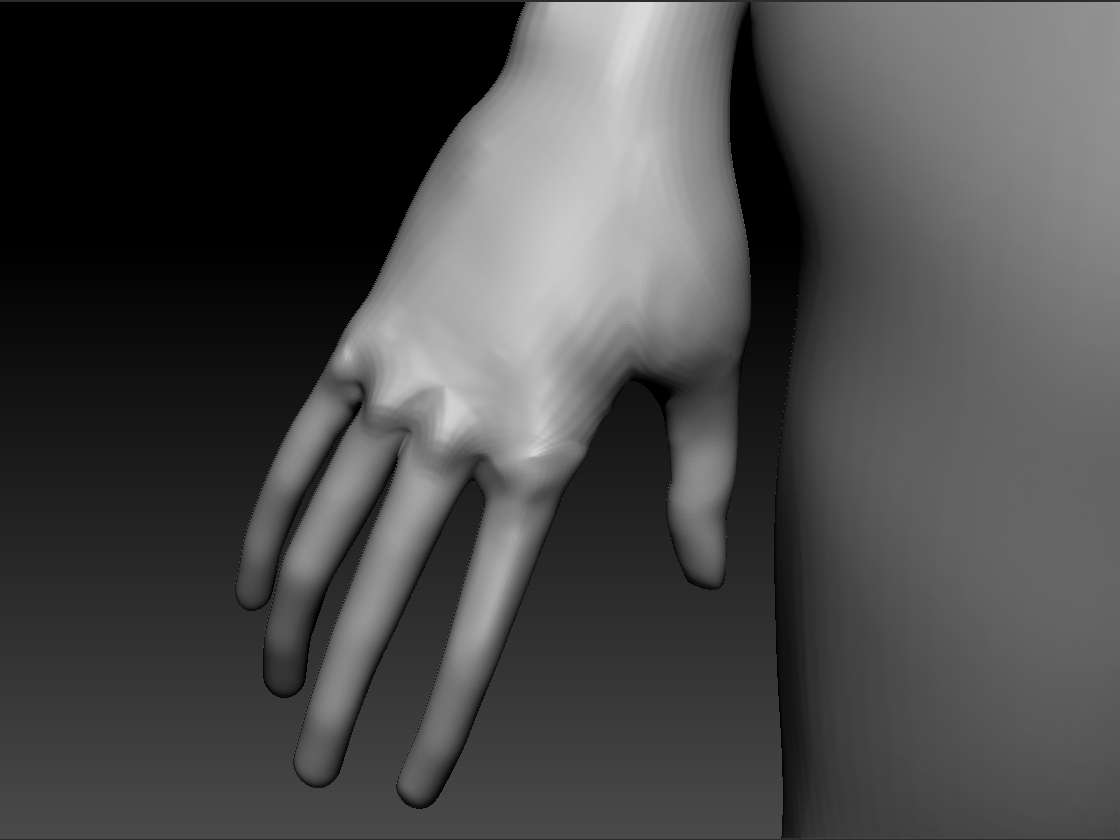
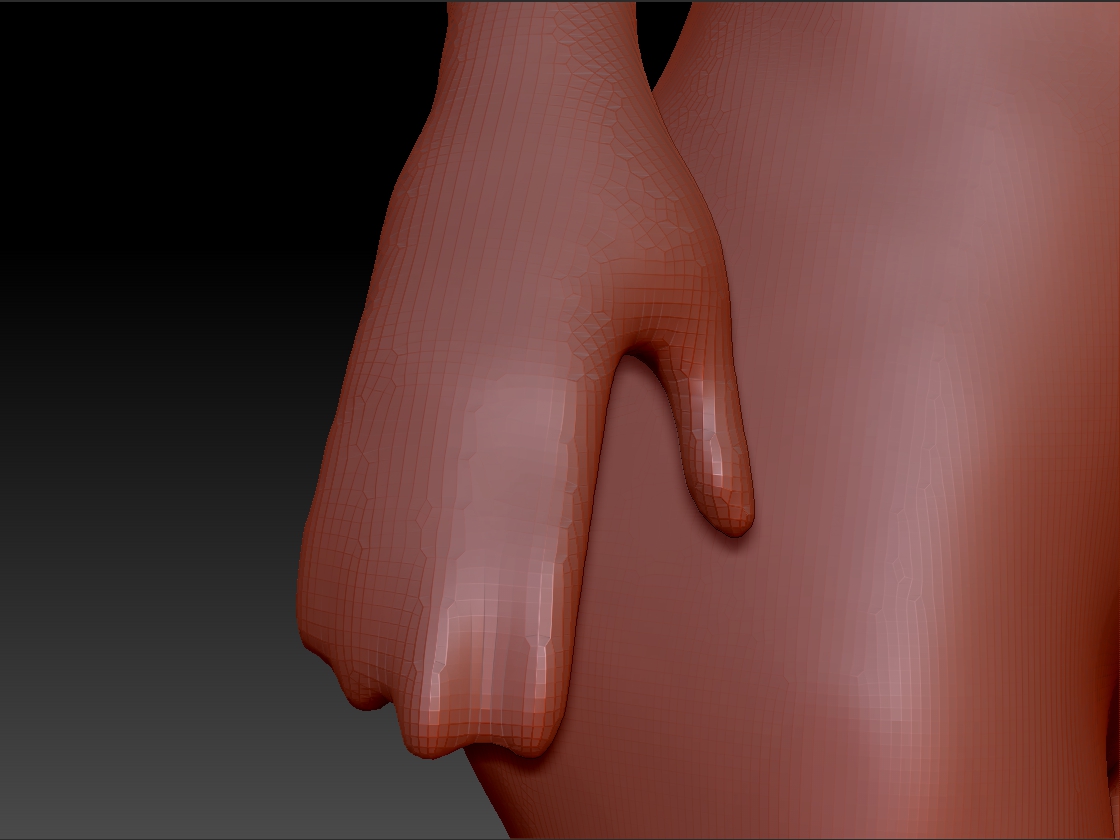
Her hands went away with all the other little details, I need to keep the little details and keep the breasts the was they are after the unified skin, how???
I know this is a noob question but I’d like some help folks, thanks!

Attachments
jdhde.jpg

jfsdjgth.jpg

jftrjj.jpg

jzseththt.jpg

jdtryuyu.jpg

jgthhjrtrt.jpg

Sorry for replying so late. You may have already found a solution, but if not…

I’ve had better luck with Dynamesh. Though, even with Dynamesh you can run into similar problems with fingers, but if you play with the settings you should get more satisfactory results. I don’t know if this is the best way to it, but I’ve been happy with this process…

Dynamesh defaults to a “Blur” of 2. I would try no blur and no polish (you can polish afterward using the polish by features slider in the Deformation palette) and play around with the resolution (try 128 and if that doesn’t work, try 256). Overall, you may end up with a much higher than necessary polygon count for the entire body, but you can then use QRemesher (and once again adjust the settings - this time for a lower total polygon count) to retopologize. It wouldn’t hurt to use the QRemesher brush before pushing the QRemesher button to set a few guides for how you’d like the retopology to flow.

I hope this helps.

I should have also mentioned to make a duplicate of your original subtool and always do your dynameshing and QRemeshing on the duplicate, then once you’ve got something close to the original, project the original subtool onto the new remeshed subtool to get some of that lost detail back. If you haven’t done this before, you use the Project All button in the Subtool palette. Every other visible subtool will be projectected to the active subtool (so in this case both subtools have to be visible and the new subtool should be selected).