I can’t seem to figure this out, but everytime I apply my noise to my model, it pushes all the geo outward aswell as inward even when my noise curve clearly shows half the geometry shouldn’t be affected by the noise.
Attachments
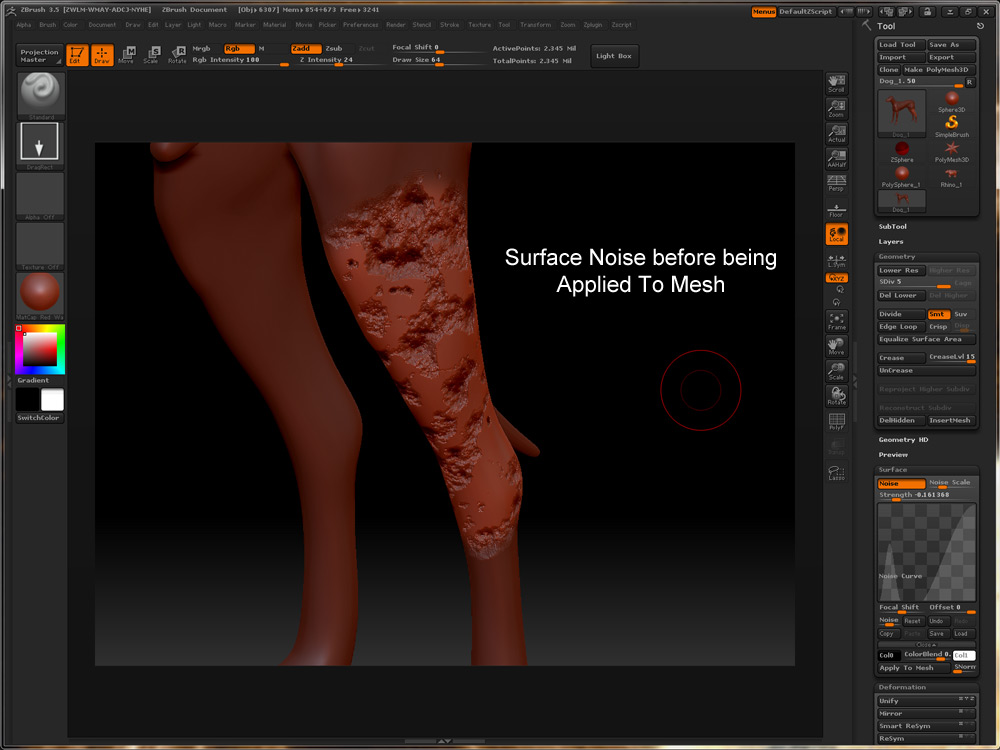
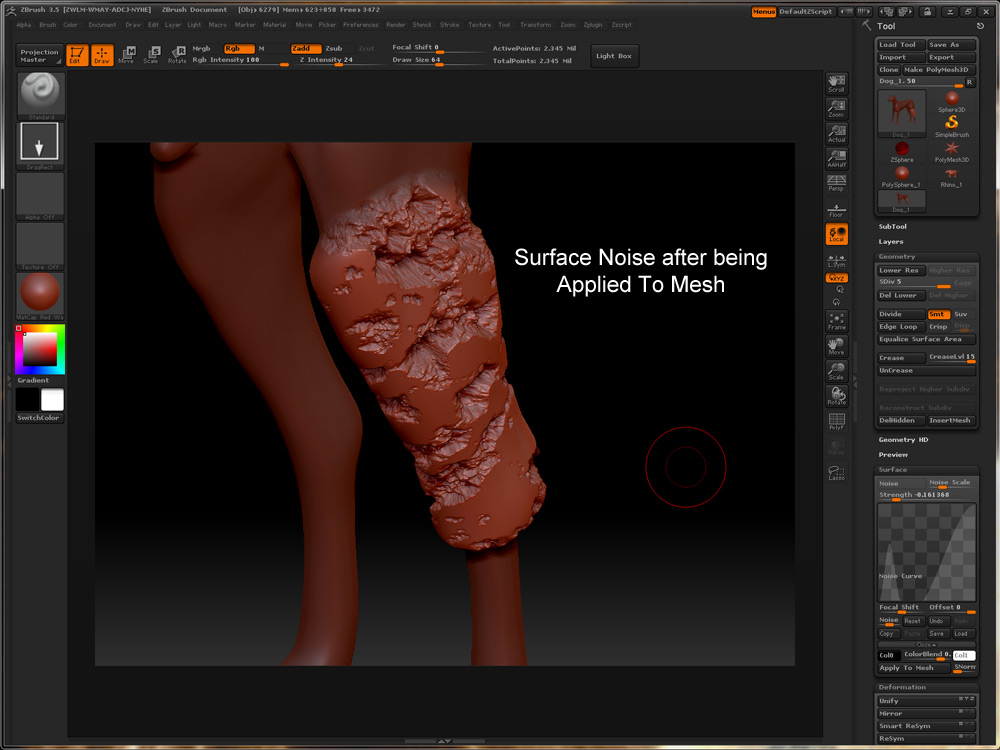
I can’t seem to figure this out, but everytime I apply my noise to my model, it pushes all the geo outward aswell as inward even when my noise curve clearly shows half the geometry shouldn’t be affected by the noise.
hi there, got that problem, too. any solution? just watched the classroom videos again… but nothing special there.
problem: surface noise is inflating the geometry.
tried: same rhino model with geometry up to 3.6 mio polys (like in the 1st noise video)
setup: vista 64, zb3.5r2
chem!
ok, what i tried so far is working. the thing is:
surface noise is VERY delicate to control. the problem in my case was also that i had to break the curves-points to see and control them better - AND the sliders for scale and strength are easy to overshoot…
anyway, no bug here - just an hard to control feature of the latest Zzzzz!
have fun!
chem!
Yeah, what I’ve since done is create 2 layers. 1 is a slight amount of noise, then the other is Deformation>Inflate. So as I increase the intensity with the noise layer, I can then push the geo back down with the inflate using -parameters… Sometimes I’ll get nasty geometry in the eyes or lips do to inflate pushing in on itself, so I then use the morph brush on another layer to restore those troublesome areas back to where I originally had them. Then its just the tedious task of using the noise brushes to help push in areas of the surface noise to get the most control.
I just hope in Zbrush 4 they make surface noise where it only deforms the geometry on a negative or positive from your curve based on the intensity value you chose, rather than pushing and pulling your geo from a midpoint.
Just so everyone knows, I have tried this Surface Noise on Win7 64bit RC and XP 32-bit. I get the same results on both machines.
Ok, I haven’t tried the new noise yes as I am on a mac, but can the noise just concave (lower) or convex (raise) from the surface of the sculpt. I mean the models surface height shouldn’t change should it. Can you explain?
Thats the thing, it shouldn’t change except the areas the noise is being applied too, but as you see in my screencaps above, it raises and lowers…
it’s possible to get very strong noise effects projected on you geometry. for me, being careful with the curve is very important. i never really touched the curve-features in zbrush. so, i didn’t even know how to convert a slope-curve to a linear curve…
in [email protected]’s screenshot it’s very easy to see. instead of a linear curve - a slope-curve(bend) is used… the bottom of the curve drops below 0, also, the scale slider is way to high for this kind of curve. before applying the noise looks awesome but afterwards it’s just terrible. i think, the whole noise feature works as procedual fractal projected ontop off your mesh as a normal map (try to use the surface noise on a plain grid, eg. 3d-plane, you’ll see… and even with very little amount of noise you’ll get very strong results after applying…)
so, instead of using sloped curves… try to use linear curves for better control. keep an eye on curves dropping below zero (except you’re after some weird effects…)
oh, btw… the trick to convert a curve-point to a corner-point is to click and drag a point outside the curve window and drag it back into the curve-window without releasing the mouse-button (very hard to find information if you never used that feature before…)
hope that helps, sure helped me… keep on Zzzzzzzzzzzzz…!
chem!
The noise curve doesnt control strength, it only controls the way noise is generated. So by keeping your curve linear, you are applying the same type of noise across the entire mesh, where adding a curve is just breaking up the noise into spots.
Even by keeping a linear curve and apply a small amount of noise, you will still see the mesh perform in the same manner as my screenshot above, its just not as noticeable… but then again, neither is the noise.
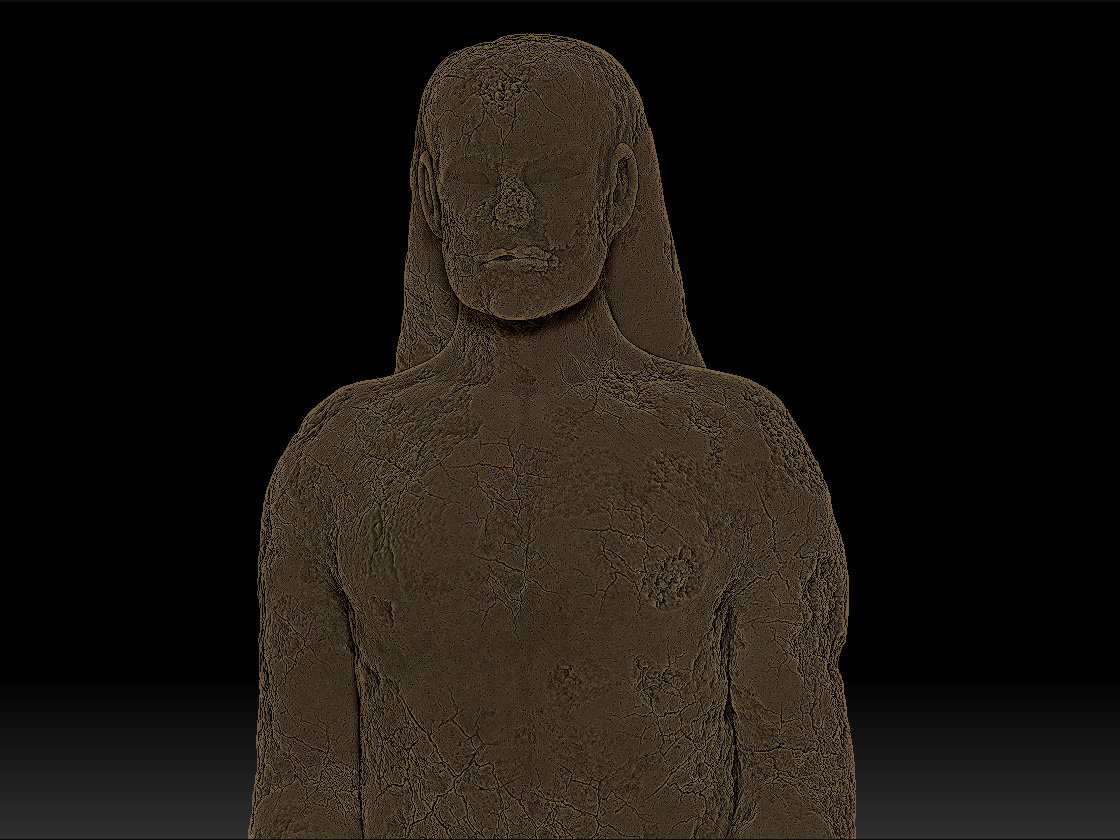
I’m sure most people will not run into this problem because they will use surface noise for rust, pores, or any little imperfections. I came across these issues because I was trying to sculpt a sandstone statue that has been weathered over the past 2000 years so it would have large chunks broken off with very noticeable imperfections all over, while some areas would still remain fairly smooth and unchanged… Hence my noise curve.
Here is an example of why you would want deep noise with a noise curve.
If you notice though, his lips and ears are really puffy and that is purely because of the noise inflating the mesh. Using my methods above can fix all these issues, but the point of this thread was to address the surface noise in its current state and how it is a good tool, but its not perfect.
i see what you mean. you’re right. “large chunks” were excacly what i was after, too… to bad it’s not working as expected. better stick with the “small” noise and keep your hammer-brush handy! hahaha! anyway, great update so far…
chem!
The Noise functions work properly.
The difference that you see between the surface noise before you apply it to the mesh and after, is similar to the difference that you’ll get between bump map and displacement map.
If the difference that you see is too big, then it means that the surface strength is too high, reduce the strength and re-apply. Further more, use the smooth normal slider to control the surface normal distribution.
hi, here is a little trick to use the surface noise.
you can visualise it with the surface noise in the tool palette, and then you save the curve.
after that, you can use a noise brush and load the curve you have saved. you’ll be able to paint the same things as in the surface noise preview with no offset.
I had the same problem, but if you make the curve a straight line from .5 to .5 then put in a couple of points either end to get the big chunk noise looking nice. (I had to increase the strength to get it to show because my curve looked fairly flat) then it doesn’t inflate the mesh. Took a fair bit of mucking about but I got it to work 
So in brief make the curve along the .5 mark. Not from 0-1 or 1-0
Streetsy
That works OK. Still the video in the classroom section looks as though he can do anything and when he hits “Apply to mesh” it comes out identical.
The video in the ZClassroom is very misleading.
I am having the same problems with the Surface - Noise. The mesh gets inflated. Using the Strength slider does not help either…
Reducing the strength to a value where the inflation is not noticeable also reduces the noise effect dramatically whereas it becomes nearly invisible - what’s the point in having this feature when it cannot be put to use?
Dear Pixologic,
if so many people are frustrated with this tool, maybe you should fix it or make a better instructional video to give the user more control. k thx bai.
-frustrated game industry professional.
Hello Guys, i have had the same problems. I tried to change the offset and this seems to take the inflation back.
I think the noise functions are fine. Its just a bit tricky to use.
cheers, Holger
Sorry for bumping, but has anybody found a fix for this issue?
I’m experiencing the same problem.
Noise not applied to the mesh:
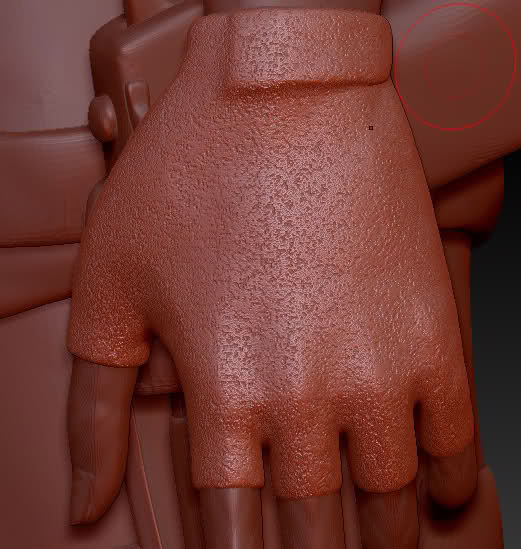
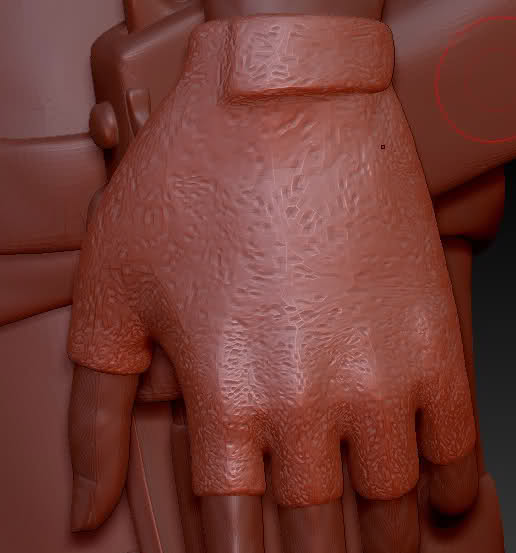
You need to use the offset to offset the difference, normally it seems to have a very sticky and broad value. But just use layers to apply to and turn on and off until you get the right amount. Hope it helps!
I hope this works for you, i used noise for my work and this works fine for me, the way you look the preview is not always acurated, sometimes seems concave but the result could be convex, you can try use the strenght to a negative value, and this will showyou a diferent form (the real one) so this will cause than the “holes” become like “spikes”, if this hapen you must change your curve to a diferent shape, you cant try a mask brush and activate the noise in the brush palete, with this you can create a mask and chage it wiht a brush or deformation (like inflat)
Apologise my bad english