ZBrushCentral

quick duplication with rotation? is it possible?

As we all know from the latest ZClassroom video, you can duplicate by using the Move transpose tool and pressing ctrl+drag to drag out a copy of your mesh. Can you do this with the rotation transpose tool? I’ve tried but it doesn’t seem like you can…

is this an obvious oversight or am I missing something here? This would be SUPER useful for creating radial arrays of objects… just pivot around a point to create bolts on a tire rim for example…

Anyway, just curious… seems like something that would be in there and maybe I just don’t know how to do it yet.

Sounds like a job for Radial Symmetry. :stuck_out_tongue:

Image below, about 2 minutes with DynaMesh, an Insert brush and Radial symmetry.

new-2.JPG

Well, that works when you have a symmetrical model, and you happen to want to pivot around the point of symmetry… but that’s not always (in fact rarely) will be the case. Otherwise one could argue that the ctrl+move+duplicate shortcut could also be solved with the meshinsert and symmetry :stuck_out_tongue:

Take my car example- say you have four tires on it and you want to put 6 lugs on each rim. You’re not going to be able to do that with radial symmetry because the four tires are so far away from the point of symmetry (which would be the center of the car).

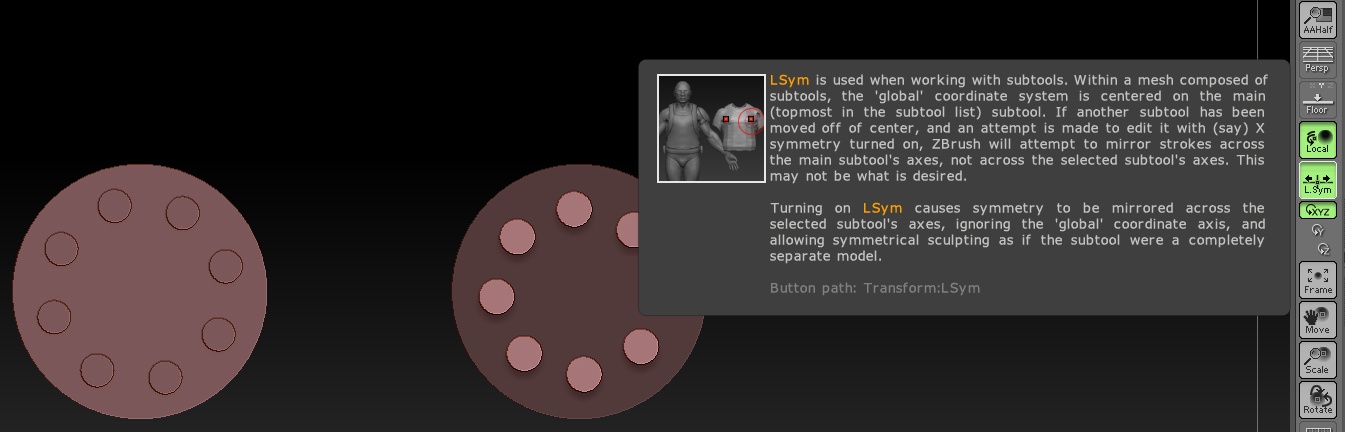
Have you tried using Local Symmetry?

Attachments

lsym.JPG

The tire example is one where you would perhaps make one tire complete with all the symmetrical parts you require. Then Duplicate it and use transpose to move and Subtool Master to Mirror.

Another option is to set the one end of the transpose line on your pivot point and duplicate the subtool then grab the other end (red ring) of the transpose line and Rotate the duplicate to a new position. And repeat this as much as you need. That’s the approach I took with this Wheel where just one spoke was sculpted.

Wheel.jpg

As mentioned another option in Z4R2 would be the MeshInsert Dot with radial Symmetry followed by Move, Scale and or Rotate with the transpose line. Yet you don’t have to be in DynaMesh to do it if your situation doesn’t need it.

I appreciate the replies, but none of this is what I’m looking for. Obviously it’s not possible to do what I’m asking, so I’ll just let it go.

It’s pretty shortsighted for pixologic to have given us this functionality with the move tool, but not the rotate tool. :rolleyes:

No, you can’t do this at present with the transpose functions, and yes, it would be a neat trick.

But local symmetry +radial symmetry makes it makes it possible to do your car example quite easily. As others have pointed out, radial symmetry will achieve the same effect in many cases. Many other cases can simply be solved creating what you want separately and positioning via subtools.

Feature lists get frozen, and some things might not be ready to go for a specific release. At one point we didn’t have subtools, and they’ve gotten more manageable with every release.

Just because you can imagine something, doesn’t mean its necessarily as easy to do as something else. Short-sighted is not a term I’d apply to Pixologic. I doubt the reason you don’t see this feature at present can be chalked up to failure of imagination. Give it some time.

As DLangley mentioned above, you can approximate this functionality rather closely by simply positioning the object you want as a subtool, drawing your transpose line to the center you want to rotate around, and duplicating the subtool (shift+ctrl+D), as you rotate around. The transpose line stays constant, so you can create a mathematically perfect array if you hold down shot to rotate at increments.

When you’re done, just press the new “merge similar” button in the subtool palette, and these dupes will be auto merged into a single tool with a single action.

Not quite as quick as being able to do it all in a single subtool, but pretty simple, and the end result is exactly as you describe.

rotatedupe.jpg