ZBrushCentral

Projection Master ignore some polygons ?!

Please help me God!!!
i trying to find solution in this forum, by can’t…

I have model, click to Projection Master draw at my model- look nice!
But!!! when i click pick Up and quit from PM, i see, what some region has’t effect of my draw in PM, and that draw are affect on other polygons in other places…

that’s going on? errors with texture projection? how can i fix it??? please help!
:cry:

…send some images of your problem :slight_smile:
It will be more easy for answer !
Have fun Zbrushing! :cool:
Pilou

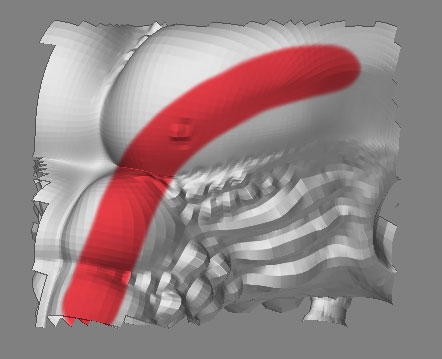
sorry, example:

pat of my model in PM mode (with set “color” changes only)- i will draw one line:

1a.jpg

what can i do?
(model don’t use any masking or hidden \ double faces)

Attachments

2a.jpg

What UV mapping has been assigned to your model? Poor mapping can give results such as this.

What is the size of the texture? If the texture is too small, then it doesn’t have enough room for clear projection of the painted details. You can always take a large texture and scale it down later if need be, but you can’t paint fine detail onto a texture that’s too small to begin with.

i try texture size is 2048x2048 but no effect
i understand. why paint in rough and we see triangles … but why part (middle part) of my paint no visible?? where is it?

Aurick, how can i fix UV mapping has been assigned to your model? Poor mapping can give results such as this.
my mapping is default now …

history of this model - zbrush -> obj -> xsi -> obj -> zbrush , but on ths stage model is good paintable, but after some changes (draw) in zbrush … we see it

please help!

test.jpg
As you see I have the same problem :slight_smile:
But it’s normal! Texture Master (1.55b) or Projection Master (Zb2) for you, project only perpandiculary to the object!!!
So some aeras are hidden by other !!!
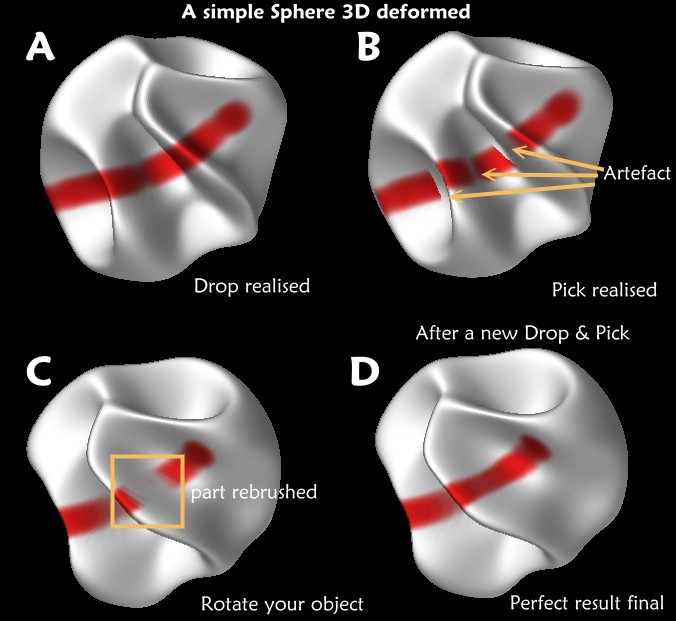
Just rotate your object et redraw in Drop mode the"white aeras" :cool:

For the “Quadrangular effects” I suppose that your model is not enough subdivised,
because look my sphere3D, line is perfect and it’s not a big subdivise!
So I believe that you can make a little better :slight_smile:
Have fun Zbrushing!
Pilou

Frenchy Pilou big thanx for your help!

but your problem develop after rotating or spin “camera” or model, - i don’t rotate camera or model, and on my picture there is no hidden faces by other faces … anyway i on’t create theirs … =)

Just rotate your object et redraw in Drop mode the"white aeras"
it’s cannot help me …

also, part of red line on my “chest”, which invisible after exit PM, develop on other polygons!!! (no back polygons - on same parts of model) …

It’s look like PM associated polygons what i draw with any random polygons on model

Frenchy Pilou
if you interesting, i can send 4U file part of my file

Zbrush very comfortable and powerful tool, but one little problem … so bad =(

=)

can somebody make me happy? :wink:

…demo user I can just load something made with the 1.55b ! (and with some restriction)
So the better is to post a little part of your file here for someone can help you !
Pilou
Ps Something curious, there is on your second image a very little red line (up lef side) between the 2 big red parts as a facet flying upper your 3D model !
Are you sure to have a clean model ?

It might also help to assign an existing texture to your model - a checkerboard or grid or color stripes… a render could help reveal possible mapping oddities.

You might also try assigning AUV or GUV mapping to your model to see if that solves the problem. Many ZBrush problems can be understood and resolved on your own by simple experimentation!

Sven

Several members have had difficulty exporting UV mapping from XSI successfully. You may want to search the forum and see if anyone has posted a solution that helps, or look at the documentation for XSI.

You can assign new mapping in ZBrush very easily.

  1. Create a texture of the size that you want your mapping to be calculated for. The best sizes are a power of 2 such as 512x512, 1024x1024, 2048x2048, etc.
  2. Press Tool>Texture>AUVTiles or GUVTiles

That’s all there is to it.

big thanks to you!

*** Press Tool>Texture>AUVTiles or GUVTiles *** really help me

i happy now!!! life so beautiful!!! :smiley: