ZBrushCentral

Problems with Brush Symmetry

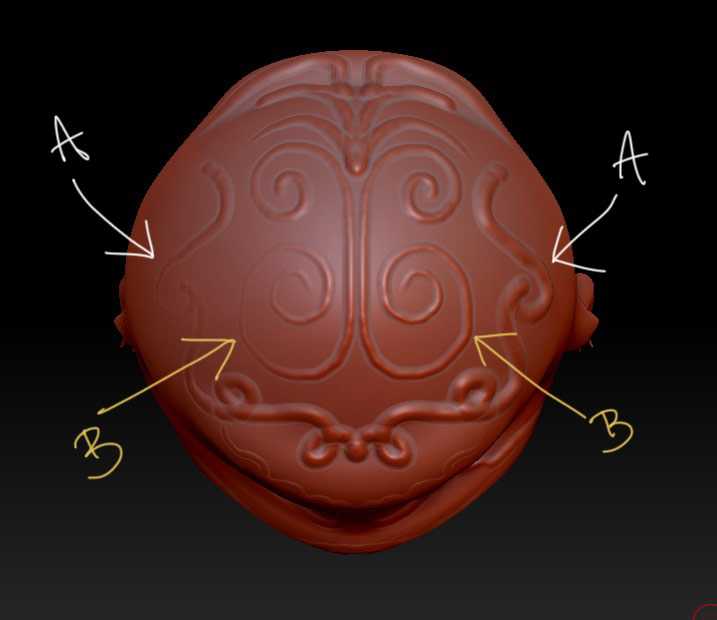
I’m new to Zbrush and I’m trying to get the hang of it, but I keep running into this problem when I’m using a brush of any sort. When “Activate Symmetry” is active and I’m adding or subtracting, it does so unevenly. I’m sure I’m doing something wrong, I just don’t know what it is. Please see image for details.

Attachments

Zbrush_mirror_dif.jpg

I am new to ZBrush myself, however, I believe that effect my be produced due to the “Modifier Symmetry” is turned off. It is the little “M” button next to the axis buttons below “Activate Symmetry” button.
Turn the “M” on and see if that helps.

looks like your mesh isn’t perfectly symmetrical or isn’t sitting centered in world space.

where was it created?

It looks like it may be slightly offset. Make a clone and try going into the Deformation palette and hitting “unify” to center it in world space and see what happens when you draw on the head with symmetry.

I greatly appreciate the help, but unfortunately, I’m so new to Zbrush and 3D in general, that all of the advice, except for the “M” button went right over my head.

I laided down a sphere and had the “M” button on and it did the same thing, where the brush was heavier on one the side of my cursor.

Where was it created? I’m on a Mac Intel, running 10.5.8 with 6 GB ram.

I tried the clone thing, but I must have did something wrong, so I need to work on that solution again.

Sometimes the brush works the way I intend it when the symmetrical button is on, and sometimes it doesn’t, even when I’m working on the same piece.

I need to find or get some in-depth tutorials for Zbrush. I was thinking of signing up for some tutorials on Digital-Tutors, or the Gnomon Workshop, any advice?

Thanks again for trying to help me out with this.
Zbrush can be very frustrating to someone new to the program, and investing in a course series is really helpful.

From what I can see in your picture, this is not a problem with the modifier key (M key) which is found in the Transform palette menu (top of the screen) in the symmetry section.

You model is a bit offset from the origin which makes the symmetry feature appear heavier on one side then the other. So you need to adjust the position of the mesh a slight bit.

First turn on “floor” (button to the right of the workspace) and look at the axis guides so you know which axis to move your model. Then go into the Deformation sub-palette of the tools pallette (the tools palette should be the default one docked to the right of your workspace, but you can also access it from them menu buttons on the top of the screen) and play with the offset button set for that axis. You only need to move it the tiniest bit, from the look of your picture. Test it out on a sphere in symmetry to get the hang of it.

Sometimes just hitting Unify in the same deformation palette has fixed this for me, but it doesn’t work all the time. Someone with more experience here might jump in and explain why.