ZBrushCentral

Problem with seams when importing normal map into 3DSMAX 8

I need some help with normal mapping. I’ve spent the last several days researching online forums and trying out several different tutorials.

I’ve tried the zbrush to MAX tutorial here in the forums by Michael McCarthy & Scott Spencer, the translated zbrush to MAX tutorial by Dexter J. Doqpelganger and a bunch of others I found online. I’ve tried turning all uv’s around so they are all upright and read all the FAQ’s and tried all kinds of other ridiculous advice I found online. I even tried welding all the uvs which just totally distorted them, created a very messy normal map and which would only cause more problems when I go to paint the model. I still cannot fix the problem I’m having with seams showing up in my normal map.
http://www.artbywaqas.com/normalmap/normal_map_problem.html

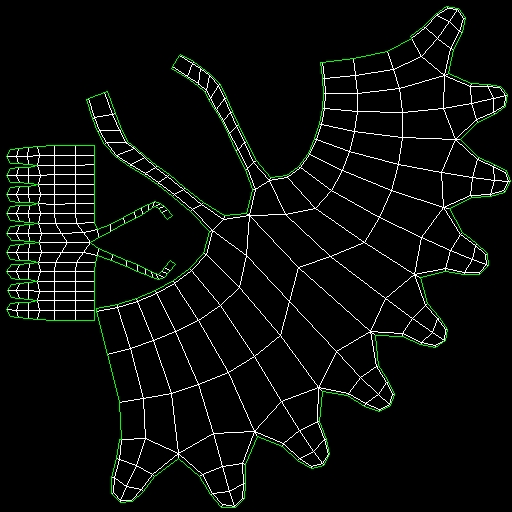
first off, your UV’s are not going to make you happy with a tangent space normal map.

what configuration or settings are you using for Zmapper?
if you’re not using “3dsmax8modifiedE” use it. You can find a post somewhere by myself or other people that have the file to download.

Open that up in Zmapper and then create your normals. This should give you a much better result. But again, your UV’s are going to kick you in the head.

to start on that object…which is pretty much a cylinder. Use cylindrical mapping, then adjust to fit what you want.

You can also use the free software called Roadkill UV’s
It is a simple organic unwrapper that takes like 15min to learn. I start almost everything in roadkill then adjust as I see fit inside MAX or XSI.

if you use roadkill, it will take you like 5 edge selections to unwrap that beautifully. Well, maybe a couple more as that thing actually has thickness to it.

I did up a quick unwrap of this using roadkill. Here is the result, something similar to this should give you a much better result.
[dress_unwrap.jpg]