ZBrushCentral

Problem with a zbrush document [Answered]

,Hello,

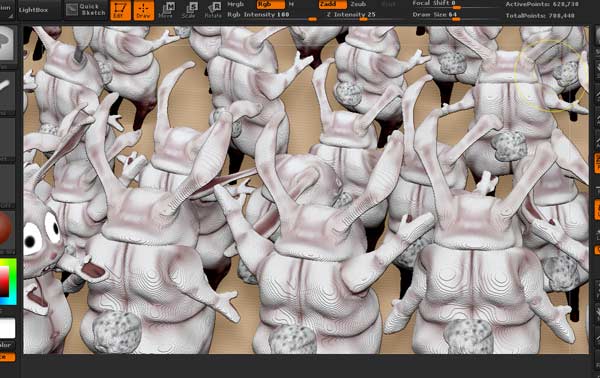
I was working on a doc, and noticed this issue on some of the meshes I was working on. I have checked past renders, and this was not there, but now when I open up those docs, this problem appears even though the renders are done after the last save was taken place.?

Any ideas on how this happened and more importantly, how to get rid of this ?

Thx.

Attachments

zbrush-question.jpg

Sorry, If there is any confusion to what I was talking about, it is that pixolized, layering effect seen on these bunny guys. Especially on their shoulders. But it appears on every object in the entire scene on every layer.

I’m afraid this is a known issue with documents in ZBrush 4R2. It shows especially when loading a previously saved document. There’s not really any solution until the issue is corrected in an update. :frowning:

Uggg. What a dagger.

At least it was not something I did wrong. I was going nuts trying to figure out how I could have screwed it up. Thanks for the reply, I was able to hide the effect with some depth of field blur… This time :slight_smile:

It occurs to me that there is actually a way to save out the canvas so you can reload it ok, but it involves a little work:

  1. When you want to save your work, select the MRGBZGrabber tool.
  2. In the Tool>Modifiers turn off Shaded RGB, Auto Crop and Both (so no option is on).
  3. Turn on MRGB so that material and color will be captured.
  4. Click outside the top left corner of the canvas and drag across to beyond the bottom right, so the whole canvas is captured. You can adjust the Document>Zoom to make this easier.

An alpha and a texture will be created and be selected in the Alpha and Texture palettes. Immediately save the MRGBZGrabber tool using the Tool>Save As button, giving it a meaningful name. The alpha and texture are automatically saved with the tool.

Save the Document also to save any lights, custom materials etc.

When you want to reload, load the Document, then load the MRGBZGrabber tool you saved through Lightbox or the Tool palette. The alpha and texture will appear in their respective palettes. Then:

  1. Press Alpha>Crop And Fill.
  2. Turn off Texture>Cd (so depth is not cleared) then press Texture>Crop And Fill.

HTH,
marcus_civis: I’m trying what you said but I get this problem, hoping it’s a mistake I’m making. When I load the .zbr doc and apply all you say…

I see that the front piece is ok, I’m happy with that but the background is now an object, like a plane behind my object and not a depth background.

Is that normal? I can even clay buiild on that. What could be done to avoid that?

Thank you.

Yes, you will get this if the background of the original document was not painted over completely. You can get rid of it. This is what you do:

  1. Open the Layer palette (the main document Layer palette available from the top menus). Position it on the right or left shelf so that it stays open.
  2. Towards the bottom of the palette you’ll see three Displace sliders. The one you want is called Displace Z. This moves the painting backwards or forwards in the canvas.
  3. Set the Layer>Displace Z slider all the way to the right (+ 8192) and repeat this four or five times until your painting disappears. It has now gone behind the clipping plane of the canvas.
  4. Now you need to move it forward until the clipping plane just clips off the background plane. Try in multiples of -1000 to start until your painting has reappeared then reduce the amounts (backwards or forwards) until it is just right.

HTH,