ZBrushCentral

Photographic Alphas/High-Subdivs

Hi everyone. The last few days i’ve been trying to sculpt extremely detailed clear defined bricks in an old wall/archway and have been at a complete loss.

My problem is that I can’t for the life of me get the alphas i’ve made crisp. At first i thought it was jpeg artifacting but i’ve since got hold of .NEF raw 16bit images that i’ve converted as high as 5k at 500dpi and the problem seems just as pronounced.

I saw in a RyanKingslien video him sculpting facial details using an image which he first cropped and filled and then blurred out the noise but this seems to just blur out the detail too.

Basically i’ve searched through these forums for three days but can’t find a way of using projection master to get a clean alpha result. I’m under a contractual NDA agreement so i cant post specific pictures but i’ve noticed even with the generic alphas there seems no way of getting sharp results. -100%focal shift seems the sharpest but the edges are not clean (slightly jagged). I thought this might be affected by the precision texturing tutorials but it turns out this doesnt affect alphas in the PM. Have attempted meshes up to 15million polys. HD scultp wont work either as it doesnt allow displacement map exports (need it to go back into max).

MACHINE: Dual-Quad Core, 8gig ram, 64bit (tried on a dual core32bit as well).
Those raw images of yours… what format are you converting them to? Have you tried 16-bit Grayscale PSD, imported via Alpha>Import?

Yep. Hi Auruck, read lots of your posts before which is how i learnt that method. tried 16bit/32bit psds via alpha import as high as 500dpi (not sure if dpi affects it though). In PM they are so sharp yet even with millions of polys they still come out with soft/jagged edges. I know PM is just a representation but i need that sort of detail and i’ve seen it can be done.

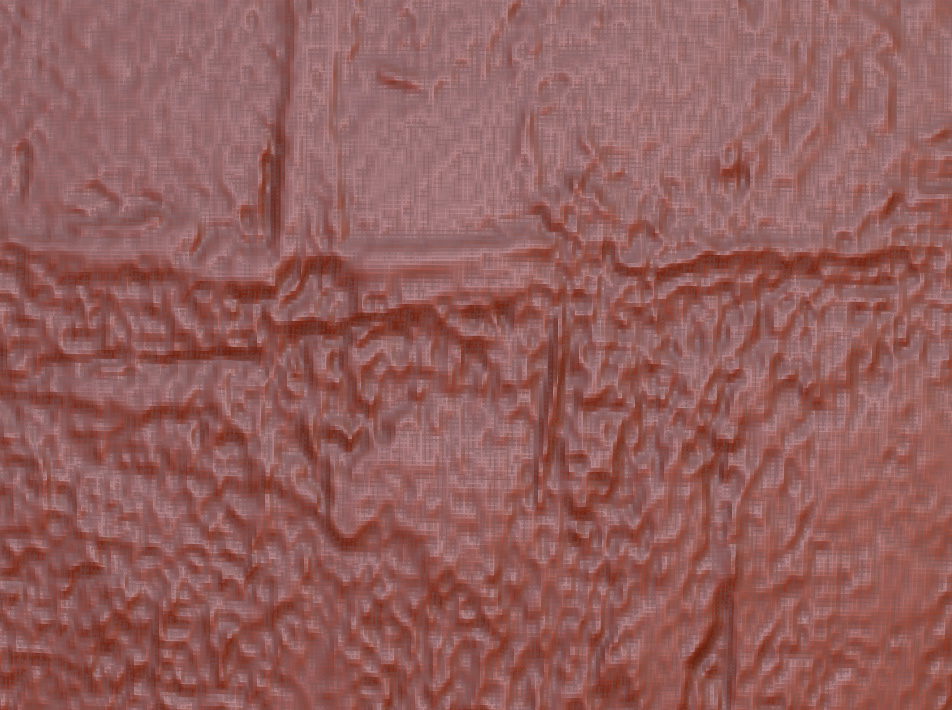
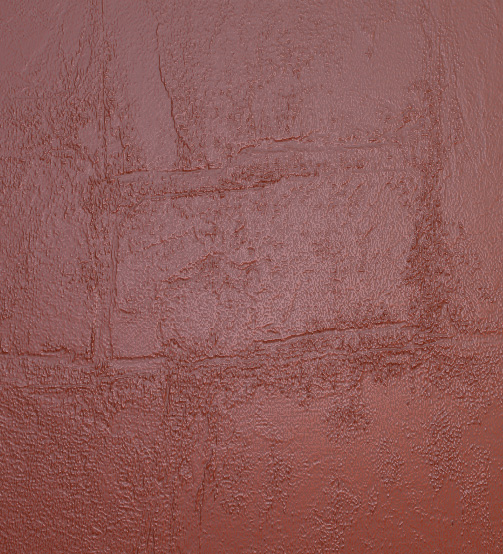
Ive attached two pics as an example. The first is a polygon sphere at 6.7million polys and in PM. The second is post PM and shows a close up of how it doesn’t hold up the detail. It may not be possible to achieve without millions more, i’m not sure. I’m dying to know

Attachments

in-pm.jpg

post-pm.jpg

When dropped in PM, your model is pixols. Since the painting is nice and sharp-looking in PM, that means there’s nothing wrong with the alpha. So the problem is post-pickup. That means that either your model doesn’t have enough polygons (which you posited) or that your QTransThreshold is kicking in. This is a ZBrush feature that temporarily lowers subdivision levels while interacting with a mesh (such as rotating or editing it) so that performance speeds up. When you let go of the mouse, do the details become sharp? If so, then that’s what’s happening. If the details don’t become sharp, then your model doesn’t have enough polys. Which is likely given how fine those details are.

Yeah i know what you mean… kinda like the adaptive degradation toggle in max. No it stays blurry and gets worse when moving. If 7 million polys isn’t enough for a brick then how do people on here get such fine detail? I want to be able to sculpt a really nice detailed wall that is photoreal and without using those alphas or a polycount in excess of what this 8gig 8core machine can handle i don’t know how.

The other problem is that the alpha wasn’t able to give me large bolbous stones…turning up the z-intensity just blew out the noise/blurring out the noise or softening the alpha made it look less real. i guess the only way around that would be to model the stones individually which i didnt originally have time for and was hoping to be able to displace a wall using a photo refrence/color map that had been edited for displacement using the drag-rect brush with the created alpha.

As a workaround i’ve used the color map in CrazyBump to created spec/normal/disp maps and the result is terrible. Nothing like i need. This weekend is my chance to rectify the problem and you’ll be my hero if you shed light on where to go :slight_smile:

i would try a levels or curves command/adjustment layer in photoshop to remove the amount of grey values in your alphas. this might do better than a sharpen command/filter. get the whites as white as possible and the blacks as black as possible with little or no gradient between them. and if after the levels command there is too much noise, use the Reduce Noise filter. you might also try placement of your alphas without PM (try Stencils in ZBrush for precise placement)… there’s a certain amount of conversion/interpoloation as that detail is converted from pixols to actual deformation in PM.

direct references from nature by photograph often have a lot of subtle gradation that can interrupt the hard edges you’re seeing. your eyes see the hard edges, but color correction, etc. from the camera can damage the integrity of those edges.