ZBrushCentral

overlapping brush strokes

Hi,

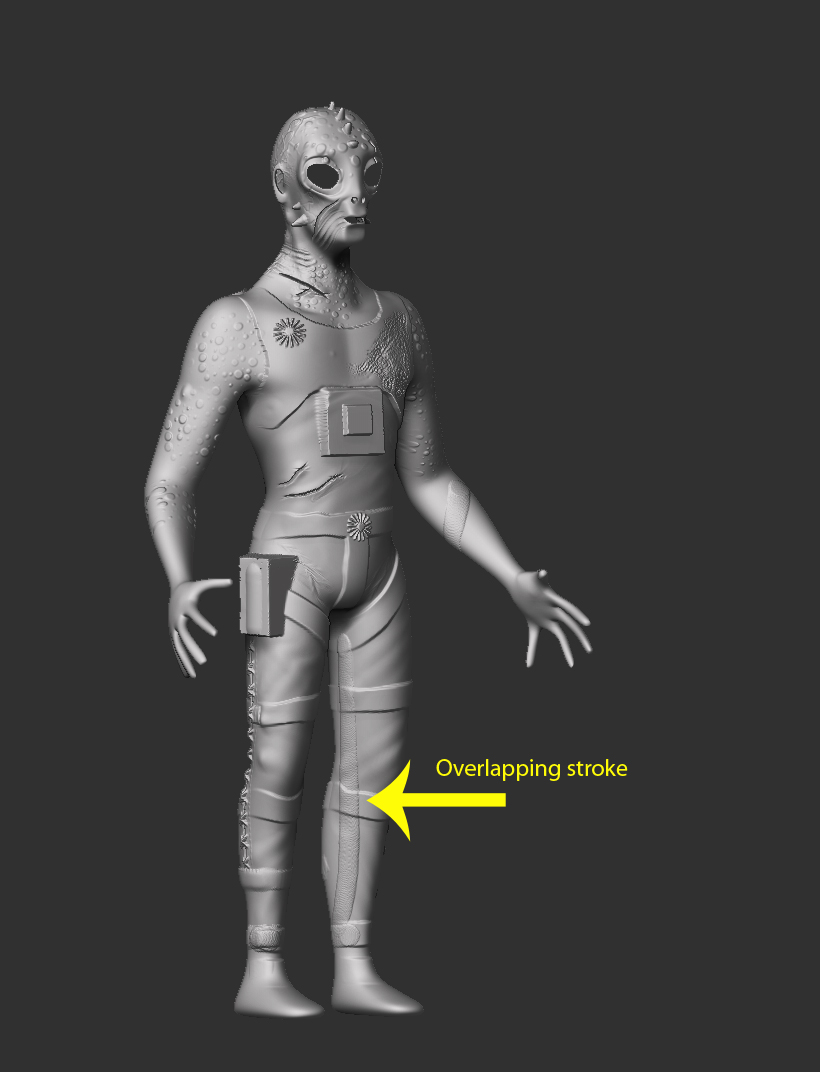
I was wondering if I could draw a stroke on a model in edit mode without overlapping where the line should blend.

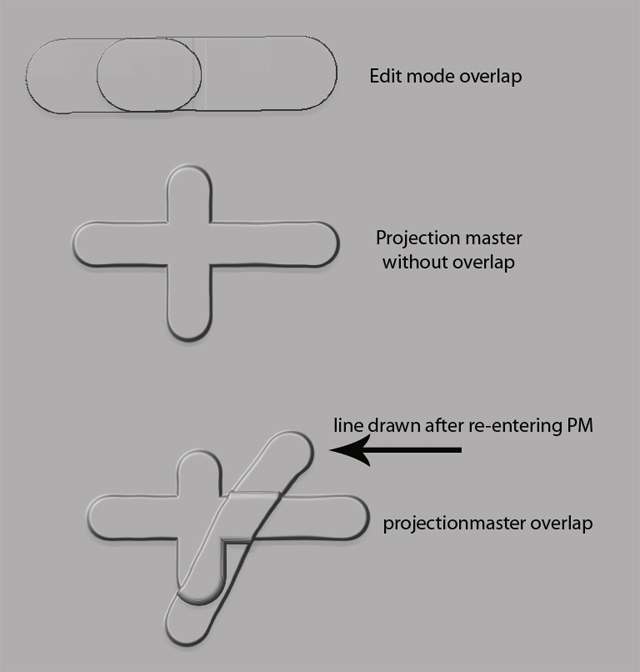
I want to draw some shapes on the leg of a pants(see picture). I draw the first part of the line then I rotate my model and need to repeat the line but it does not blend but overlap.

I know I can use projection master and draw my line with the single layer brush. then when I draw a second line the two blend perfectly together with the same Zdepth(see picture2). but when I exit PM and rotate my model and go into PM again and draw the rest of the line, the lines overlap again even if i click storedepthistory.

how can I create a perfectly blended stroke (around a leg in this case)? It should not be double sided or normalized like in PM.

Attachments
strokesa1.jpg

strokes.jpg

Yes, do this:

  1. Select the Layer brush in the Brush palette.
  2. Store a morph target (press Tool>Morph Target>Store MT).
  3. Sculpt. :slight_smile:

Thank you Marcus. that works fine!

I had to delete the level 1 morph target I stored before. It only works when I store a morph target on the hi resolution level I’m sculpting so I loose my first MT. I think I have to fix that later by re-importing the obj base mesh, retopo and project my hi res sculpting on that one isn’t it?

For now I can have some fun.

thanks again

Marcel

Marcel,

It depends a bit on what you intend for your model but supposing you wanted to render your original base mesh using displacement and texture maps, this is what you’d do:

  1. Go to the lowest subdivision level and store a morph target. (You only need keep the higher level morph target while you are using the Layer brush.)
  2. Import your original base mesh which should have UVs assigned.
  3. Generate displacement/normal maps.
  4. Press Tool>Morph Target>Switch before going to the higher subdivision levels to generate a texture map from polypaint (using Cl>Txr) or continuing sculpting.

You would only need to retopo if you wanted to change the topology of your mesh - for example if you wanted to create a better mesh for animation purposes. So long as the mesh you import has the same number of points and polygons (and same point order), the method above will work fine.