ZBrushCentral

Objects drawing at different size on the canvas even though there the same size?

Ive got 2 character that are scaled so that they can work in the same scene ( Im going to create a posed scene with them)

see my post on how got them to scale correctly

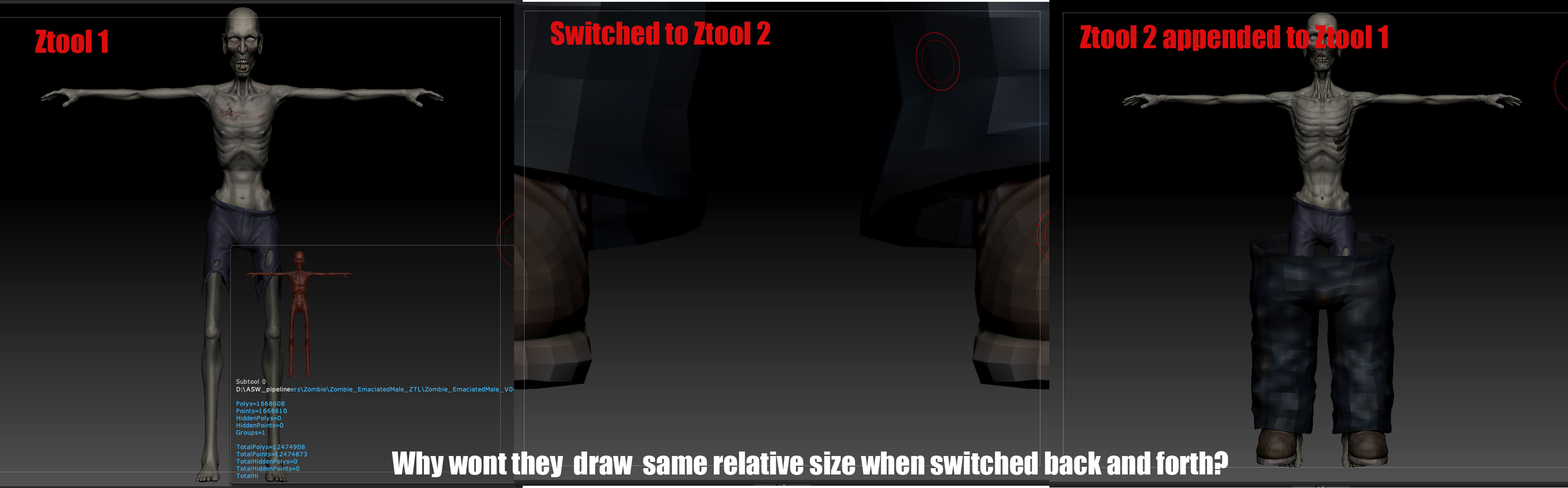
but when I toggle back a forth between them in Zbrush they do not match at all, but when appended to each other are very similar in size

How do I change this so I can toggle between them without having to re-frame them every time ( It doens’t seem like a big deal but this is something I fundamentally dont under stand about Zbrush, that Id really like to figure out) I suspect it has something to do with the draw and the current tool preview (which shows them as tiny instead filling the whole panel)

Thanks for your help in advance.

Attachments
ZbrushObject-DrawIssue.jpg

ToolDraw.jpg

ZbrushObject-DrawIssue.jpg

ZbrushObject-DrawIssue.jpg

Drawing something on the canvas isn’t really changing the scale, rotation or position of the tool itself, just how it is displayed on top of the document. The distance between the vertices will be determined by the obj file, and how you export it (I can’t really speak on Maya’s behalf as I use XSI, but tend to freeze the transforms and export the obj with local coordinates to ensure every piece lines up smoothly).

If you were to keep the models together as subtools first before doing any resizing, there should be no change when switching from one subtool to the other.

Thanks for your response, I understand that drawing an object on the canvas does not effect its scale, I just want top know why 2 roughly equally sized objects when selected out of the tool menu display on the canvas so differently. As you can see from the image below when I toggle back and forth they display as being vastly different in size but when exported to Maya (or XSI) or appended to each other as subtools they match in scale? Weird eh

As my understanding goes:

It goes back to the document not being an actual 3d scene like you would find in a program like Maya; it’s just a canvas made of pixels/pixols.
So panning, zooming and rotating around a tool isn’t the exact same as moving a camera around this object in virtual space (I don’t think there technically is a camera in zbrush, at least not a conventional one), you’re basically just taking the model and changing how it would look if you were to drop it onto the document (treating the model as a tool). It’s a bit of an illusion to get used to, but I think as a result the different tools wont really show their size in relation to anything else. Tools are sort of self-contained like that. But if the vertex data is there to put objects at the correct size when treated as subtools or exported, then it’s all good.

My understanding can be limited though. This thread might explain what’s really happening under the hood: http://www.zbrushcentral.com/showthread.php?168239-Scaling-Issues-(GoZ-Blender-Max-etc-)-Solution-and-explanation&highlight=scale

Awesome, at least there’s an answer, a weird answer, but an answer. Thanks!

It’s based on the scale settings in the Tool->Export section.

You can find a lengthy explanation here: http://www.zbrushcentral.com/showthread.php?168239-Scaling-Issues-(GoZ-Blender-Max-etc-)-Solution-and-explanation

Look at your previews for the two different tools. GHOUL_TEX… etc is showing just his head and shoulders, and zombie is the whole body. The difference looks correct as to how it appears when you toggle between them. What you see is what you get. If you have a subtool in the GHOUL of his whole body, and click unify, that might take care of the size difference when you toggle.

Also use your transpose tool to take measurements. No matter how the model shows up on the screen the transpose will show the correct unit of measurement.