ZBrushCentral

NormalRGBMat create seamless normal maps

So I actually already answered this question for myself but just thought I would post it incase anyone else runs into this issue, (this might have been posted before, but I did a search and couldn’t find an answer.)

I was messing around with the Normal RGB Material with creating normal maps from geometry on my canvas.

I start by filling the canvas with the “Normal RGB Mat” I used the “~” key to get the desired tiling that I wanted with my geometry. But I noticed seams on the edges of the canvas seen here.

And after I did a grab doc and used the “~” again to move the texture, the seams were even more apparent, so it was basically useless as a seamless texture.

The solution to this is just to render in Best mode. That will get rid of the seams. Anyway I hope this thread helps out someone else.
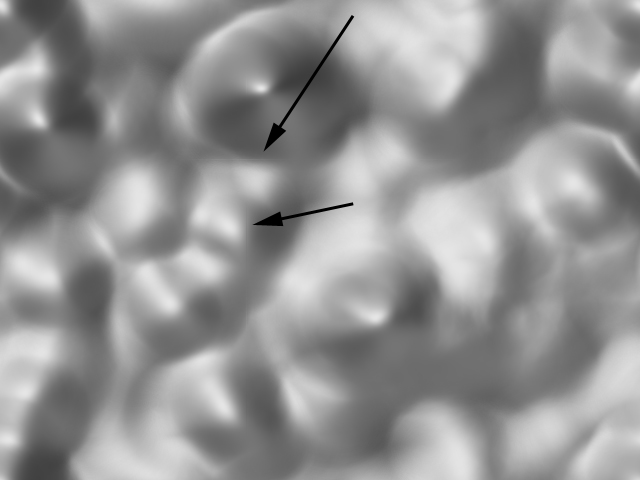
This extra pixel is still a bug. Even though rendering with Best turned on makes the extra pixel less noticable it is still there.

I will try an upload an image to show

this is very discouraging, because I don’t know what the solution is now. the extra pixel horizontal and vertical strip should not be there. I think this is some kind of anti aliasing problem, where the border can’t blend with anything. This demonstrated an inferior capturing problem with the software, and I hope it gets fixed.

Daniel

Attachments

ZGrab01.jpg

That is really hard to notice :Dhave you tried having your canvas being double that of your output size. So that before you export your image you hit the AA half button or ctrl + 0 and see if that gets rid of it. And of course try having shadows or best turned on as well.

And to add to that are you sure that your image was tiling seamlessly before you took a snapshot of it? It could be that the border is in the image.