ZBrushCentral

Normal Map: Using LowRes with different topology than HighRes

Hello!

I am trying to burn normal maps within Zbrush. I created a basemesh in max, sculpted my high res in Zbrush, then returned to my basemesh and changed the topology (in doing so, the total amount of vertexes), with the hope of importing it again into Zbrush to burn the Normal Map. Is this possible?

I took my high resolution mesh, and went to the lowest subdivision, then under tool chose import, and chose my lowres (which has a different topology than the high resolution mesh from Zbrush). I get an error saying:

“Imported Mesh must have the identical number of total points and faces when imported into an active subdiv surface. Switch to the correct subdivision level (or deselect this tool) and try again”

Any ideas? or am I trying something that is not possible? Thanks everyone!
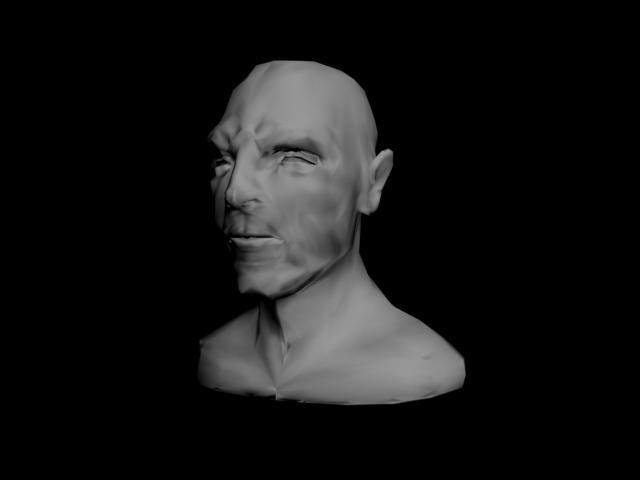
Yep, not possible how you are doing it. Only way is to project the old sculpt onto the new…

you can do it. you just need to work with Zmapper a little bit more. It also can’t support over 500k for a mesh to store it for a bake within Zmapper.

you can project the new mesh onto the old one which was mentioned.

you can also bake your normals in another program as well.

As long as the new mesh is a retopology of the original and so is the same shape you can append the new version to the original as a SubTool. Subdivide it to have as many polys, then use Tool>SubTool>Project All. If there are any problem areas, you can undo the projection and mask those areas to protect them. Then use things like the ZProject brush to handle the tough spots. You can also clean up the projection using all the other sculpting brushes.

When done, go to level 1 of the model and create your normal map.

If the new mesh is a quite different shape it’s still possible. You just won’t be able to use Project All. Things will have to be done through judicious use of the ZProject brush.

Wow! Thank you so much guys!

I now, with some issues managed to export a normal map. Unfortunately I still did have some issues, I was wondering if you might help me troubleshoot what went wrong. Here is a screenshot from 3DS max with the normal map applied to it - as you can see there is some strange blotchiness occurring. This was the exact procedure I went through:

- Load both HighPoly and LowPoly into the Tool Sidebar
  • Below the Tool Sidebar is the Subtool Menu, I loaded the LOWPOLY as the subtool of the highpoly

-Smooth the Lowpoly 7 times so that it has the same number of divisions as the high poly, then return both to their 1st division

-In the Subtool Menu, Click Project All

-With the lowpoly subtool selected, Set the Colour to Black, and In the Texture Sidebar choose Tex>Colr

-In the Normal Map Sidebar, check Smooth UVs, Tangent Space, and Adaptive. Burn Normals.

-In the Texture Menu (top of screen) Select Export to export the Texture to a PSD file.

*** note *** The resulting normal map was very faint, so I layered it 4 times on top of itself with Soft light on to accent the changes. Without this you could hardly see any change whatsoever in the 3DS max render.

Attachments

zbrush normal map issue 01.jpg

I played around a bit with which mesh was selected when, but I am still getting weird results… any ideas?

Just a quick hint. Im not sure how much work you have done with the zmapper or texturing inside zbrush… but one important factor, which you easily can miss out if you don’t know, is that you have to flip your finished texture vertically (Texture>Flip V) before exporting, otherwise 3dsmax will give you messy results.

Thanks Vindicate! - but That’s not it either. I flipped the map to match up with the UVs.

Ok I solved some of the issues :D. There were three problems:

  1. In order to import a normal map into max, it seems you have to flip the map vertically and inverse the green channel of the normal map for it to read it properly.

  2. I did not understand what project all did, so misunderstood what I was actually doing. Project all projects all of the information from other subtools onto the selected one. So I divided the lowpoly mesh 7 times to match the high res model, and then used project all - which creates a highpoly version of your lowpoly with all of the details taken from your other mesh. This also caused the third problem:

3)When you project all, it physically changes the lowpoly mesh in addition to the highest subdivision level. So you then have two choices
a)burn the normals with this changed lowpoly mesh, and export it to use as your lowpoly

b)at the lowest subdivision level, import your original lowpoly under the division sidemenu, then burn normals. This will create normals for your original lowpoly.

I hope that this info can help other people if they run into a similar problem. :smiley: Thank you so much everyone for your help!!