ZBrushCentral

Need to edit mesh in an outside app...

I am having a problem with some of the topology on my model… heres a pic
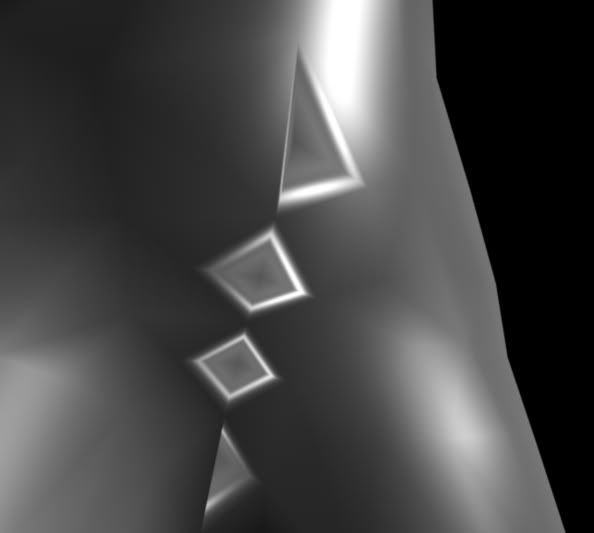
It seems those polygons are causing me problems. The map renders are coming out very badly due to it, and if I am rendering them in any applications they are rendering as if they are reversed - but they are not. Tried flipping them and they actually are the right way out.

So I thought this may have been an issue due to Triangles, but it turns out they are not triangles either. From mirroring my geometry, it formed some triangle-shaped quads. It may not be easy to tell, but basically there is one triangle-shaped quad on the left, and one on the right. Seems the funky shape is causing problems.

So I know an easy fix would be to simply get rid of the line in the middle as they could easily form a single quad.

Problem is, I need to know how I could fix it in another application and get it imported back in to ZBrush without losing my higher subdivision levels? :confused:

maybe you should post a mesh screenshot

without a mesh shot its near impossible to tell. perhaps the vertices right there are not joined?

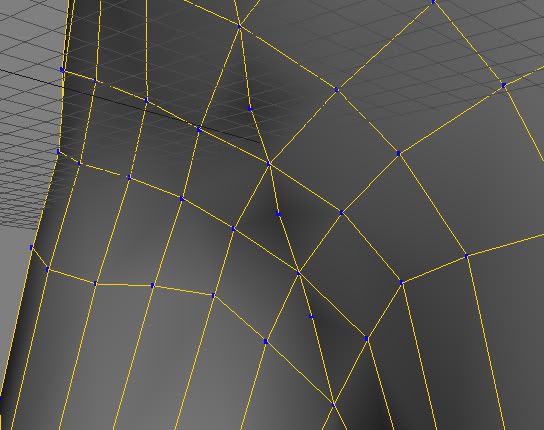
Here is a mesh shot of the issue

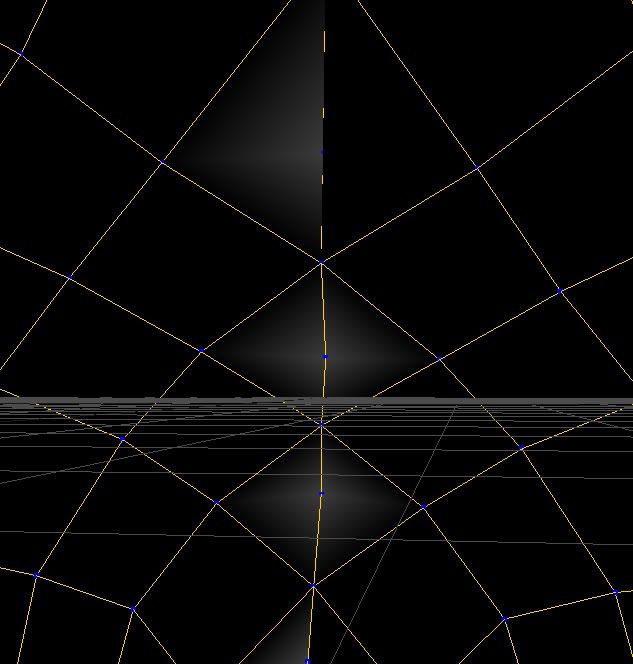
Strange thing is I took a shot from the “inside” of the mesh, and it also seems to be doing the same thing on the inside… heres a shot

If I could edit the mesh and still keep my detail levels, I would just connect both triangles as a single quad. But the only way I know how to change low-res mesh’s in an existing ZBrush project dont work if you change the topology…

Any suggestions?

those loose vertices in there are definitely WRONG!
snap and weld them to the outer ones, making quads in there

But that model was the subdivision level 1 exported from my ZTool.

If I export, and weld the verts, how do I import it back in to ZBrush without losing my higher subdiv levels?

I know how to change UV’s or Textures, but from what I’ve read, the same method does not work if you edit the meshes topology. How would I do it in this scenario?

since you are changing the topology of your model you will looese all work

If you keep the uvs unchanged you could render a dipslacement map and apply this to your new mesh…

You could also append the new version of the model to the original as a new SubTool. Subdivide to match the polygon count. Then use Tool>SubTool>Project All to transfer the details from the original.

With Draw>Zadd on, sculpted details will be copied.
With Draw>Rgb on, any polypaint will also copy.

Worked awesome.

Thanks! :smiley: