ZBrushCentral

Need HELP fixing a work *stuck!!*

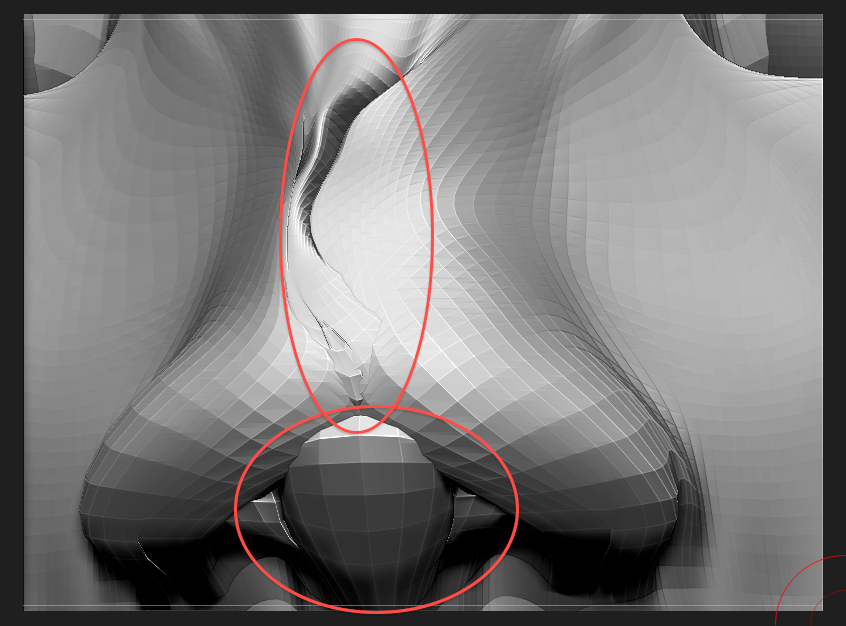
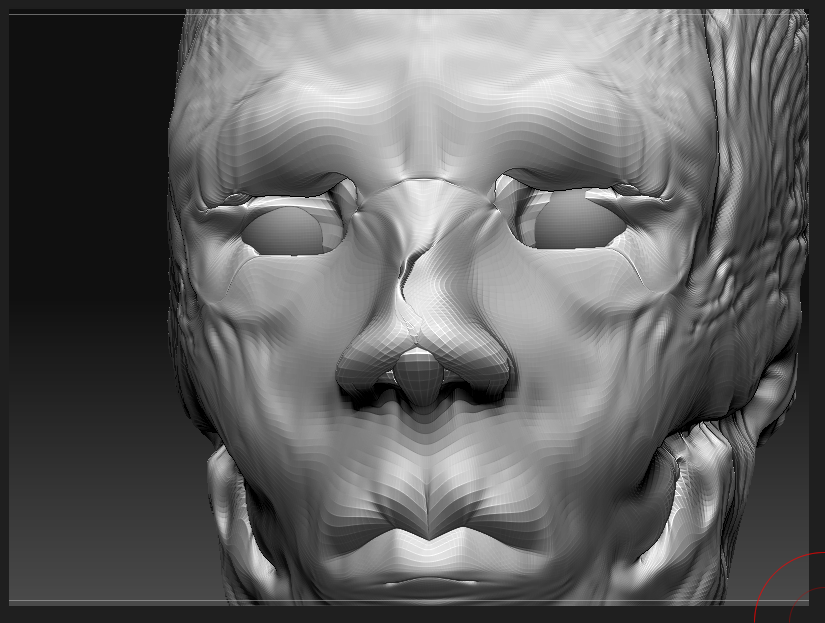
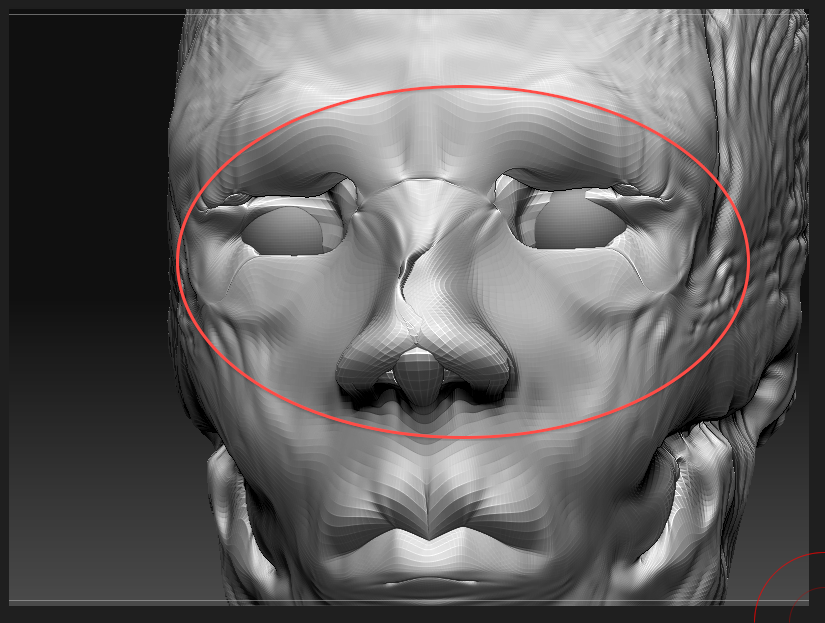
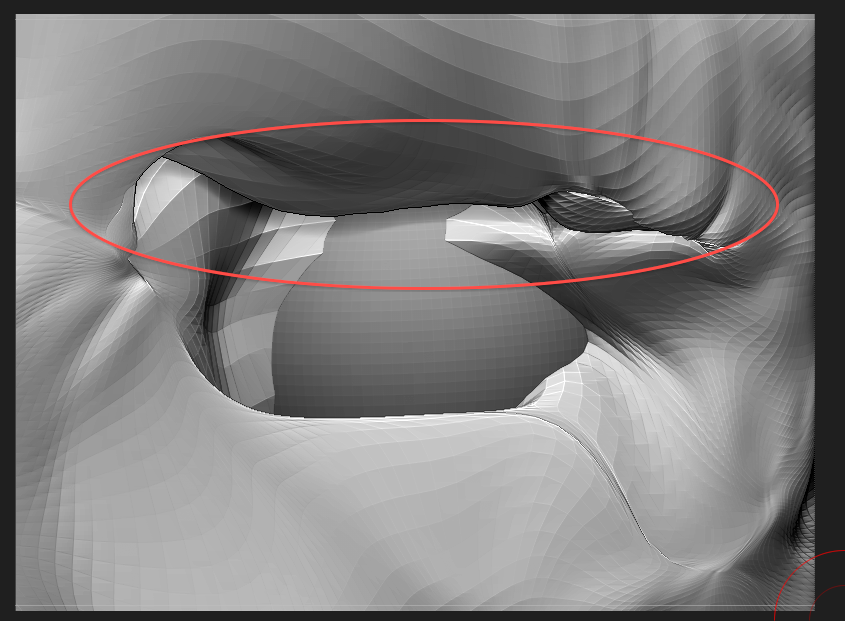
Hi I’m in the current process of sculpting a human head. However I stumbled on a spot where you see the eyes and nose, there are lines which I think are layers that were made overlapping each other and accidentally squeezed together. I want to smooth it out or try to get rid of those extra layers and lines. Anyone have any idea how to fix this? Oh and the nose is on the x symmetry.
[attach=199654]face.jpg[/attach] [attach=199655]face2.jpg[/attach]
[attach=199652]eye.jpg[/attach] [attach=199653]nose.jpg[/attach]

Attachments
eye.png

nose.png

face.png

face2.png

hi, :wink:

the very best n easy way is Morph target. so if you had stored ur morph target in early stage then u can fix this by jst click over Switch Button under Morph Target… :slight_smile:

Hey sculptor.zb

I’m kind of newb at this, how would I use morph brush at the moment?

Sorry I mean Morph target, not morph brush… or maybe both?

my friend,is it in the lowest subdivision level.I dont know exactly what happened to your mesh.Try to add a zsphere subtool,and select it.In the rigging menu i think.select the topology.you can see the topology lines ther if it is ok.press A or make 3d.
or take your mesh and mask the good half of face(for nose) and under deformation click symmetry.
hopes this helps you

I think I might have fixed it, I just pulled out the valley in the nose, pulled it all the way out with inflat and move and just smoothed the heck out of it. Haha, it was difficult before. Thanks any more helpful hints would be appreciated!

here is the link i hope it’ll help you.

http://www.pixologic.com/docs/index.php/Tool:Morph_Target_Subpalette

:slight_smile:

or use mohamed raoof Method…

or upload your this mesh…i’ll fix this… :slight_smile: :+1: