ZBrushCentral

model sizing and brush resolution question

Hello,

I’ve been working on a model, and fighting something that’s been bothering me about working in ZBrush for quite some time now. I’ve finally decided to ask, and see if anybody has a solution. (and no, I don’t ask for directions when lost, either)

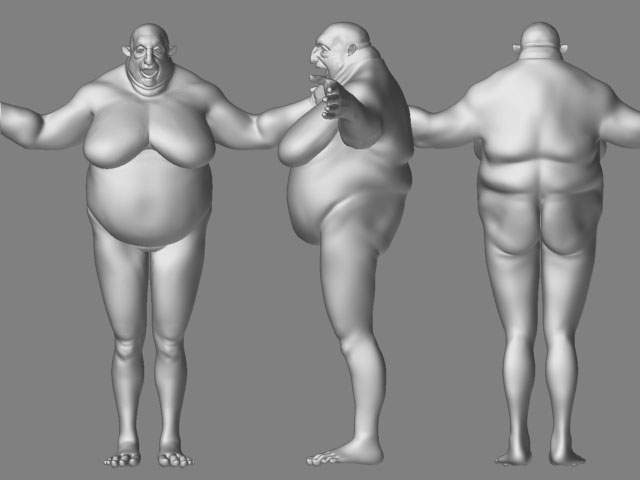
This is the model in question:
gwip1.jpg

Does anyone know how I can get past these limitations?

Attachments

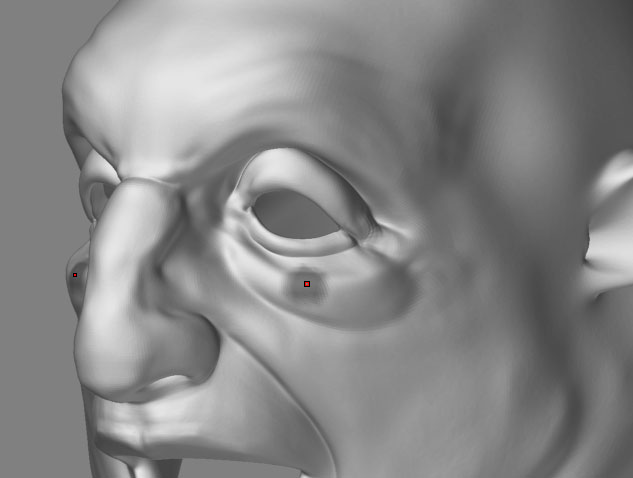
gwip2.jpg

“(and no, I don’t ask for directions when lost, either)”
Ah, that’s why you post in the wrong forum as well :wink:

Go to Tool -> Deformation -> Unify.

Sounds as you have an oddly scaled model there. I can zoom/scale till the model falls out of the screen.

Lemo

VeryGrimm,

I suspect your enlarging your model as a whole tool. Have you tried selecting certain areas only such as the head and then enlarged it so you can get image larger. Even selecting just the eyes/nose area your working on then enlarging that would get you to zoom in and work smaller as well as being easier on your pc to handle. I’m sure you know how but will mention it just in case, simply hold ctrl and shift buttons as you hold the left mouse button and select the area you want with a green like highlight square. If you let go of the left mouse button then the box highlighted area will turn red and will deselect that area. Least that is for a pc not sure about a mac. Anyways hopes this helps and keep working hard!!:+1:

I was hoping that since I was posting pics of a wip, it’d be ok to ask here.

I did unify the model, and the closeup view I posted does actually have the body hidden. Unifying with just the head displayed only resizes the head and the model is badly distorted when unhidden.

I’ll attach a div2 version of the model (so the file isn’t too large). The free download “super average man” is the base mesh. I’m realy hoping someone has a solution for this. It’s a big limitation. Any help is greatly appreciated.

There are a couple factors involved.

Regarding not being able to scale the model larger: The ZBrush canvas is not an infinite space. It’s big, but in order to maintain real-time rendering it has limits. You won’t be able to scale the model larger than that space allows. If you hit the walls and still need to scale it larger, the only option is to split the model up into smaller parts. These parts will then be able to each scale larger before hitting the walls.

Regarding the brush size: Use Tool>Deformation>Size 100 to double the size of the model. This shrinks the brush relative to the model. You can later use Size -50 to halve the model and return it to its original size. Do this once for each time you’d previously doubled it. This is only necessary if you’re working with a multi-resolution model, and needs to be done before you change to another subdivision level. Otherwise, the size adjustment at one level will also affect all the others – creating big problems if you later want to create a displacement map.

Aurick, thank you very much for your reply. Based on your input, I was able to find a solution without having to break up the model. All this is probably not an issue anymore with ZB3, but just in case:

I created a polygroup of the item I needed to size large enough to be able to do detail work on. I hid the rest of the model, and set the center pivot point on that portion. Then, using tool->deformations->size, I increased the size of the section that I wanted to get close to, and decreased the size of the rest of the model. Setting the pivot point causes the portion that you’re reducing in size to size towards the center of the section you want to edit.

The net effect is that the part you don’t want to edit is shrunk and moved to the center of the part that you do want to edit, and you can zoom in closer because the shrunk part isn’t hitting the border when you zoom.

EDIT: Uhoh. I’ve just noticed that the reduction/reenlargement of the part you don’t want to edit has a strange pixelating effect on the surface of the model. :cry: