ZBrushCentral

Missing info for Pixo video

I watched this video on using an image references but the instructor Geert Melis doesn’t tell us how to get that box in the first place, also im not sure how he got images into lightbox which he has done. I can only import from the texture menus at top and left side. What am I missing.

This is the video
http://www.youtube.com/watch?v=Z3I7Epmbd0Q&feature=related

There are two ways to draw the shadowbox onto your workspace:

  1. Find a copy in the Lightbox projects folder and load it as a projecdt - or
  2. draw out any primitive and press the “make polymesh 3d” button which will activate the shadowbox button in the Subtools palette. Clear the shadowbox removing the shadowbox mask by holding down both the control key and your lmb and dragging on an empty part of the workspace.

To place images in the Lightbox place them in the Ztextures Folder(on a pc thats Programs>Pixelogic>Zbrush 4.0>Ztextures). You can also import them thru the texture palette and click on the Add to Spotlight button on the lower left of that palette bypassing Lightbox altogether.

Am i supposed to use the shadow with the grid tiling on it cause I haven’t seen a plain white shadow box, not from the tools menu or from lightbox.
EDIT nvm i figured it out

My other problem is now trying to get the images onto the shadow box. I have the standard brush on and mrgb, zadd and zsub are all off and just rgb is on. I click and drag over and image and get nothing when I morph UV.
grrrrr :mad: what is going on.

Using the shadowbox with the grid applied as a texture should be fine. It’s the masking that matters. But if you don’t like the texture just go into the texture sub palette of the tools pallette on the right of your workspace and remove the texture from the mesh to get a blank shadowbox.

To get your pictures into lightbox you need to place them in the correct folder for Lightbox. That folder is called Ztextures and it is at the top hierachy of the Zbrush file structure. If you make note of the names of some of the textures that are there by default and check for the same names in the folder you are looking for, you will know you have the right one.

You do not have to put them in this folder however. If you import the texture(s) right in the texture palette on the left side of the workspace and click the lower left button “add to spotlight” you will load it into spotlight.

Morph Flatten your shadow box via the Morph feature in the UV sub pallette and with subz off and rgb on, click z to hide the spotlight widget and paint the image down on the flattened box with the standard brush. There is no clicking and dragging at this point. The image is only a reference.

Once you have transferred/painted the image on to the flattened shadow box you can use the mask tools, clicking and dragging around the reference picture to build up your form.

I understand your frustration. If you are a beginner to 3d modeling or just a beginner to Zbrush the sheer number of steps you have to go thru to do a single task can be daunting, but on a positive note, the program is so feature-rich, it’s usually worth it!

Just another thought here. The grid you may be seeing could be a result of the “show polygrid” being turned on. That will not get in the way of your masking and creating with shadowbox, but if you don’t want to see it, be sure to turn off the “PolyF” button which is under the rotate button on the tool vertical tool strip to the right of the work space

Originally posted by Xaero:

My other problem is now trying to get the images onto the shadow box. I have the standard brush on and mrgb, zadd and zsub are all off and just rgb is on. I click and drag over and image and get nothing when I morph UV.
grrrrr :mad: what is going on
re: Pixologic video “Using Reference Images in Shadowbox”

  1. Unfold the Shadowbox using ‘Morph UV’ button.
  2. Import the images you want to use and add them to Spotlight.
  3. Once you have your images all lined up using Spotlight, hit Z key to turn off Spotlight ring.
  4. Turn off Zadd or Zsub and turn on Rgb button.
  5. Select the Standard brush and use the DragRect stroke.
  6. Starting from the center of each image, click and drag on each image to transfer it to the Shadowbox.
  7. Hit Shift+Z keys to turn off Spotlight.
  8. Click on ‘Morph UV’ again to fold up Shadowbox.

@Nancyan…I know you stated basically the same thing. I am just reiterating the workflow used in the video to clarify the proceedure in a different (simplified) step by step format. :slight_smile:

Before I begin I just wana say thanks to Nancyan and Zber2 for all our patience and input.

Ok I figured out why I could not get the image onto the shadow box. It was because I was picking from the TOOL pallet a Cube3D. When I was picking this I would activate Edit then PolyMesh3D then ShowBox in subtools. By picking Cube3D I was only make a shadowbox around a cube. So by the time I got to clicking and dragging over the image it didnt do anything. It seems I can only use a Plane3D from tool pallet or a Plane.ZPR. in Spotlight.

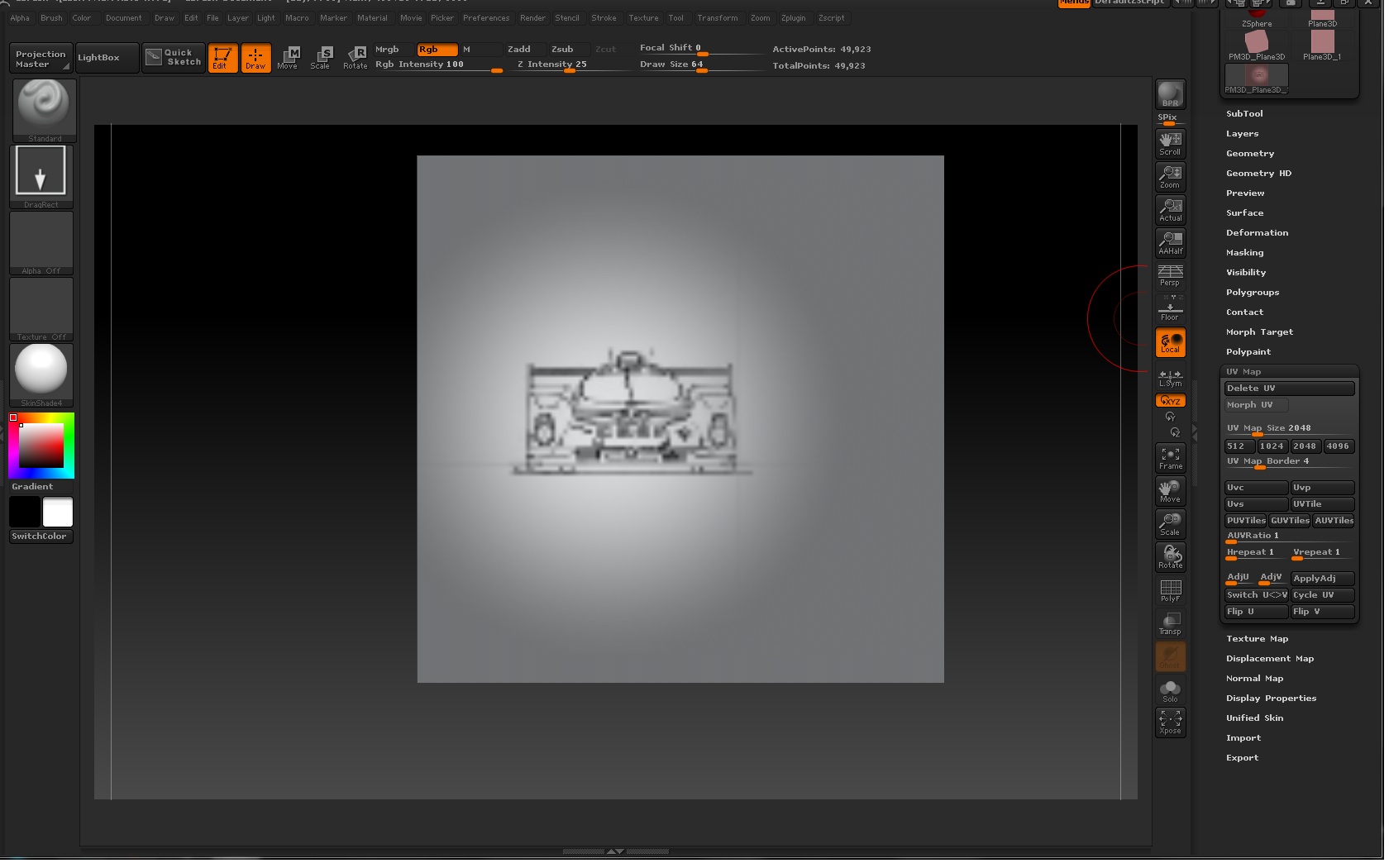
Now that the image has been transferred I have another problem. I went and used Plane.ZPR from spotlight to make the shadowbox but when the image was transferred it turned all blurry. What would cause this, here’s an image.

Attachments

image.jpg

Originally posted by Xaero:

Now that the image has been transferred I have another problem. I went and used Plane.ZPR from spotlight to make the shadowbox but when the image was transferred it turned all blurry. What would cause this, here’s an image
Try using the higher resolution 512 ShadowBox in LightBox.

  1. Click on ‘LightBox’ button to open it.
  2. Click on the ‘Tool’ catagory in Lightbox then find ‘ShadowBox512.ZTL’. Double click on it, draw it on the canvas and turn on ‘Edit’ button.
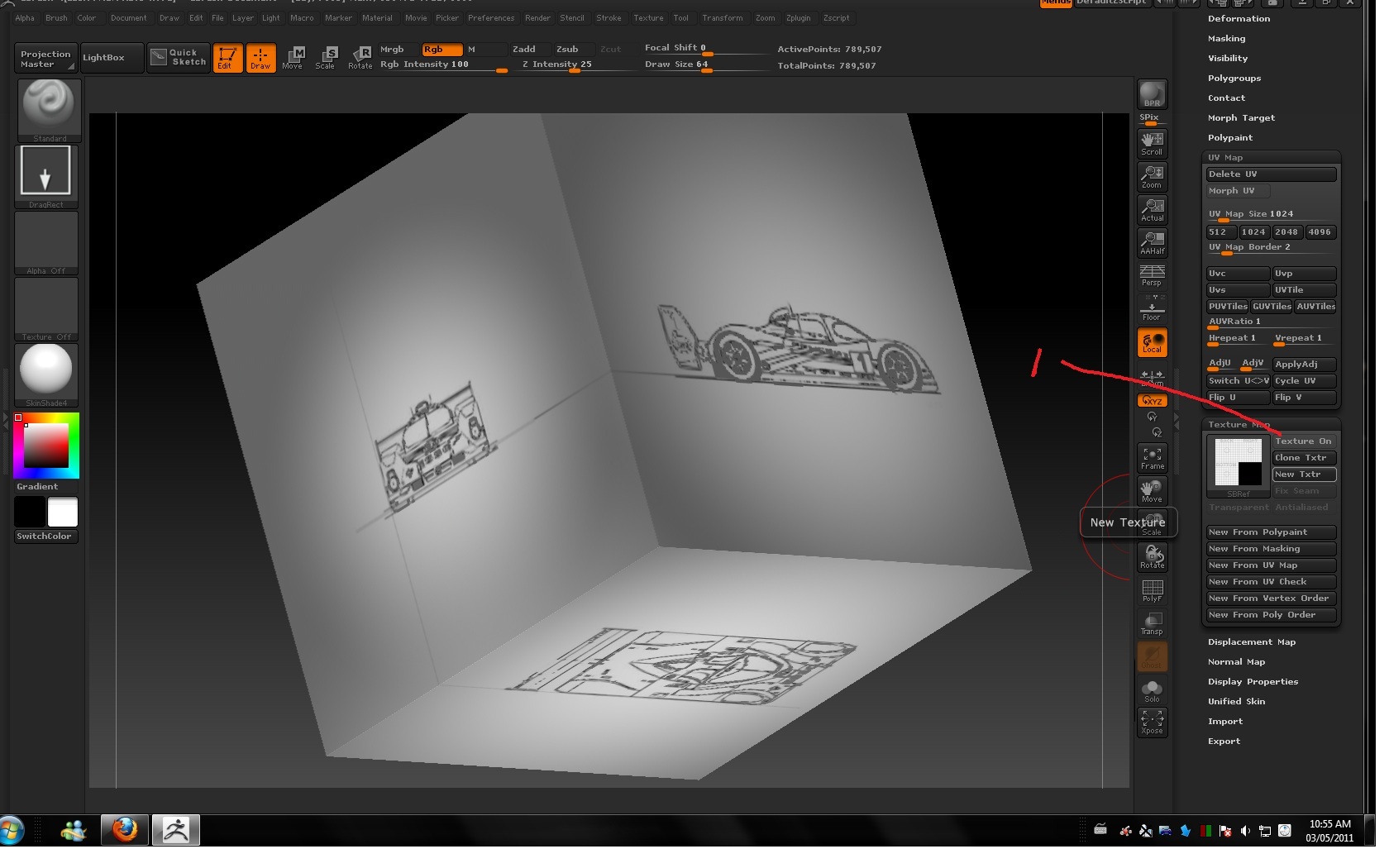
  3. This ShadowBox already has a texture applied to it (grid). If you don’t want that texture on there then go to ‘Tool’ menu > ‘Texture Map’ submenu, click on Texture Map icon and select ‘Texture Off’ icon from the texture palette. This will clear the texture.
  4. Change the material of the ShadowBox to a white one if you want.
  5. You can now transfer your textures using the method that I outlined in Post #6.

Edit: That being said…You have to remember that using a higher resolution ShadowBox will clear up the texture that you apply to it, but it will also create a higher resolution tool, and the combination, in turn, will be more taxing on your computer. ShadowBox is only intended to be used as a “base mesh” tool and not something for creating fine, intricately detailed tools with. You can get detail from it, but at a price on system resources.

You wrote: “It seems I can only use a Plane3D from tool pallet or a Plane.ZPR. in Spotlight.”

That is incorrect. You can use any tool from the tool palette to create a shadowbox. You have to hold down Ctrl while clicking and dragging in an empty part of the workspace (NOT ON THE TOOL) to release the mask. That removes the tool and leaves you with an empty shadow box.

Thanks zber2 for chiming in here :).

Aaaahh I see now Nancyan, thank you for clearing that for me.:slight_smile:

Zber2, about removing the texture I think i got that correct in line 1 of jpg but about changing the material I wasnt sure about that. I tried changing it in the Materials pallet but the shadowbox just remained grey. Anyway heres my result of what image I was trying to transfer. So about the shadowbox having a higher resolution, would that be having more polygons or simply having more pixels like you would have in photoshop or gimp. Oh and how do I save this lol, Im such a nutjob I go straight into shadowbox tutorials with knowing how to save.:D About my system resources I think there ok but I could be wrong though. Quad core, 8 gigs ram and AMD(aka ATI) 6970.

Attachments

Untitled2.jpg

Well this turned out to be an epic fail. For a simple car body shape it just wasn’t working. Outlining the right side of the car then working on the front outlining the canopy created conflicts unlike the video by Geert lol. Ive been at it all night and early morning lol need sleep.:eek: