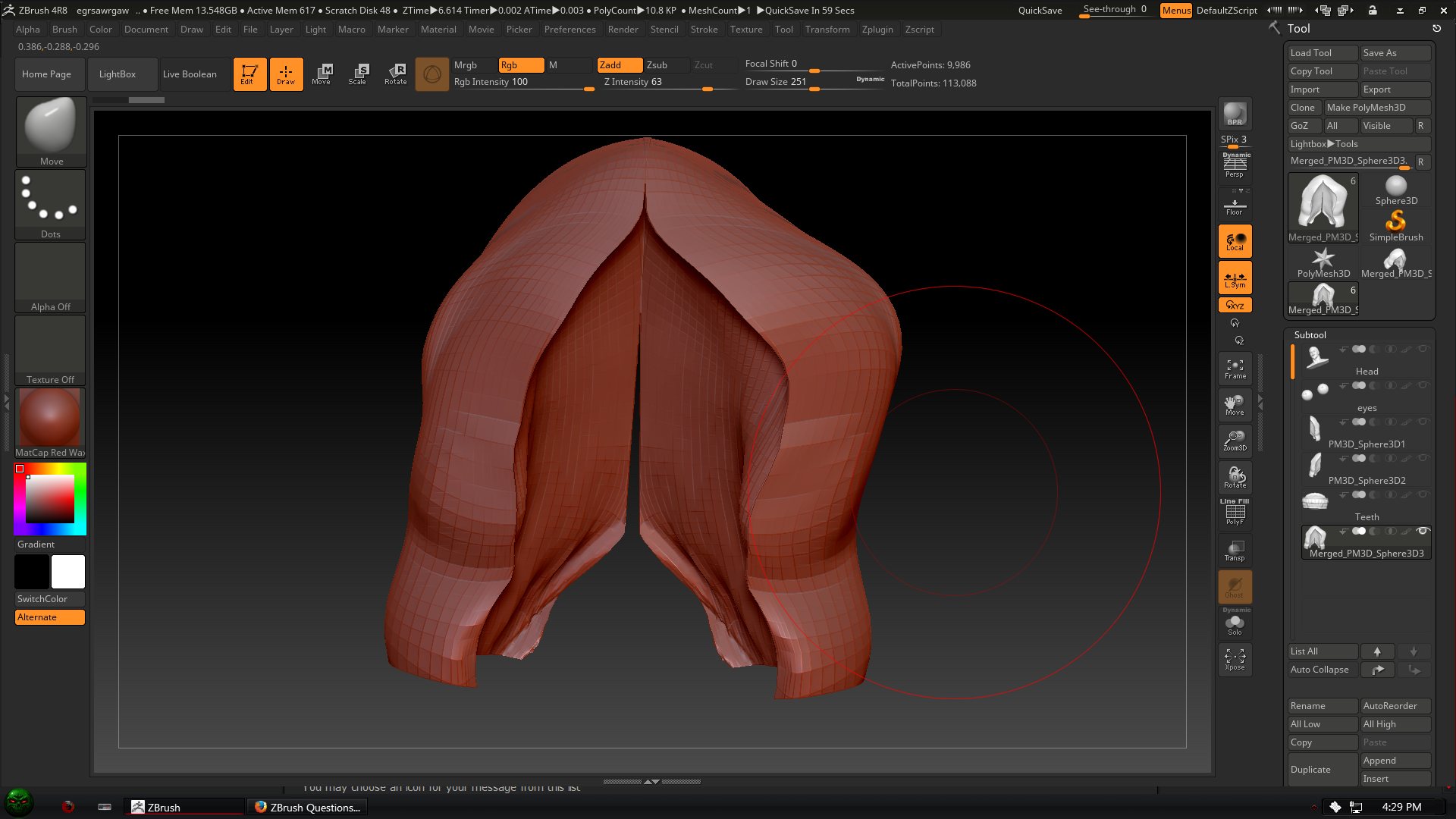
Hi again. If you’re working off one of the default sphere subtools symmetry should be fine from the start. I always start new projects from DynaWax128.zpr Symmetry should be on by default on this project, and if it’s on it should be obvious when you start sculpting. I know I mentioned this in your other post by x activates symmetry, you can also find the button in the transform menu>activate symmetry. I don’t mean to be patronizing, but this is as basic as you can get for a project, so see if symmetry works there and if not then something weird is happening.
You never really need to activate L.Sym unless you have something off center, which doesn’t happen all that often when you’re sculpting/modeling, unless you’re actually trying to work in asymmetry. So you might be over-complicating things trying to work out the problem. Remember too, you can hold ctrl while hovering over a button in zbrush with your mouse and it should bring up the info/tip box for that button.
-If I had your hair in my scene and I wanted to return it to symmetry I’d use mirror and weld (geometry>modify topology>mirror and weld)
-That will take one half of your model and paste it over the other half, returning it to perfect symmetry.
-At the top of the deformation menu there is another mirror button, which will just flip the model, so you can use this before mirror and weld to chose which side of the model you want keep and paste over the other.
If your subtool is at the center point or near it, this should work for stuff like your hair sculpt. To see the center point for the project turn on the floor grid (sift+p), or append (tool>subtool>append) one of the default objects, like Sphere3d into your tool - that should come in at center.