Ello im trying to import an ma file into zbrush and that fine its just that the uv’s that i have so lovenly made are not the same as they were i now this because when i add me uv snapshot from maya and flip it it does not matchup in anyway shape or form. does not matter if i flip it any and all ways.
I know that with the new uv master it would take a min or 2 to re-do but ive got scens with hundreds of seperate obj’s that all have the uv’s lovenly pre-done.
so er HELP PLEASE.
can you show the steps you’re taking? What do the UV shells look line in Maya as well as what they look like in Zbrush?
Ok so the first pic is the object in maya one with the uv map applied and one with just the geometry showing.
The second is what zbrush displays when i import the ma file and used the uv map as a texture.
and the third is the uv map it self.
A slight update resaved it tried again same thing so i tried reloading it into maya to see if it was maya doing this but it was fine when i reloaded it.
I have no idear how to view uv’s in zbrush as i am still learning the basics.
but my steps are …
- select the object to be exported
- go to export and export it as an ma file
- in zbrush go to export and select the ma file ( sometime this comes up with a warning ( the topology has changed. press yes to transfer high-resolution details to the modified mesh. press NO to delete high resolution details) ive tried both and they dont make a difrence.
NOTE When importing straight away after loading zbrush the imported mesh is given the name polysphere_1 dont know if this has anything to do with anything. - load up the uv map that was produced in maya and assign it to the model sometime it does it and other times nothing happens (the pics bellow were done this way and i tried again a little while after and there was no uv’s what so ever im very confused now
Attachments
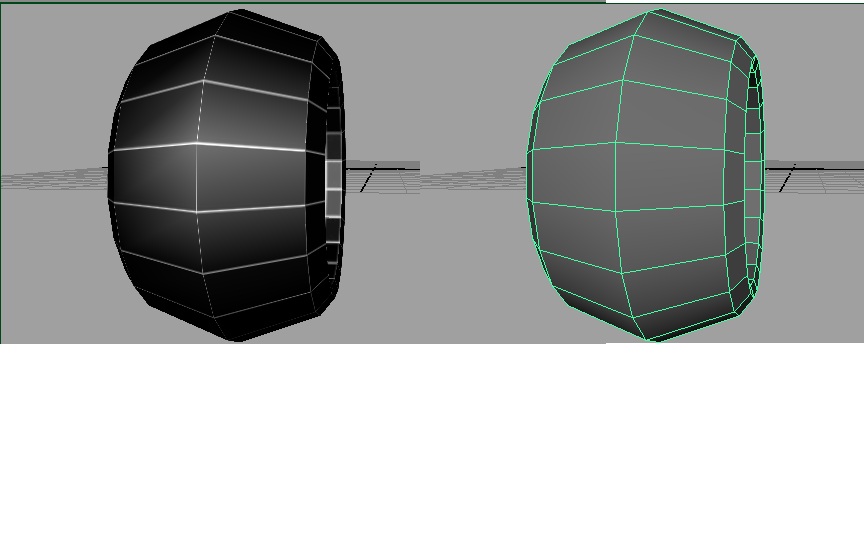
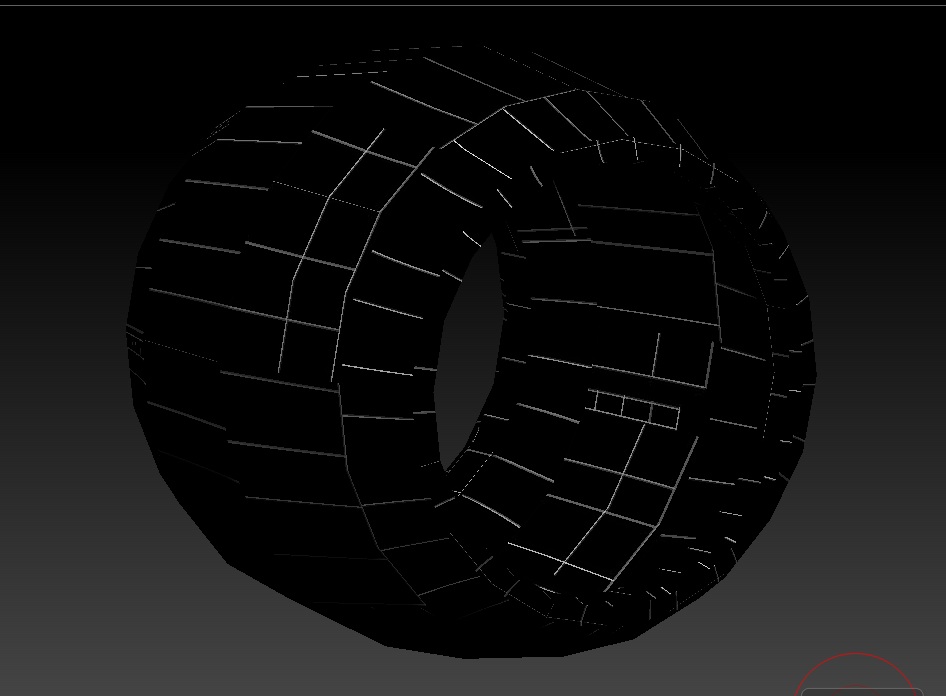
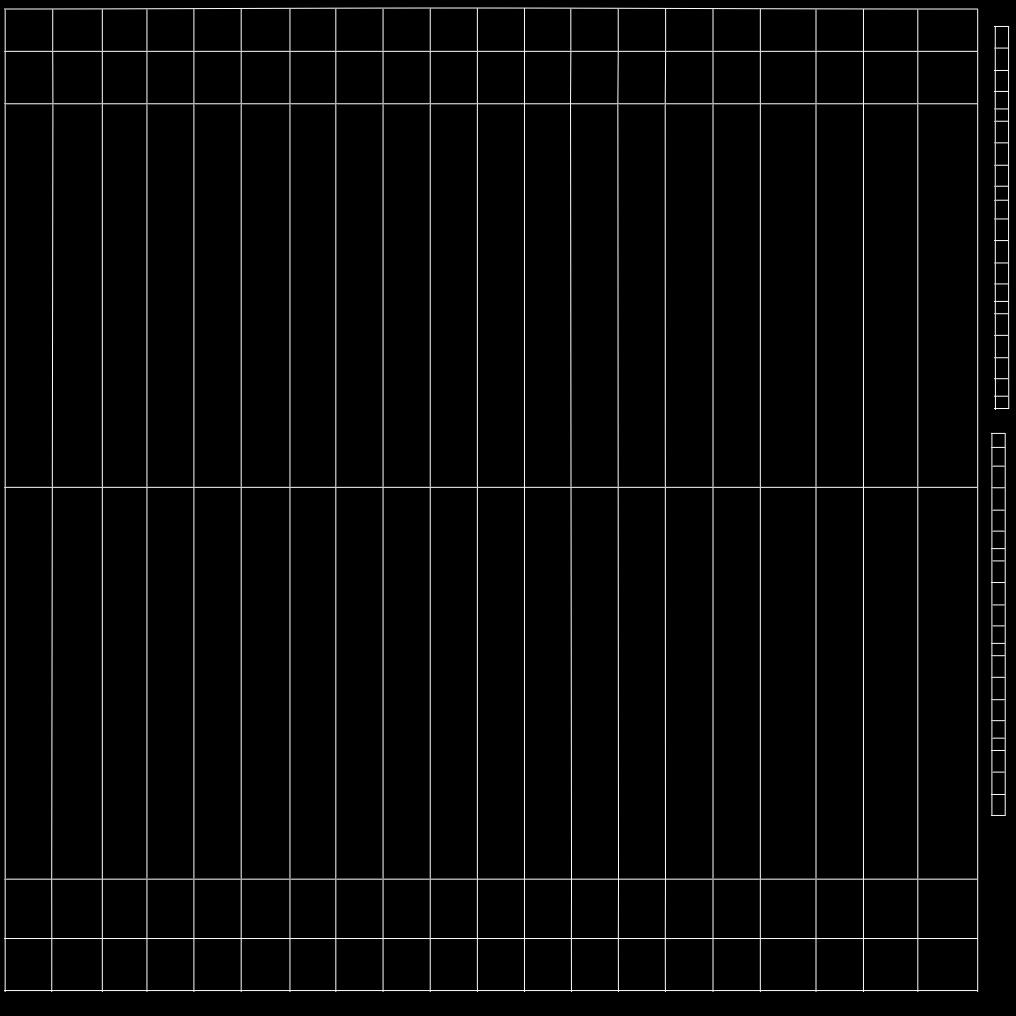
export out the object from maya.
then import it again.
check the UV’s.
what are your export options from Maya?
export option ahve been left to default apart from selecting maya ma file
things that are ticked are: preserve reference, include these inputs, history ( i allways delete history before trying anything. channels, expressions, constraints, include texture info.
What versions of Maya and Zbrush are you using? You only need to flip the texture map in V from maya to Zbrush for it to line up, but I’m having trouble reproducing your issue with any of my models through .ma with different combinations of options turned on and off, always lines up fine. I’m using Maya 2009 and Zbrush 3.5R3, though. When you re-import the .ma into maya are the UVs preserved correctly? Have you tried exporting as an Obj instead?
If you’d like to upload the file for me to take a look at we can see if it’s just a matter of program versions that’s causing the issue and not the files themselves.
It’s pretty frustrating when things don’t work the way you intend 
Regards,
Venthe
i am using maya 2010 and zbrush 3.5 r3.
yes when i reimport the file back to maya its fine no problems what so ever.
The uv map does not want to match up no matter what way the texture file is.
ok so ive just had a play with the export settings on maya and i turned of the include these imputs and its fine (im an idiot should have looked there in the first place thats what happens when you stay up all night playing with 3d apps lmao)
all i need to do now is work out how to get it to re-import back to maya in the right place and scale lol all fun.
so thank you very much goast666 and Venth you have both been very helpfull.
weird, the forum was lagging like hell and wouldn’t let me post my reply to your edit, but a few hours later my first reply finally appears lol…
Anyway, glad you got it resolved, I had tried that export with those settings checked and from 2009 it actually doesn’t even import into zbrush at all, so I figured that wasn’t your issue lol.
I hope everything is smooth sailing from here on out 
Regards,
Venthe