ZBrushCentral

Learning topology

I’m trying to learn how to do retopology:

  • I load the SuperAverageMan example mesh
  • I choose Zsphere tool
  • In ‘Rigging’, I choose the SuperAverageMan mesh
  • In ‘Topology’, I choose the same mesh
  • I click ‘Edit Topology’, the existing yellow lines appear
  • I click ‘Preview’ in ‘Adaptive Skin’

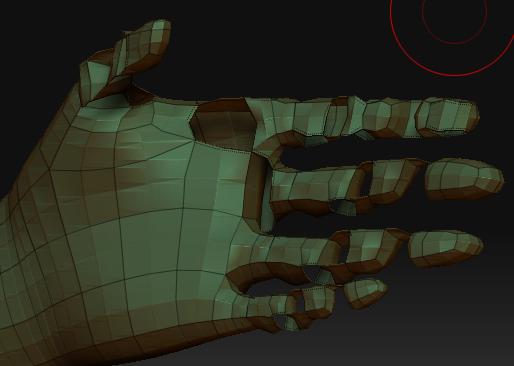
In the preview, most of the mesh looks ok, but the fingers and toes are all screwed up. It seems like many of the quads are not connecting to the right vertexes. What did I do wrong?

not sure if this is your problem but i do know that zbrush retopology tools dont work well with four sided things…such as the fingers…see if its possible to run a 5th loop on 4 sided things…that should clean it up.

good luck!

you don’t need to do all that work to see the topology on the model.

open up the tool. go to the lowest subD

then turn on polyframe (shift F). That will show you the geo.

I don’t just want to see the mesh. I want to change it, like removing vertices in some places and adding in other areas. I just did the simple test to make sure the problem is not caused by my incorrect data entries.

I’ve tried everything I can think of to fix the fingers. I made the fingers fatter. I added more polygons (manually subdivide) to the fingers before the adaptive skin, I changed all the parameters, such as ‘max strip length’, all to no avail.

As far as I can tell, the steps I followed are as close to the “Birth” tutorial, where the retopology started with the fingers. As it is I can’t even get through this first step. The fingers I got looked like the attached image.

Attachments

hand.JPG

it looks like the problem is you are trying to use a base mesh of 4 sides as i stated above…thats what you get if the fingers are only four sides at the low level…add another loop going the length of the fingers…or down the middle of each finger…

please show me a picture of the base level retopol so i can get a better look…i’m quite sure that this is the problem though because thats what it looks like when you try to retopologize fingers using only four sides to make them.

Hi Sandman,

You’re absolutely right. By adding another loop along the length of each finger I was able to get a good skin. Thanks!

I do have to struggle a lot doing such a line though. The ‘scale’ feature only goes so far for a full figure like the SuperAverageMan. So I have to work with pretty tight areas where there are lots of vertices that keep sucking the mouse cursor to them. Even vertices from the opposite side can grab the cursor, making some very contorted meshes. I hope ZB4 would be better.

But still, a big thanks for helping me pass this hurdle!

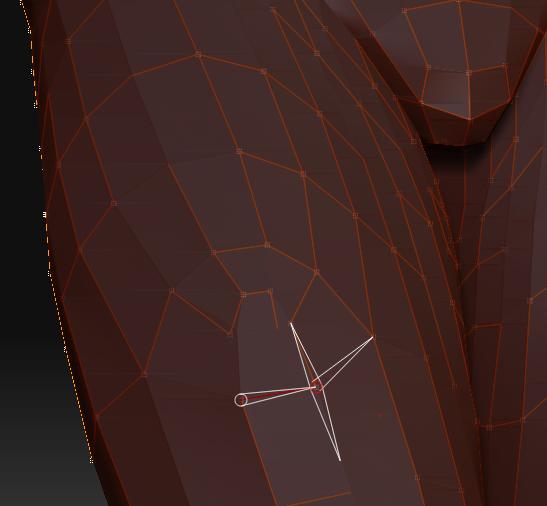
Now I am struggling with the next problem. I’m trying to adjust an existing mesh. It seems like I can move existing vertices around when I’m in ‘Move’ mode. But different vertices behave differently. For example, on the thigh of the SuperAverageMan, I cannot move the vertex highlighted in the attached image, but I can move other points near it. Also, some vertices follow the mouse exactly, while others, even though they can be moved, move kind of in a sluggish way. And how come the existing mesh is not symmetrical? I can’t find any of this in the ZB documentation.

Attachments

topo.JPG

probably have a mask on…clear that. then try to move that point.

it is symetrical, you just can’t see it.
ctrl+shft+lmb off the model to unhide the points that are missing.

A few little things that get me through the retopology process a little faster:

  • use the Basic material, the orange ZSphere wireframe shows up well against it.

  • set the draw size to 1 when I’m building or adjusting my topology. It keeps me from clicking the wrong area or grabbing the wrong vert.

  • In the Draw pallet, set the focal length all the way down to 25. It will allow you to zoom in closer when perspective mode is disabled.

Sure enough unmasking and unhiding did the trick! But I never set a mask or hide anything. These bugs are very frustrating to new users. I hope ZB won’t become another CorelDraw. CorelDraw had great features, but the bugs made it almost unusable. Before adding features, one must fix bugs first. At least the serious ones.

Now I encounter another frustration. This one is not so much a bug but nonetheless very hard to deal with (for me). Maybe there’s a setting somewhere that I don’t know of.

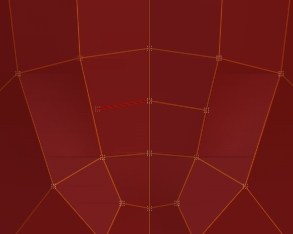
When I try to add surfaces to an existing mesh, I try to point the mouse in the middle of an existing line. The white square shows up, that’s (deceptively) reassuring. I click, then click on the opposite line. The new surface shows up, apparently just fine. I do a few of these, then press ‘a’ to view the skin. The skin is all screwed up. I am only able to find out which vertices weren’t properly placed by going to ‘Move’ mode and nudge all the new vertices around. Then I found out that some of the vertices weren’t actually placed on the existing line (see attached pic).

Is there a way to make the mouse snap better to existing lines?

Is there a way to make unconnected lines show up more obviously?

Attachments

topo.jpg

These bugs are very frustrating to new users. I hope ZB won’t become another CorelDraw. CorelDraw had great features, but the bugs made it almost unusable. Before adding features, one must fix bugs first. At least the serious ones.

Masking isn’t a bug, it’s a tool, and a very powerful one. Just because you’re not comfortable with how a thing works, doesn’t make it broken. Keep an open mind.

I’m guessing that the problem you’re having with adding edge loops is caused by you not closing the loops. If you just terminated an edge loop abruptly, you’re setting yourself up for bad things.

The mouse snaps in 1/4 or 1/3 increments along an edge…I’m not certain which.

Unconnected lines are blatantly visible when you press a to toggle on skin preview mode. If you see a hole in your skin, you need to rework that area of the ZSphere cage.

Like Dustin said, masking is a tool. But masks do like to happen at poles when the model wasn’t made in Zbrush…so it’s…well, half a bug. :slight_smile: Anyway, you just make sure that masks are cleared when doing work like that. Same thing happens in Photoshop…make sure you don’t have a selection somewhere before saying “it won’t let me paint” sort of thing applies here as well.

And there are snapping settings in the preferences menu…in draw I think, but I could be wrong. If you increase that it will snap “better” for you.

Hope that helps.

Dustinbrown, maybe you wrote ZB or work for Pixologic or ZB is your favorite program, but there’s no need to be militant whenever someone says anything negative about ZB. I may be criticizing ZB, but I honestly am doing it in a constructive way. I like all the new possibilities that ZB has brought to the world, and I want it to not just continue but to improve, so that all users, regardless of how brilliant they are either in arts or computing, can enjoy it.

I know masking is a tool, and a great tool, and I actually kind of know how to use it in ZB. My complaint in this case is that I did NOT mask anything, and I did NOT use ctrl+shift to hide anything. I made sure I restart ZB in this experiment, and I used the SuperAverageMan — an example mesh supplied by Pixologic — so that I do not confuse my own actions with any possible bugs in ZB. In short, I am working as a free tester for ZB. As an experienced user you no longer notice these problems. But I don’t think I am particularly dumb so many new users will experience the same frustration that I did. ZB is a great program, but that doesn’t mean it is perfect.

Like you said, keep an open mind.