ZBrushCentral

Inner Light

Inner light Hi

I build huge real-life sculptures, for use in playgrounds, public parks etc.
I use Zbrush for visualisation of these sculptures, to my clients.
Lately I also include fibre optics in my sculptures, so they glow in the night…

see this link for example: http://www.ohlers.com/sculpture/white-tube/
You can see the effect here: https://vimeo.com/32992095

Now, this model is my next project. (The Egg is going to be 4 m high !)

QUESTION:

I would like to show an “inner light” glowing from inside the Egg Spheroid… Is that possible in Zbrush?

thanks :slight_smile:

Attachments

Screen Shot 2013-07-22 at 11.51.57.jpg

Screen Shot 2013-07-22 at 11.51.32.jpg

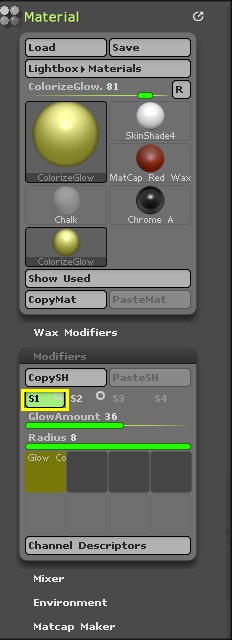
currently to my knowledge no - only way to mimic an inner light would be using an appended subtool with colorized glow material (only works with best renderer) adjust mat modifiers in s1 menu . and great playground sculptures !!:+1:small_orange_diamond:+1:

Thankyou Gary! :slight_smile:

  • colorized glow material… I found it in the list of materials…
    Would you help me out here?

I have made a slightly smaller “Egg” , assigned the glow material to it, filled 3D object in M channel, and it shows glowing in the subtool preview.
But in the world it appears grey??

thankyou ! :slight_smile:

Did you do a BPR?

yes, offcourse… :slight_smile:

  • but it is just white color. (The grey shade was because I had tried to lower the light intensity in Light settings, to see if it would “glow” some more :slight_smile:

Material:Modifiers. Crank the intensity slider up. Have a file.

The ‘ColorizeGlow’ material will only work with a ‘Best’ render. If you want a ‘BPR’ render, do a ‘Best’ render first followed immediately by a ‘BPR’ render.

All I did here was a BPR, it was pretty glowed looking to me. Of course changing transparency in the rendering panel seems to make a difference too. Too many options, I love it!!! Are rendering settings saved with a .zpr file?

Aaah, ok… “Best” render, in the Render menu…followed by a BPR ! - Now we are getting somewhere :slight_smile:
Thanks a lot guys! cool support!

Screen Shot 2013-07-26 at 19.00.46.jpg

tinkering with just the position of the light…

Screen Shot 2013-07-26 at 19.08.44.jpg

Simple macro will do best followed by a BPR. Place somewhere like Startup/Macros/Misc

In case you don’t already know, you can change glow color, glow amount and glow radius in Slot 1 of the ‘Material > Modifiers’ sub-palette.

new-2.JPG

waouuu! my clients are going to LOVE this !!! Thanks again sooo much !!

Screen Shot 2013-07-26 at 19.29.35.jpg

@zber2 : really cool effects with color glow, thankyou !!

Is it possible to have two different “glow” materials? (color, radius etc)

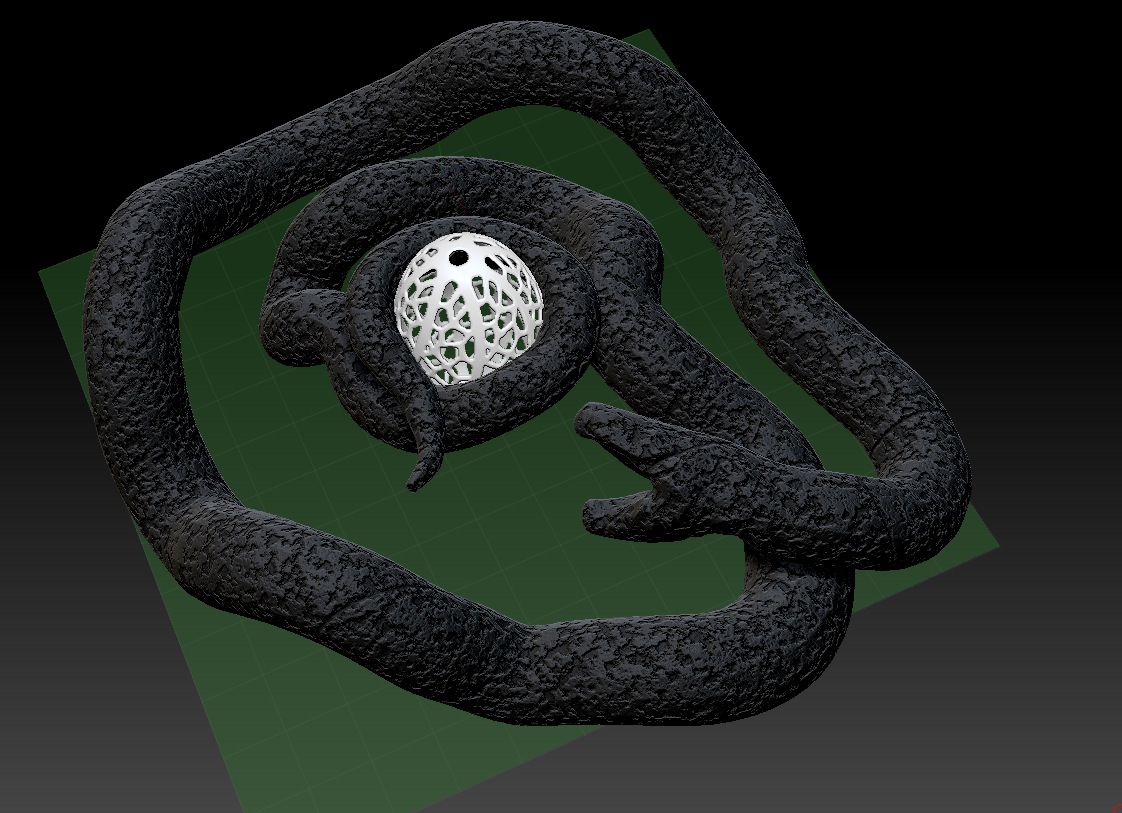
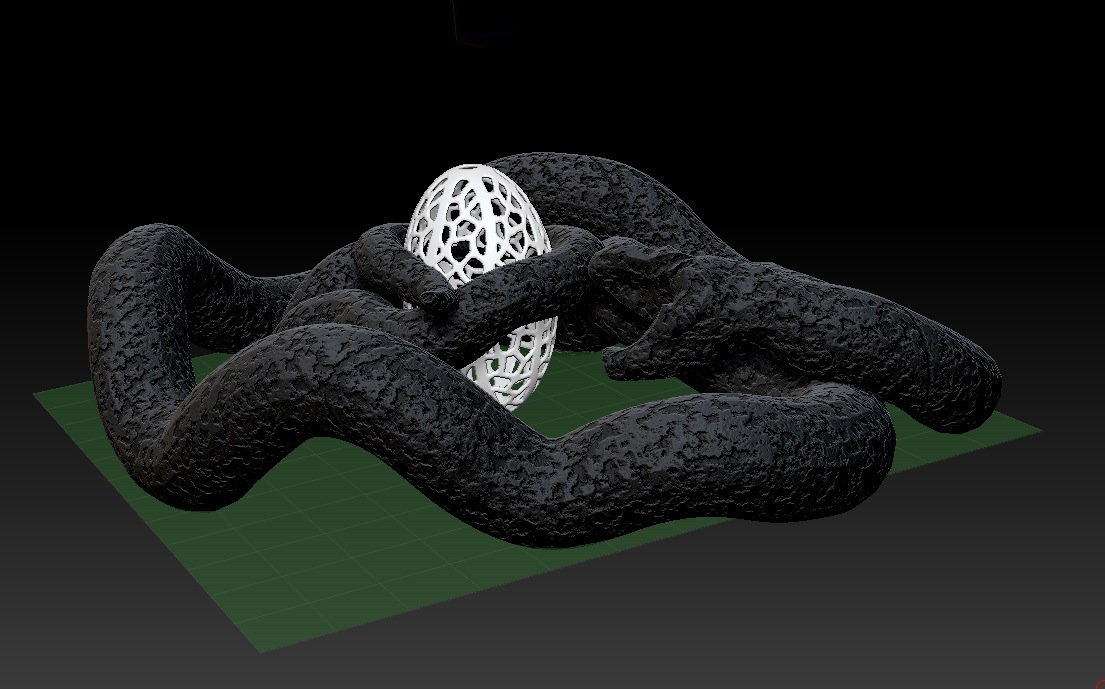
(This Lava-snake is simple to make: Make a snake, and give it MatCap gorilla (fillObject), with some noise.
Make a dublicate of that snake (subtool) , and turn off the noise on the dublicate.
Then deflate it ever so slightly in the deformation menu (inflate negative value).
play around with its position “inside” the bigger snake with noise (Move).

  • assign colorize Glow material, and play with fire!! - in the slot1, as described by zber2 :-))

Screen Shot 2013-07-26 at 20.05.52.jpg

Hi there - I have found other exciting tricks, creating FIRE !

check this out:

  1. First create a sub tool, that has the shape of the flame. throw some noise on it too…
  2. Give it Glow material, full on with the glow, and full on with glow radius (in Material>Modifiers>S1)
  3. Give it a strong, bright red color (MRGB channel + Color>FillObject)
  4. Make it transparent in Best Preview Render (Display Properties>BPR settings>BPR Transparent Shading)
  5. Run a Best Render (Render>Best) - making it Glow!
  6. Run a Best Preview Render (SHIFT R) - Making it Transparent !

Here are some pictures of a fireplace I am designing at the moment:

Screen Shot 2013-09-03 at 07.18.22.jpg

Subtool “FIRE” with noise - Glow Material, bright red color - display properties: transparent
Screen Shot 2013-09-03 at 07.20.11.jpg

After Best Render:
Screen Shot 2013-09-03 at 07.20.25.jpg

followed by a Best Preview Render
Screen Shot 2013-09-03 at 07.20.37.jpg