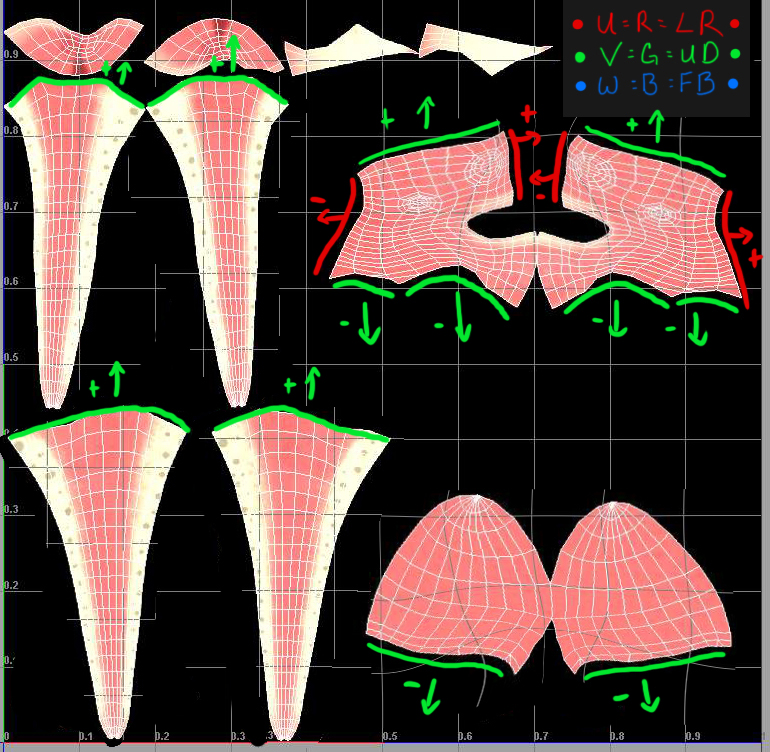
From the looks of it you need to do some more research into how normal maps actually work in a game engine. If you understand the tech behind it then you can also understand the limitations that occur when using tangent spaced normal maps. There are always seams. Always. The real challenge is hiding those seams in areas where they aren’t noticed. The orientation of UVs is also extremely important when using tangent spaced normal maps.
The image I attached is showing you…to a degree…how normal maps work. If you re-orient your pieces so matching seams have inverse vectors (if one seam points mostly down, the matching edges should point mostly up) then you should be able to reduce the seams on the legs, head, etc. This doesn’t mean you can’t reorient pieces to maximize UV space, it just means you’ll have more work to do swapping the green and red channels in the normal map to reduce the seams later. If the seams are linear along either U ®, or V (G) then you can remove every seam, but at the cost of texture stretching (usually). Again it all comes back to some give and take. Every AAA title out there has a seam on the character (Gears of War, Assassin’s Creed, Little Big Planet, etc) every game. The question is, does the end player notice them? Just because you can see them, doesn’t mean everyone else can.
Anywho, when checking your normal seams, and trying to show others the problems you’re having, don’t have your diffuse map turned on. Like you said, the seam could be caused by your diffuse, not your normal, and we wouldn’t be able to tell because you’re giving us too much information at once.
Anyway, I hope this helps.