ZBrushCentral

Image plane - gray plane with transparency

Hi guys

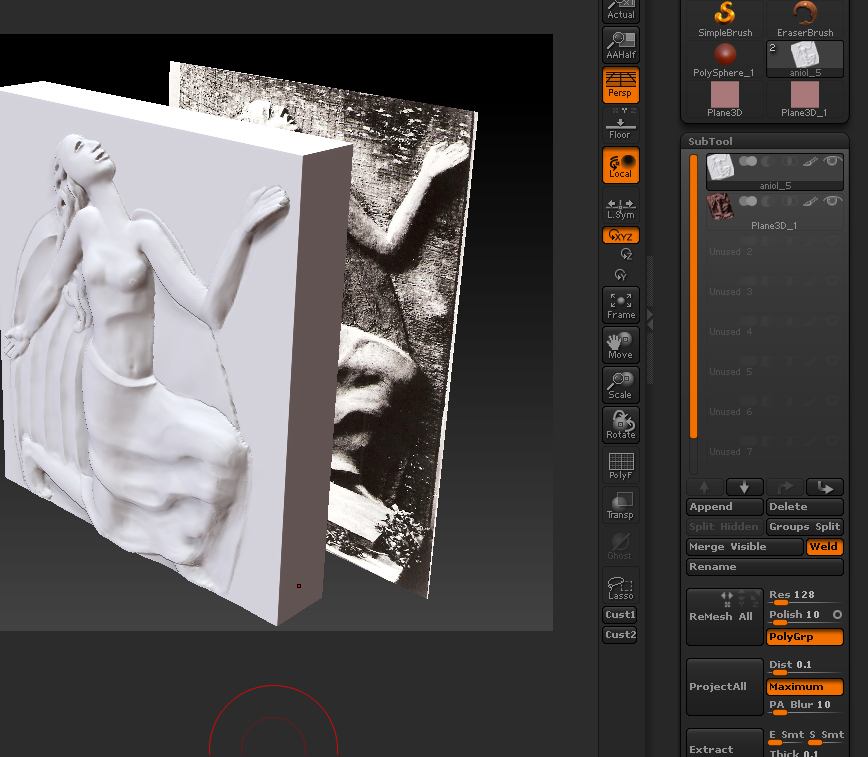
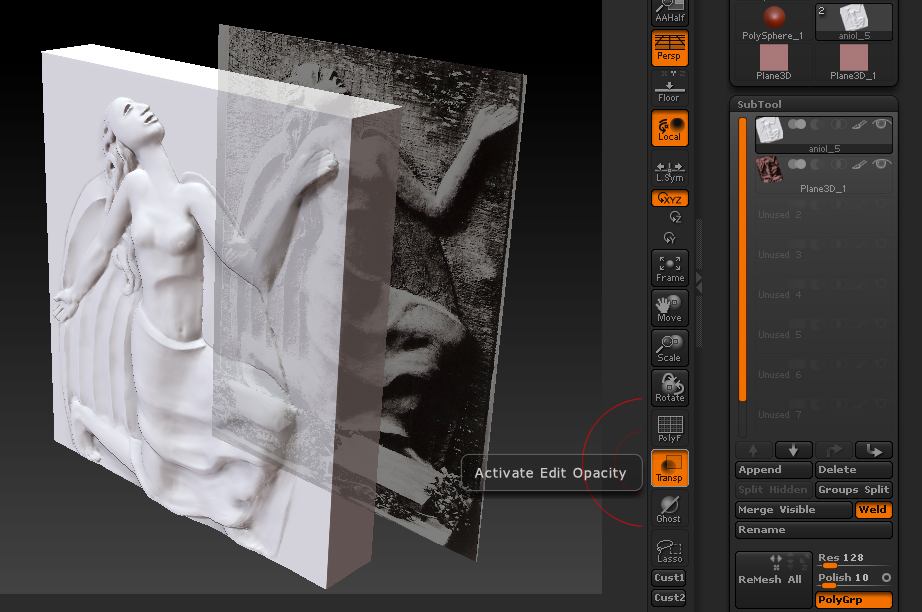
Image Plane plugin is very useful. But disturbing me one thing. When I want to use it as reference and turn on transparency image become more gray. I don’t see some details becuse of it.

Maybe somebody know solution.

<img src=“http://www.zbrushcentral.com/pixo/atn.gif”>

Attachments
transparencja.jpg

transparencja 2.jpg

So nobody knows the asware?

It is a pity.

Your picture shows subtool transparency. If you want to use that then setting the document background color to white may help.

Alternatively use the image Plane plugin to put an image on the background (rather than append the plane as a subtool). To do this:

  1. Draw your model on the canvas and enter Edit mode.
  2. Press the Image Plane>Load Image button and choose your reference picture.

The image will be placed behind your model and you can use the Image Plane>Model Opacity slider to see the image through your model.

HTH,

I’ve been using the Image Plane simply as a back wall for posting reference drawings for some time. Suddenly, the reference drawings and the plane itself are intersecting the model obscuring parts of it. It appears the model has sunk into the wall. I’m very new to ZBrush, and wonder if I’ve pushed the wrong button, so to speak.
Could use some help,
Katherine Dewey

Katherine,
I’m not sure why the plugin should have started doing that but it is straightforward to fix:

Assuming you have a model in Edit mode and the image is in the background:

  1. Turn off the Edit button and turn on Rotate. The Gyro will appear.
  2. Click and drag downwards outside the Gyro. This will bring your model forward of the background. You can rotate inside the Gyro to check that it is clear.
  3. Turn Edit back on and continue sculpting.

HTH,

That worked. Thanks!
I suspect it’s a memory issue; going offline and turning off Norton negates the problem.
Katherine Dewey