ZBrushCentral

how to move a chain?

Hello, I modeled a simple chain doing these steps:

  1. create many clones of a torus
  2. append them as subtools and position them one
  3. merge everything with “subtool master”

Now, is there a way to move/bend this chain?
The masking+transpose method won’t work because the mask will propagate and get stuck on one ring of the chain.

Is rigging the only way to go?

TransPose should work. What do you mean by the mask “propogating and getting stuck”?

I mean that if you merge all the subtools into a single mesh you end up with a sequence of rings that do not touch each other.
When you are in transpose mode and try to use the CTRL+LeftMouseButton in order to mask the mesh you are not gonna succeed: only one ring is masked (try and see…), that’s why I thought zsphere rigging could be the only way.

And By the way…perhaps I was dreaming or just becoming demented (hopefully the first), but I kind of remember some tutorial showing how to clone meshes by using zspheres…am I totally wrong?

don’t use control ( it tends to select via subtools), use the selection box or the lasso.

i personally would use a zsphere rig. however whatever method you use in zbrush it will only be semi-realistic, if you want it to be as real as possible you’d either have to move each individual link as if it was loose and had weight or use a dynamic simulation in your animation app.
it’s possible i’m not thinking of something so don’t bite my head off.

Thank you all guys for your advice. Apparently I have solved the problem in a quite easy way:

  1. I create a mesh made of two rings passing through each other and orient them properly (this is the base pattern for the chain).
  2. set up a straight zsphere chain with several nodes
  3. select the main zsphere and assign the two-rings tool as “Local Mesh”
  4. perform some adjustment (scale/move/rotate) on the nodes to make them match.

It is then possible to “pose” the chain by moving the zspheres with a large draw size, and the nice thing is that the rings of the chain (that are local-meshes) will not stretch as if they were organic, but they will just change orientation/position.

The technique is stil not perfect, so suggestions are always welcome.
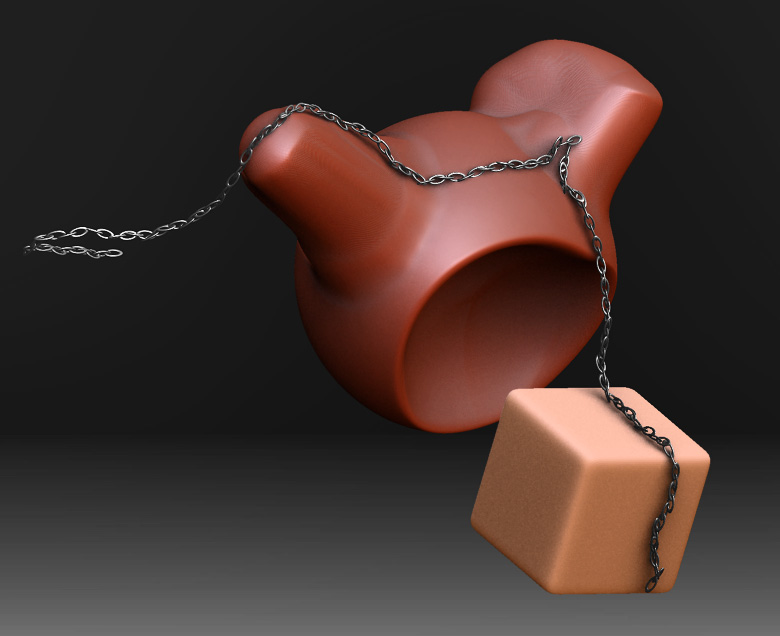
I post a test image I made in 10 minutes with the technique I mentioned: apparently it works as I wanted.

Attachments

chain_test.jpg

You found the best way, I think. “Insert Mesh” and “Insert Connector Mesh” for ZSpheres are underused techniques.

Ok I improved the technique a little bit so that it is now smooth, easy and fast:

  1. create a tool for the base pattern of the chain (e.g.: two rings)
  2. Select a ZSphere and go to edit mode
  3. set DisplayProperties/Density to 0
  4. append other zspheres of the same size (shift-button) following the shape of the chain you want.
  5. select the main zsphere and “Insert as Local Mesh” the base tool (see step-1)
  6. If some links of the chain are still disconnected simply adjust DisplayProperties/Size.
  7. Using a large draw size & focal shift and just Moving/Rotating the zpheres will deform the chain in a realistic and flexible way…that’s it.

Extra TIP: By appending the main zphere as a subtool you can easily wrap a chain around another mesh; however you will probably have to skip step-2 and instead split manually the “connecting bones” into many regularly spaced zspheres.

BTW, should I put this hint in the tutorial forum with more screenshots or perhaps a video?

i would be interested in a video if not pics, i only recently discovered this feature of zspheres and have yet to really have some reason to utilize it.

Now in the tutorial-forum there is a new thread in which you can find a link to the video. Hope it was useful! See you.

I love how this technique works and watching your video really helped me figure out the steps. However, I cannot get my parts of the chain to align with the direction the ZSpheres are heading along the chain, like yours. Instead of of each link connecting to each other, each pair of links is always pointed in the same but random orientation.

How do I get these to line up correctly?

You just need to match the Z-axis of the Zsphere with the Z-axis of the chain-element. Remember that you can check how your tool is oriented with respect to the z-axis by using the preview-window.
Edit the chain-element tool, open the preview window and use deformation/rotate in order to orient the tool in the correct way.
Let me know if you’re still in trouble. I should have included this step in my description (and video).

Anyone else having the problem where when you insert local chain from your root sphere it doesnt fill all the zspheres with the chain it just fills the one sphere?

I see you got an answer to this in another thread.