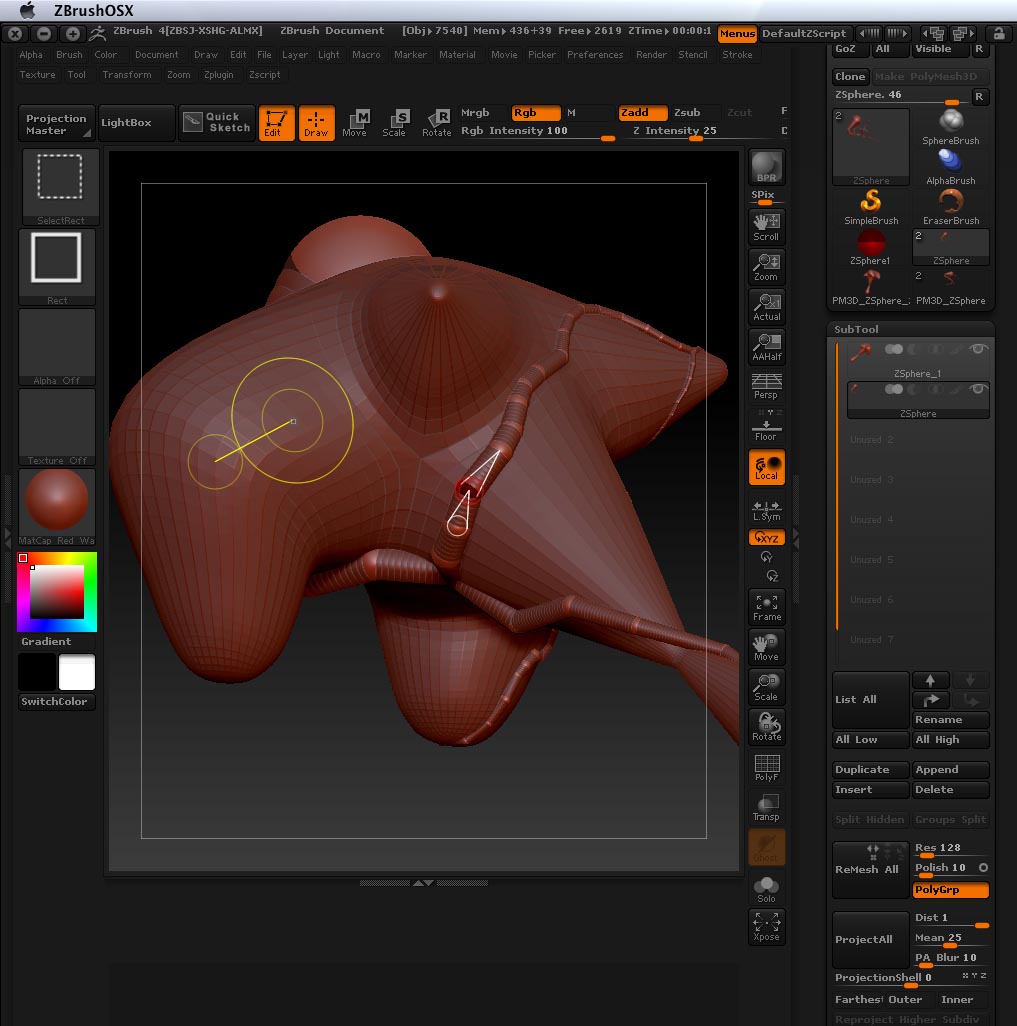
ZBrush definitely can accomplish this and as has been mentioned it will take time to learn. It is a unique application with virtually unlimited possibilites and as such can be a bit daunting at first. You can use the following workflow with the current demo version. I will explain it in some detail but it’s really a pretty easy process and very quick once you get the hang of it.
For blood vessels, after you build your organ of choice. Have it on the canvas in Edit Mode.
Append a ZSphere as a subtool.
Select the ZSphere subtool and turn on Transparency. (you will now see the ZSphere in relation to the organ model)
Set your brush draw size to 1 and enter Scale mode; click and drag to scale the ZSphere to the starting size you want.
Enter Move mode and move the ZSphere to the surface of the model making sure it penetrates the surface about half way.
While in Move mode make sure the ZSphere is selected by clicking on it (it will have a two concentric red circles around it).
Enter Draw mode; now you can click anywhere on the Organ model’s surface and a new ZSphere will be drawn with a connection back to the previous ZSphere. If you hold down the Shift key the new ZSphere will automatically scale to the same size as the previous one.
You can continue this process until you have your main vessel drawn out. I would recommend you start with fairly long distances between ZSpheres as you can add new ones, in between, later for fine tuning. When you want to start another branch just enter Move mode click on the ZSphere you want to branch from then go back to Draw mode and click on the surface of the organ as before.
To preview your vessels press the A key. You can adjust individual ZSpheres using Move and Scale by clicking on them and dragging (make sure you are not in Preview mode). You can move and scale sections of a branch by clicking and draging on the connecting links. They will move like forward kinematics. You can add additional ZSpheres in between others by clicking on the link while in Draw mode. Don’t try to get a perfectly smooth flow by adding tons of ZSpheres the next step will take care of that.
Once you have the vessel network the way you want, go to Tool; Adaptive Skin; set the density to 1 and hit the Make Adaptive Skin button. A new tool will be made with the prefix Skin_…
Now Append that new Skin tool as a subtool. and go to Deformation; Relax and pull the slider all the way one or two times; divide the mesh once then use Deformation; Inflate on all axes slightly. You can use relax, divide, inflate as much as you require.
The nice thing about this approach is you have the seperate piece you require and the ZSphere set up remains available for tweaking and creating additional blood vessels based on the original or replacing vessels that don’t turn out as expected. In theory you could use one ZSphere set to make as many different blood vessel parts as you need simply by editing the ZSpheres. You can move the entire ZSphere rig by Ctrl Click + Dragging on the first ZSphere while in Move mode.
That should get you started you can experiment from there.