ZBrushCentral

Hiding unseen polygons???

I was wondering, is there absolutely any way of hiding polygons that are not visible?

For example, if I had two overlapping sphere meshes I want to be able to hide all the polygons ‘inside’ the spheres, the ones you can’t actually see.

I tried to manually mask then hide polygons but that didn’t work very well.

If anyone knows how to do this, please let me know. I will be inifinitely grateful.

Cheers,
Revanto :stuck_out_tongue:

The easiest is to hide the visible polygons and then invert visibility. If your polygons are polygrouped this makes it much, much easier.

OK, so how does this work? How do I hide the visible polygons? I understand you can hide polygons via polygroups, however, I’m looking at having to polygroup those non-visible polygons on complex and possibly high-polygon models. Meaning I would have to do this automatically (or semi-automatically).

So what is the next step?

Thanks

Revanto :stuck_out_tongue:

Ctrl+Shift+Drag is the shortcut for the partial mesh visibility feature. The online docs are a great resource for you: http://www.pixologic.com/docs/index.php/Hiding_and_Showing_Model_Parts

No, Aurick, I think we’re on the wrong page here. If I use shift+click and drag, I would, in fact, be selecting the ‘inner’ polygons that I do not want to select.

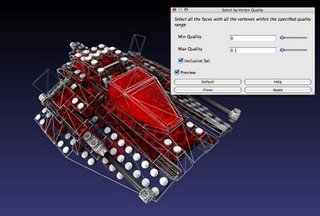
It doesn’t matter anyway because I found a useful technique of how to do what I want to do using the freeware software Meshlab. Basically, it involved the selection of Self Intersecting Faces. The technique works and I was hoping it would lead to helping out another great technique used by my friend. Unfortunately, the results were iffy. Still, there was some progress.

Thanks for trying, even though it was not what I was looking for.

Rev.

There is a recent post that answers to this specific need of removing unseen polygons from a given object using MeshLab at MeshLabStuff.blogspot.com

Cheers
P.

Attachments

LEGO3.jpg