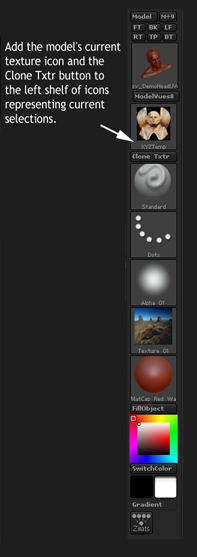
Texture management (with reference to individual subtools) has become a bit more complex in R3. Here’s a very simple way to keep track of the currently selected Tool-Texture… separate from, and in addition to, the currently selected Texture Menu’s Texture.
In my own custom UI I’ve inserted the Current Tool Icon onto the left-hand Shelf. Beneath that, I also inserted the Tool-Texture Icon along with the Clone Texture Button… why?
-
I can immediately see what texture map is assigned to what subtool. I can also easily click, select and assign any of the other available textures to the currently selected subtool.
-
I always use the Clone Txtr Button to create a copy of the existing tool-texture immediately after I load a previously saved model because the tool-texture probably isn’t already stored with the other textures. That way I don’t risk “losing” it if I select Tool Texture Off or some other tool-texture for the model.
One other thing worth a mention. The space in the left-hand Shelf occupied by the Tool-Texture Icon and the Clone Texture Button will be empty while any 2D Tool is selected. As soon as a 3D Tool is selected, the icon and button reappear.
[attach=169728]model texture and clone texture button.jpg[/attach]
Attachments