ZBrushCentral

Getting confused by the Curves Tutorial.

Hello guys i�m very new to Zbrush i started 2 days before.
At the moment i�m making my way trough tutorials and all the Pdfs :slight_smile:
So i will describe my problem.
If i select curve mode like in the tutorial for making a flower (http://www.pixologic.com/zclassroom/homeroom/lesson/3d-brushes/#curve-tri-fill) then the line where u can pull, transform or distort how i would say is red and black striped.
I don�t know how to say but i can�t add more mass to the curve just dragging it.
In the Video the line is white and there are arrows if i can see it right.
Does he have some options changed in the video which he did not mention?
I got another question in the moment but this i�ll maybe find out on my own if i go on at the pdfs but i would be a help if you could tell me the solution.
I modeled a face and saved it as a document not as a tool, if i open the document i can�t change into edit mode.
This is all i want to know i�m sorry for disturbing for some noob questions and for my bad english either :slight_smile:

Thx alot, Gerock
i uploaded a picture of my problem.
http://s559.beta.photobucket.com/user/G3Rock/media/myproblem_zps5fa67848.png.html?sort=3&o=0

The line looks different because the tutorial was done in an earlier version of ZBrush but it works in exactly the same way.

Try this:

  1. Select the Curve Tri Fill brush.
  2. Turn on Activate Symmentry in the Transform palette. Turn off X and turn on Y. Turn on Radial symmetry ®. Set the RadialCount slider to 8.
  3. Draw out a curve. Radial symmetry means 8 curves will be drawn at once. When you release the mouse button the curve shape will fill.
  4. You can then move the cursor over the curve. The cursor will change to a light blue color and you will be able to click+drag to change the curve shape.
  5. When you’ve finished, click on the mesh to delete the curve.

For your other question see here:
http://docs.pixologic.com/getting-started/basic-concepts/saving-your-work/

I think somebody from Pixologic should answer this one because those are older tutorials and some functions have changed in the latest version which no longer work like they used to, which makes you wonder why those tutorials are still there. It only confuses new users.

When you save a Document, you only save an image of the canvas. There is no 3D editable content. If you are working in 3D then you must save either the Tool (Tool>Save As) or the Project (File>Save As).

I think what he meant Marcus , is that you can lengthen the curve just by dragging it, which you can no longer do in 4R5. I think this is what he meant by “add more mass”.

Ah, you’re probably right. Yes, that is no longer possible.

Yes thats absolutley what i mean.

Damn is there no other way to edit this curve?
Does someone knows a tutorial how i could make this flower using another tool?

Thanks for your good replies :slight_smile:

#push

???:confused:

If you are trying to bump the thread, that doesn’t work on this forum.

Why don’t you just ‘Ctrl+Z’ to Undo, then re-draw the curve, or click on the underlying mesh to delete the curve then edit further with the Move brush. If you are using ZBrush 4.5, I would suggest trying to find more up to date tutorials. Believe me, I can understand your frustration about watching tutorials in ZClassroom that don’t work with newer versions of ZBrush and I wholeheartedly believe that if they are no longer applicable, then they should be removed, but it is what it is.

There are two things in 4R5 that will help:

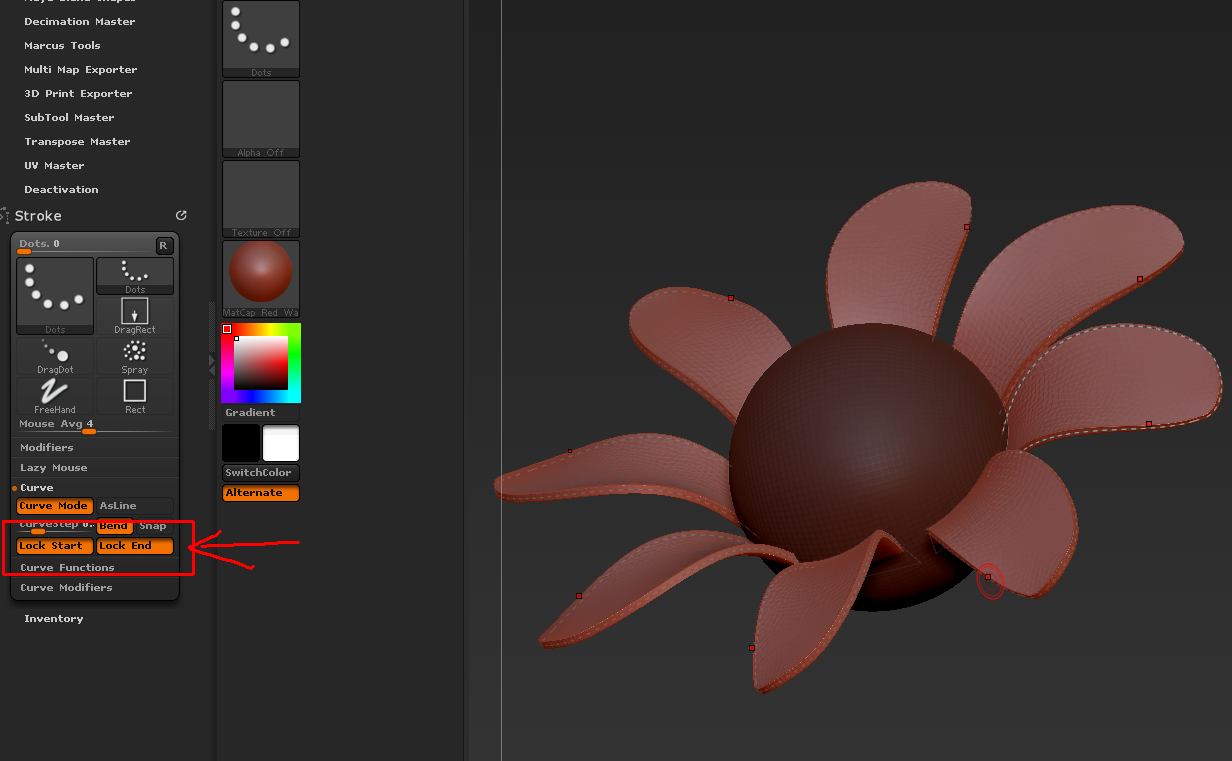
  1. After drawing a curve, turn on Lock Start and Lock End in the Stroke>Curve sub-palette. With these options on, you will be able to edit the petal shape without pulling it away from the sphere.

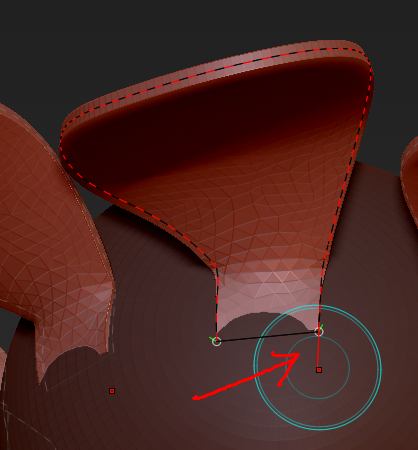
  2. You can increase the length of the curve, and so increase its mass. To do this, place the cursor over one end of the curve then move the cursor away a little until a red line appears. Now click and drag to add to the curve. Repeat for the other end.

Attachments

CurveTriFill01.jpg

CurveTriFill02.jpg