I tried to do mirror, but got the message “This function can not be applied to a mesh with multiple subdivisions”, so I wanted to do “Freeze Subdivisions”, but I don’t see this function under Geometry, as you can see in the attached image.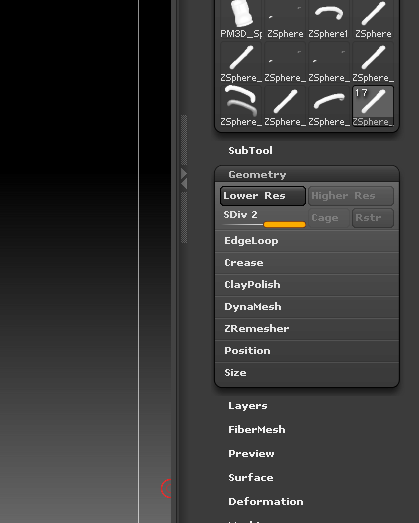
Make adaptive skin first, and use that… You can’t do this kind of stuff with editable zspheres…
Thank you. I did make addaptive skin, but when I did Insert - all the other subtools disappeared.
Basically Zspheres and all the Shape3D primitives in the tool palette are not your standard polygon models. They are the results of mathematical formulas whose variables can be changed on the fly by adjusting some sliders around.
To convert them into actual polygon models that you can sculpt on and further edit, you’ll have to either click Tool: Make Polymesh3D, or in the case of zspheres you can also use Tool: Adaptive Skin: Make Adaptive Skin. Both options will create a brand new tool in the Tool palette which will either have the “PM3D_” or “Skin_” prefix on the name, depending on which method you used.
Because this is a brand new tool it will lack any subtools. These subtools don’t disappear, they simply belong to the original Tool rather than the new one.
The easiest solution is to then switch back to your original tool (the one with 17 subtools), and then use Tool: Subtool: Append to add the new “Skin_” model as an 18th subtool. Then it will live in the same file as all the other parts. The other subtools shouldn’t disappear after an insert, it’s more likely you’d just be looking at the bottom of the subtool list and would need to scroll up (or press N) to see the rest.
If you’re happy with the polygon mesh that was created and you no longer need the zspheres themselves for further editing then you can delete that specific zsphere subtool from the overall Tool.
Thanks Cryid for the detailed answer, it really helps. What is the difference between Insert and Appened?
They pretty much do the same thing, the only difference is where the newly added subtool appears in the subtool list (which isn’t a big deal since you can reorder this at any time, but if you have a huge list then it could save you some scrolling).
- Append will put the new subtool at the very bottom of the list
- Insert will place it under whatever subtool is currently selected