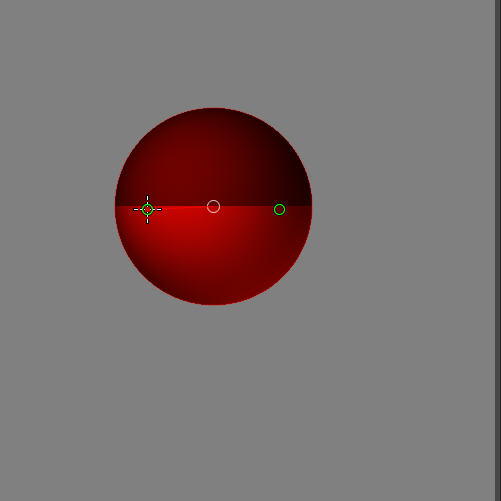
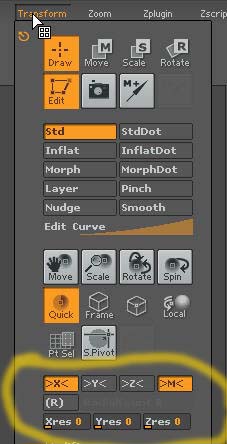
The symmetry buttons are found in Transform menu. Draw a zphere on the canvas and click on the edit button. Go to the draw size and change it to 1. For some reason zb2 has problems when children zspheres are higher or same as zphere parent. You can still draw out sizes to match the size of the parent. If needing the symmetrical zspheres go to transform menu and click on x button I leave on the >M< button.
[attach=71291]pic001a.jpg[/attach]
Make sure when using symmetrical buttons and drawing the new zspheres that the little circles are green when you draw them otherwise bad screwy things happen this also applies when drawing without symmetrical buttons turned on.
[attach=71290]pic001.jpg[/attach]
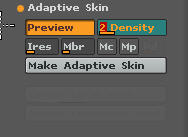
Hit the A key and you get the mesh version. Don’t make any adjustments to the mesh version yet as it will add it to the zphere and things get messy. As you have know noticed the mesh is blotched up for lack of better word. Go to adaptive skin menu.
[attach=71292]pic002.jpg[/attach]
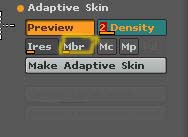
If not in mesh preview there should be a button for preview here as well either click it or press A again. There you will find density with a scroll it is set at 2 by default. Going higher makes the resolution of the mesh higher. You can play with this later. Go to where the MBR button is and raise higher until mesh looks clean as you want it to be.
[attach=71293]pic002a.jpg[/attach]
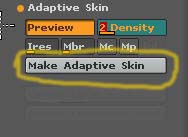
Also the ires button play with this. And turn on MC button for even cleaner look. This is all found in the adaptive skin menu found in the tool menu. Also the very important button make adaptive skin button is there. That is the one thing that will change the zspheres into mesh and you can start detailing and sculpting.
[attach=71294]pic002b.jpg[/attach]
Also as a note you can not delete zspheres while in move scale or rotate only in draw mode.
Attachments