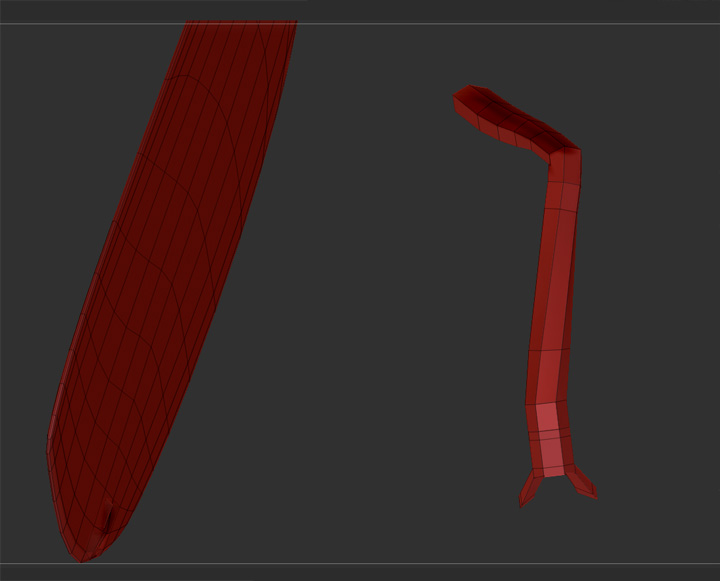
This is usually an issue with the polygon’s normals. Essentially you can think of this as each polygon has a front side and a backside, with the backside being transparent. In your case, your polygons are facing inward instead of outwards. You can check for this in Maya by selecting your object then go to Display->Polygons->Face Normals. You should now see green lines pointing out of each polygon. If the green lines are pointing inward then they are going to show up inverted inside of Zbrush.
To correct this inside Maya select the polygons that have inverted normals, press spacebar->Normals->Reverse. Once that is done you can go back to Display->Polygons->Face Normals to turn off the normal lines. In Zbrush you can fix it using what coolmod suggested, going to display properties->Flip. However, you should note that this will flip every face’s normal of the selected subtool and sometimes it is only a few of the polygons that have this problem and you would not want to flip the ones that are facing the correct direction. I believe you can hide the polygons that you don’t want to affect but in complex models it can be time consuming to hide the exact polygons you want inside of Zbrush and thus I find it easier to deal with inside of Maya.
In some cases you may want normals to be inverted. Particularly when you are modelling something that has both an exterior and an interior, such as a house, a car, or even a simple box. The exterior would have normals facing outwards, while the interior would have normals facing inwards.
Also, I should point out that if you have UVs created already, when you flip a polygon’s normals it also flips the direction that the UVs are facing. So you may end up with UV’s that are upside down and may need to be flipped.