ZBrushCentral

Editing existing topology - verts locked and symmetry not working

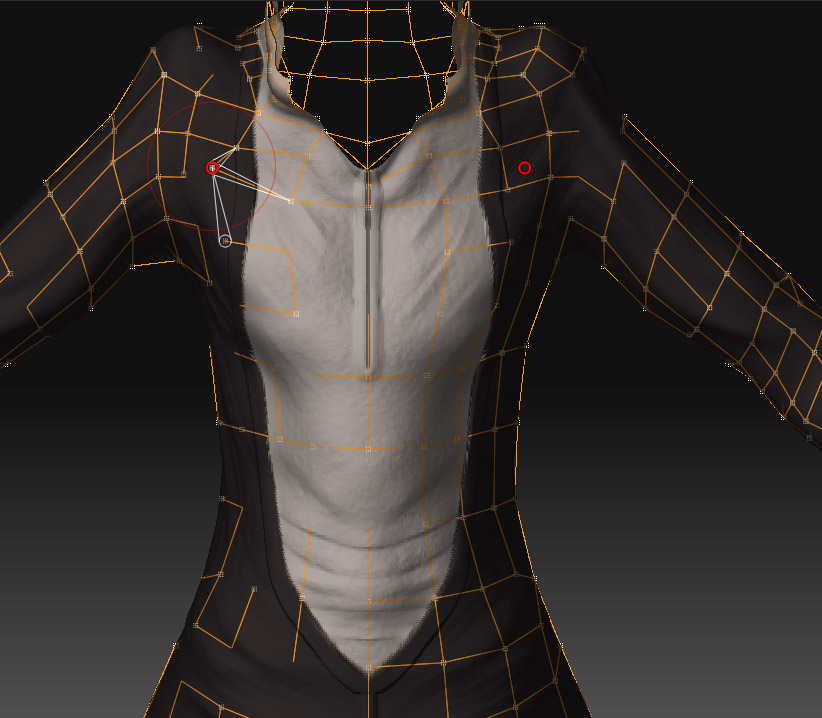
When trying to edit existing topology, I can not get the symmetry to work properly and many vertices act as though they are locked. I understand how to edit topology in general, as well as create new topology on a mesh. I have been successful creating brand new topology on a complex mesh, but started it from scratch. I can even return to that file after exiting ZBrush and continue to edit the topology.

For the project in question, I wanted to change existing lines without having to start from scratch. I followed the directions given on the ZBrush site for Editing Existing Topology and have read some other tutorials about it (including one from Bonecradle), but still have locked verts and symmetry does not work. As you can see in the picture, when I try to move points in the chest the other side does not move.

I started with a high poly mesh, cloned it, and used a ZSphere to select the high poly mesh and used the low poly clone to get the topology. So it does work, but it is not working properly.

Any ideas?? :confused:

Attachments

no_retopology.jpg

First, make sure that nothing is masked. Do this by pressing Tool>Masking>Clear.

If you still have trouble, try turning the Edit Topology button off and then on again.

Ahhh. Beautiful! Thank you very much.

I tried the turning off and on the Edit Topology button to no avail. That did work however for editing topology on meshes where I did the retopo from scratch. It wouldn’t work at first when I wanted to do more edits - and I found that turning this button off and on again did the trick.

With the current project in question, clearing the mask allowed me to move the verts as needed. Symmetry works normally, and things look normal.

I wish there was a way to weld verts, but from what I have read, there isn’t a way to do this, so you have to delete the vert and make a new one. I can work around this issue for now, until ZBrush has an update.

Thanks again! :smiley:

Clearing the mask definitely helped, but it appears as though random edges are missing. Although edges are there when I edit points, it is hard to tell what edges are actually there, and what is deleted, after I start to make changes. Compared to a retopology done from scratch, the lines are very uneven looking - very non-consistent. Another issue is that deleting points does not work very well when trying to delete points symmetrically.

I’d love to know if there is another solution before I start the retopology process from scratch. :confused:

Scott

Have you tried turning Edit Topology off and then back on again?

Thanks for the reply. I have tried to turn on and off Edit Topology but it does not work for trying to edit existing topology. I just tried the whole process with another object to be sure. I still see very uneven asymmetric lines and the move and edit tools don’t work like they should.

Here are the steps I am taking:

Load the model you want to editClone your model.Make sure that the subdiv level of the cloned model is at 1 or 2. Select a new ZSphere tool.In the Tool:Rigging subpalette, select the original model, and activate (optional) the Projection Mode, so that the model which will be generated is projected on the Template.In the Tool:Topology subpalette, select the cloned model. All the lines will show up.Enter the Edit Topology Mode.

These are the same steps adapted from the website, with the exception of their order. The way I have listed them above seemed to make more sense. I have tried it with both projection on and off and have tried it on 2 different objects. I am still getting the same issues.

Scott