http://www.youtube.com/watch?v=im0fWQv6NhY would be very helpful, but I can’t seem to get it to work?
I’ve watched that video in the past (pre-ZB4) and I’ve never been able to get that shift brushing thing to work.
I just eithere add topology by hiding the area around the part I want an edgeloop and select edgeloop from the geometry sub tool, or I clone my mesh that I want to add/subtract geometry to, I select the mesh, add a zsphere as a subtool and after making sure the zsphere is the selected sub tool, I go to topology, where I select the clone and edit topology.
Or the standard way that has the back visibility problems where you start with putting zsphere in edit moe then go to rigging add your mesh and finally in topology just hit “edit topology”.
Your a senior member so I’m guessing you know these alternatives, but I’m adding them in case newcomers read this.
Thanks Nancyan, I know those other methods. I use to be able to get this to work pre ZB4 albeit it was very tricky. I just haven’t been able to get it to work in ZB4
I don’t think that method will work in ZBrush 4 but you can edit existing topology in just the same way by pressing Tool>Topology>Select Topo and choosing the mesh before pressing ‘Edit Topology’. You may want to set Preferences>Draw Front Opacity to 1 and Back Opacity to 0.
Your are referring to selecting a zsphere, then select the topo? When I do that I just get the wire frame even after adjusting preferences?
- Select ZSphere, in Edit mode.
- Press Tool>Rigging>Select Mesh and select the mesh from the pop-up.
- Press Tool>Topology>Select Topo and select the mesh from the pop-up.
- Press Tool>Topology>Edit Topology.
After a few seconds the whole mesh will appear in orange. It will be transparent which can make work on it difficult so you can:
*Set Preferences>Draw>Front Opacity to 1
*Set Preferences>Draw>Back Opacity to 0
This will make the mesh look solid.
You can now edit the topology by adding new points or deleting points (Alt+click in Draw mode).
Attachments
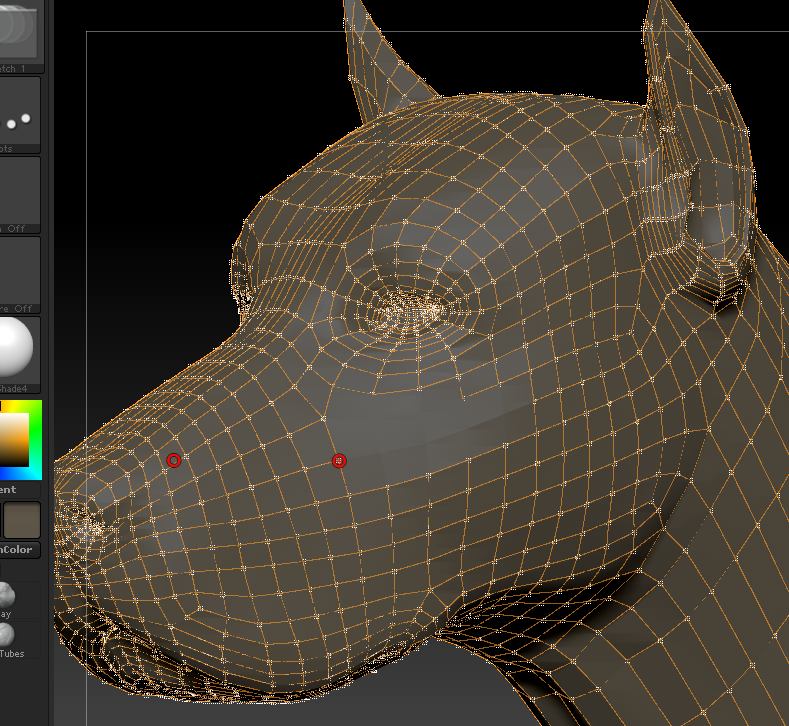
You the man marcus, thank you:D
Cheers I got it to work but, how do I proceed with the ‘adding of geometry’ without loosing my subdivision levels that I already have?
Is there some magic button that poofs them back. Please do help :]