ZBrushCentral

Corrupted areas with polypaint (answered)

Hello, I’m a newbie in zbrush and I’m trying to polypaint on my model. It works fine, but there are areas of the model that appear really messed up. At first I thought it could be a video card problem, but I installed the latest drivers and the problem’s still there.

It might be unrelated, but I also noticed that when I use the clay brush and I smooth it, it tends to create dark blotches on the smoothed areas. That doesn’t happen when I use any other brush. Are there known issues regarding that topic, or am I just doing something wrong?

Attachments
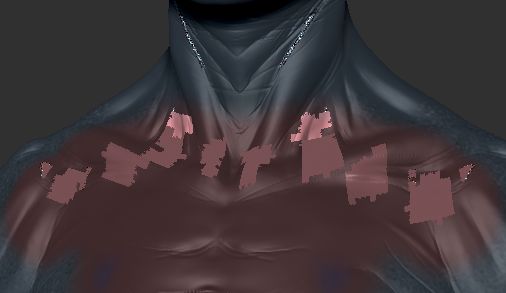
ScreenShot002.jpg

poly paint happend to me too
http://www.zbrushcentral.com/showthread.php?t=82588

I’m not sure why this happened, i was poly painting fine one minute and turned it off to look at the model with a plain matcap and when i turned it back on i got little non-colored squares on my mesh.

each brush can have its own set of options turned on or off, so that might explain why the clay brush is acting differently than the other brushes, you might not have noticed that zadd or zsub was on or off.

first i would make sure you dont have anything masked
then make sure you have RGB selected
M will apply the matcap material to your mesh

this could be a different material applied rather than messed up polypaint. Try hiding all your layers, and refilling your model with the material you desire.

Thanks for your replies, guys. I finally ended up starting again from scratch. I know, it’s not really a solution, but at least I’m aware now I’ll have to pay attention to this in the future…

Ok, I think I know what the problem was (since I met a similar problem again): it comes from a material (shader) conflict. You just have to choose the correct material for your subtool and click “Fill Object” (from the “Color” menu) and the messed-up faces should get “clean” again.

posted by seith:

Ok, I think I know what the problem was (since I met a similar problem again): it comes from a material (shader) conflict. You just have to choose the correct material for your subtool and click “Fill Object” (from the “Color” menu) and the messed-up faces should get “clean” again.

Turn Mrgb button on first though.

Yes zber2, you’re right, I forgot to precise: choose the “M” button first (in my case I had already painted on the subtool, so “MRGB” would have annihilated the existing polypainting). Thanks.