ZBrushCentral

Clip Brushes problem. (resolved)

I am having a problem with the Clip Brushes. I’m hoping that I’m doing something wrong and that this is not a bug.

Using the round or rectangular Clip Brushes, it’s same problem for both.

In the Stroke palette for the Clip Brush, if Square and Center buttons are enabled then it trims OK, but if you disable the Square and Center buttons then it doesn’t work properly. Ctrl + Shift and holding down Alt when releasing the mouse button adds to the mesh instead of subtracting from it.

Also, notice in the picture below, the wierd after effects of the trim.

clip brush problem-1.jpg

The rect clip is working similarly to the circle clip. If you want to trim the side of the mesh, use the line/curve trim.

Please read the documentation regarding the clip brushes here:
Download Center

Thanks!

See my post below for some tips on how to use these brushes:

http://www.zbrushcentral.com/showthread.php?t=92119

specifically, what I called the ‘Quadrant Rule’ and rule #11 :slight_smile:

in short, you can clip the sides off a model, but you need to not use the alt mode, but instead select that which you wish to keep with the regular mode. Also, when clipping with the rectangle in alt mode make sure that a) the portions you’re clipping do not cross the center point of any of the sides and b) that the corner of the rectangle is on or close to the mesh geometry.

@ support…Thanks!..I’m glad I was doing something wrong…:confused: …like I said.

@ oofnish… I see what you mean by the ‘Quadrant Rule’ …but still… I got some learnin’ to do about what each Clip Brush is intended for.

Thanks for the replies guys. :slight_smile:

I dont want to start a new thread so ill ask here.

I really dont get those clipping brushes too…
The ClipCurve is working fine somehow but the Circle and Rect are making pure mess of the mesh, from whatever angle i cut…

Wtf is the problem, or what is the way to cut something right with those brushes ? :rolleyes:
I watched the Pixologic tutorials, and the tuts from Storm the beta tester dude, when i try to cut my simple cube in ZB, in that freee way the meshe turns into a mess of polygons… ?

edit: OK, i have this question…
Using the ClipCircle brush with Center option on a sphere.
When i draw the clipcircle with center out of the sphere (not touching the sphere) then the clip brush cut’s the sphere fine (with ALT key), but if i draw the clipcircle with the center on the sphere IT ADDs detail to the sphere ?
Is this normal or am i doing something wrong ?

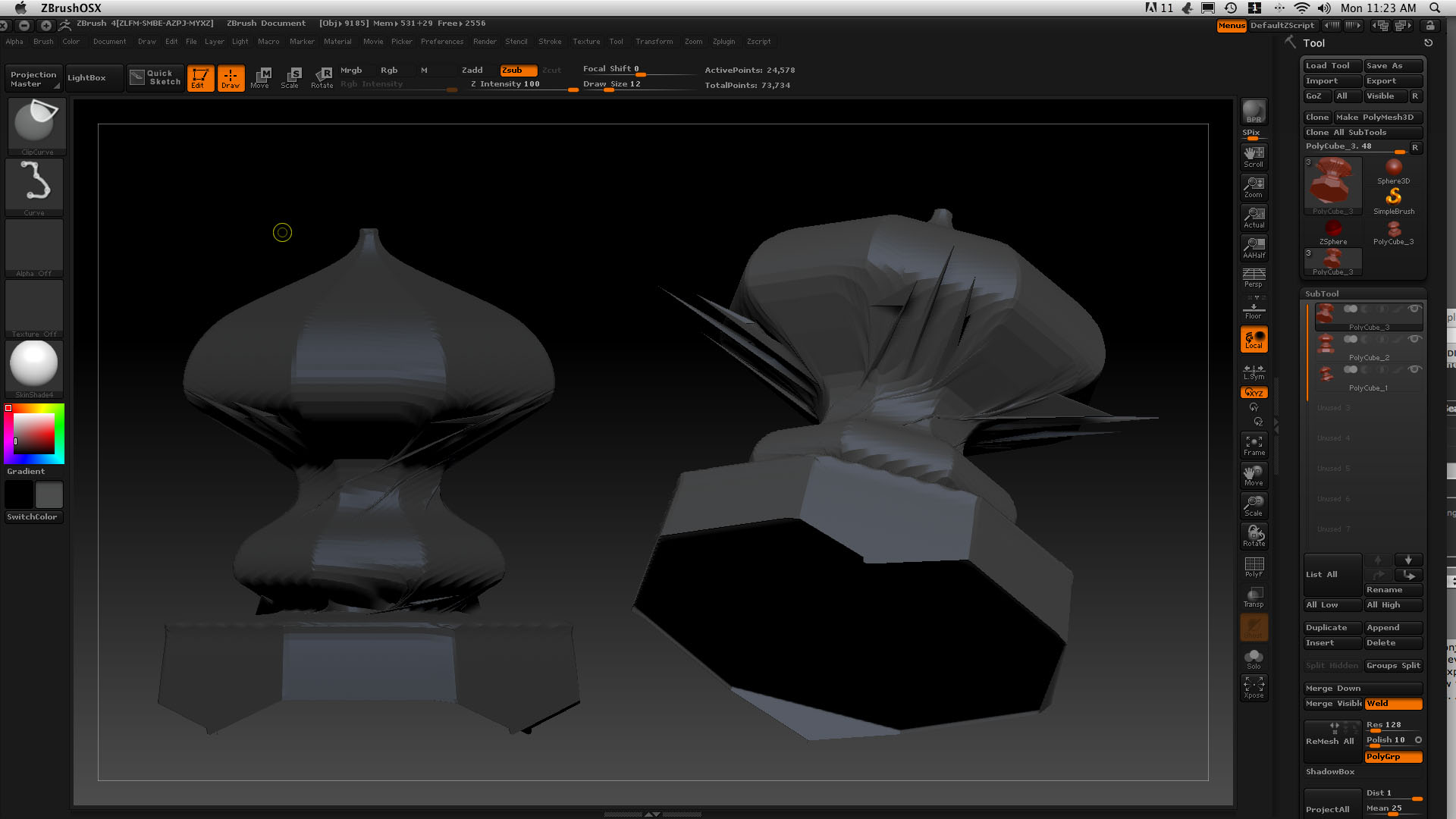
My problem arrises when I use the clip brush in conjunction with the radial symmetry tool setting. A twisted destorion occurs every time that I attempt this. In certain instances the geometry seems to explode. I; The shapes that I’m trying to achieve are rellatively simple. As I’m new to Zbrush, I’m sure that I’m a missunderstood setting away from resolving this. Anyone out there have a clue?

Attachments

clip-radial problem.jpg

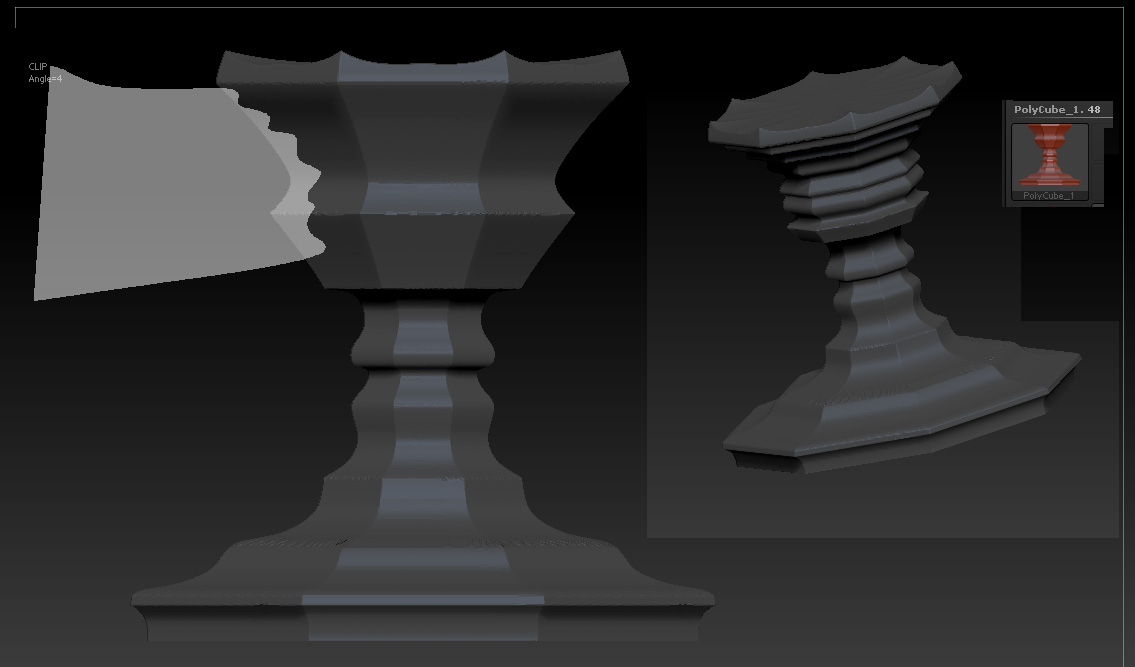
It’s not clear from your image how you are making the ClipCurve cut but bear in mind these points:

  • the shaded side of the clip line is what will be clipped
  • geometry is not removed, it is re-aligned to match the clip, so extreme cuts will cause problems.
  • masking areas that you don’t want affected can help give good results

I understand that the shaded side is the side that will seem removed.
I understand that the mesh conforms to the clipping path rather than dissapearing. I don’t feel that I’m asking any more from the basic geometry than in creating lathed shapes, in fact, I’m asking considerably less.
All that I’m asking for are straight radial cuts, essentially, 8 indexed planes.

The twisting phenomonon of wich I write occurs with the clip rectangle brush as well, no matter if it is in curve, lasso or, free hand mode. It also occurs with all of the geometric primatives, no matter weather they are polymesh cubes, cylinders or spheres.

There’s a glitch in here some how. This should be a straight forward proccess.

If you’re using the ClipCurve with the Lasso stroke (and radial symmetry), for best results:

  • Start and end the stroke outside the model perimeter

  • On the right, start the stroke at the top and draw down

  • On the left, start the stroke at the bottom and draw up

  • Turn off perspective and put the model square to avoid twisted cuts

  • Avoid deep cuts as with radial symmetry they may overlap causing unwanted results

  • If the result is rough then it may be necessary to undo, subdivide and repeat the stroke

  • If you are using ZBrush primitives, keep the poles at the top and bottom

I’d avoid using the ClipRectangle and ClipCircle with radial symmetry. Your results will always depend to some extent on the topology of the model and how much it can be squashed.

If you are wanting to make regular ‘lathed’ objects then you might like to consider using the SweepProfile3D tool instead.

HTH,

Attachments

ClipLasso.jpg

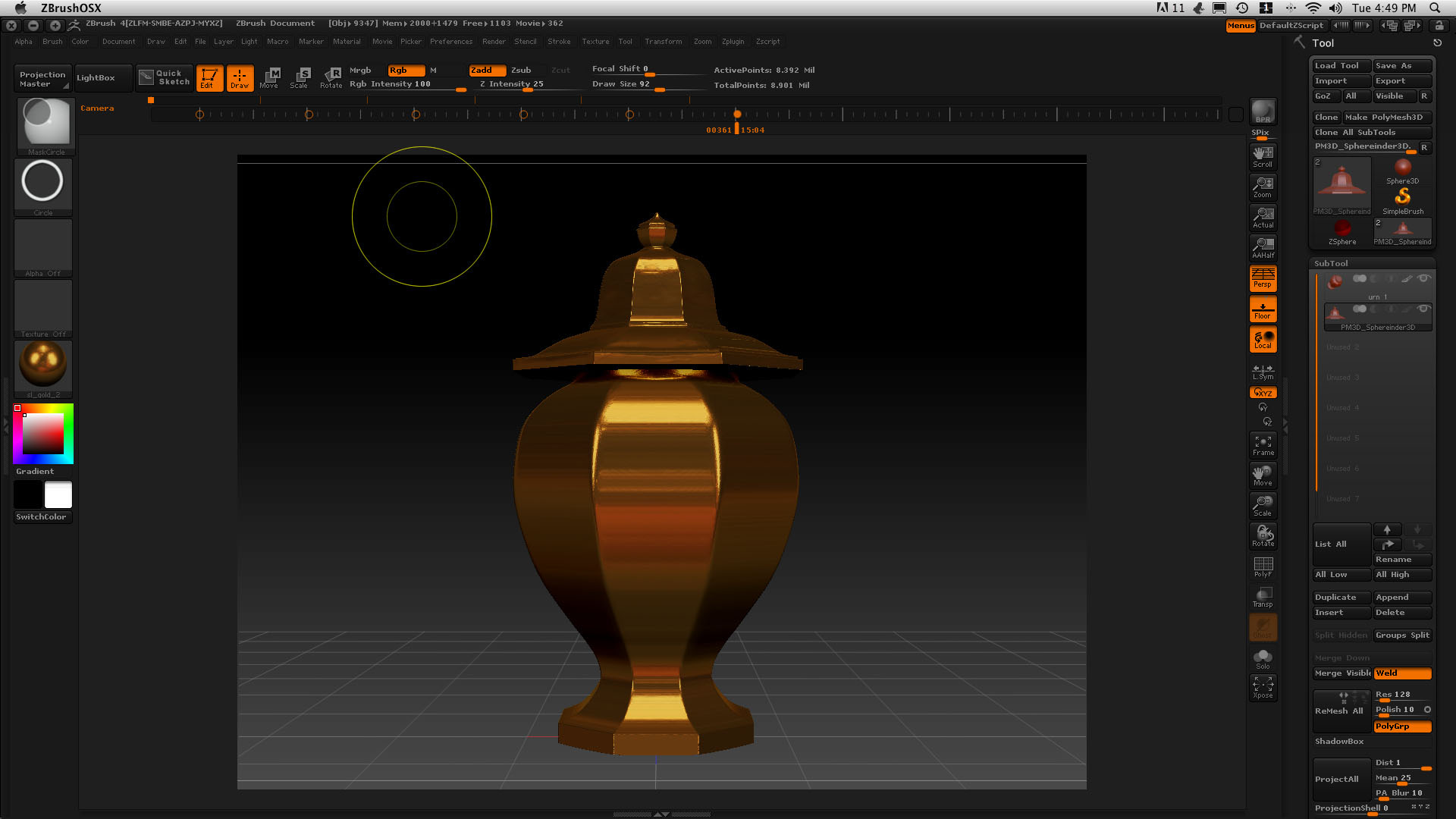
Thanks for all of the help and insight. I’ve gotten it to work. It seems that the best way to do it is to rough out the shape first and then remesh. Once the mesh is more or less conforming to the shape, re-clip a bit. There are still certain asymmetries. I’m having a hard time aligning my sub tools so the radial transform isn’t quite spot on. Is there a way to perfectly align tools?

Attachments

urn 1.jpg

I’m glad you’ve got it sorted. :slight_smile:

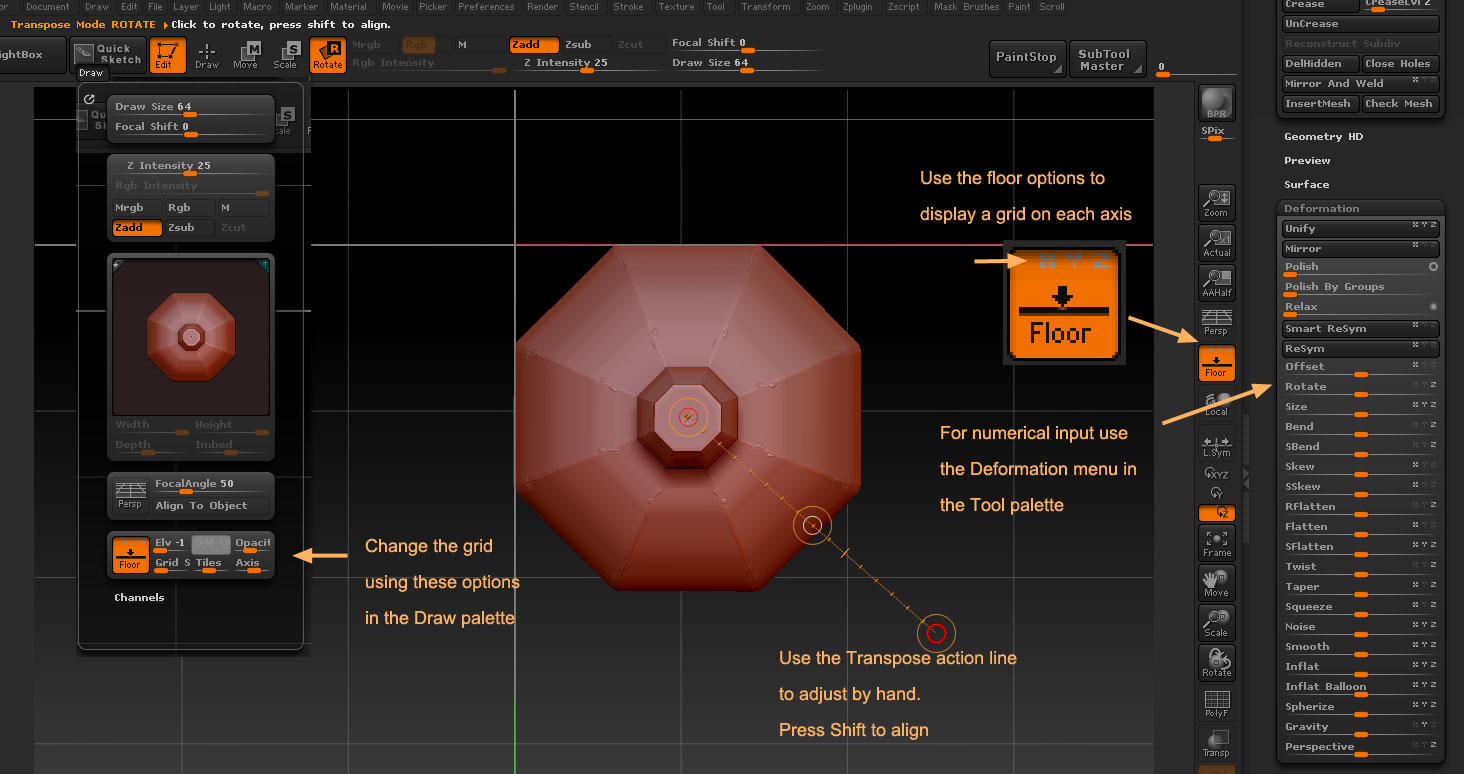
It certainly helps to have the model positioned square. You can adjust the alignment using Transpose or the options in the Deformation menu.

And make sure Perspective is off when using the Clip brushes!

Attachments

Grid.jpg

First I’d like to say thanks so much for the help. Without the community, learning would be so much more difficult.

My next issue, an issue no doubt caused by mistake is this:
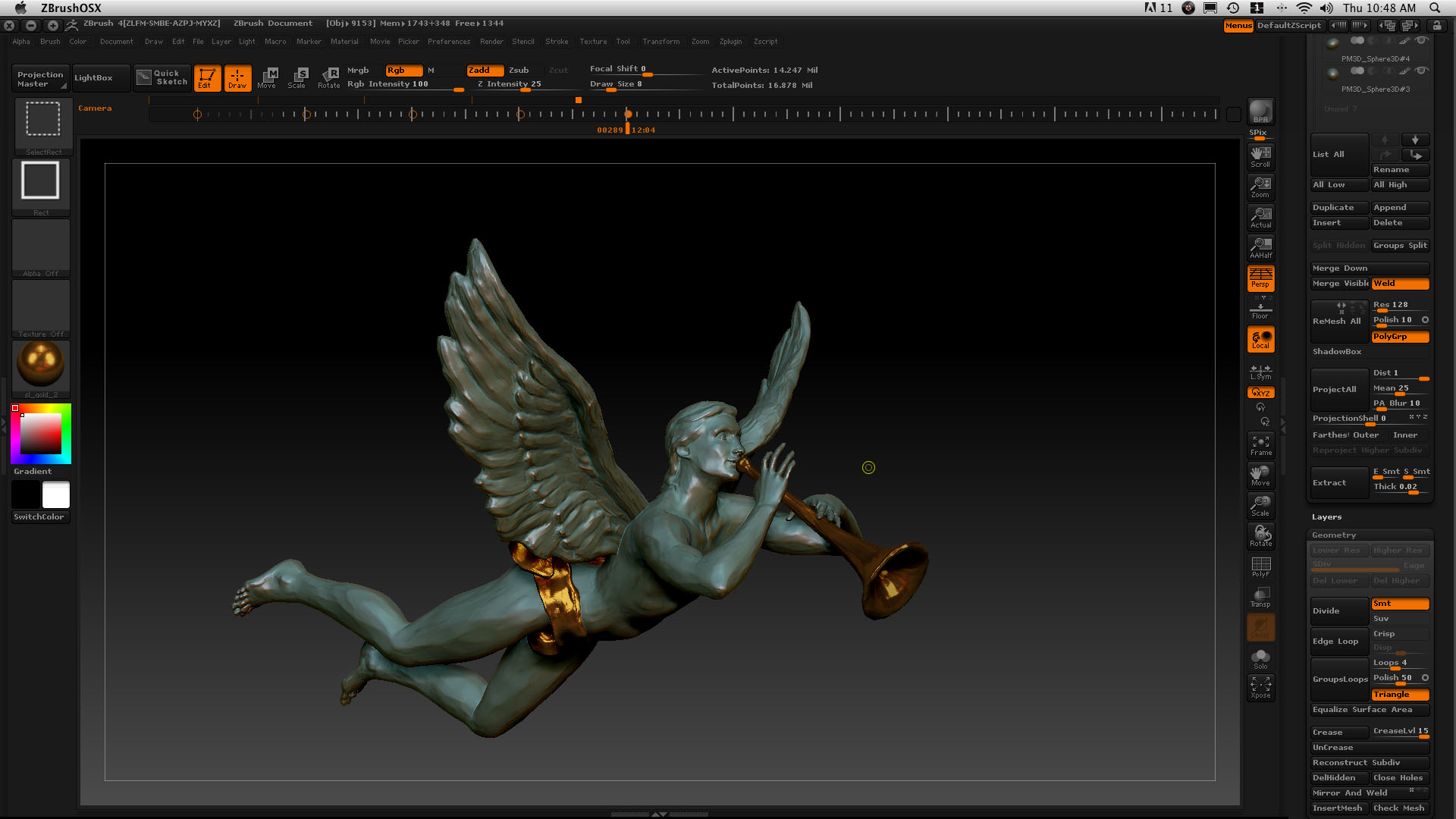
I built this figure that I’m sure I’m just a couple of hours from finishing.
navigation as slowed and become sticky. I move it and the model seems to cling to the currsor. The same holds true with scale. The model’s not that large though larger than it needs to be probably.

What might I have done to screw this and how might I unscrew it?

Attachments

slow and sticky.jpg

Your model does have 14 million points active. That’s a fair number, depending on what memory you have available to ZBrush. Also, if you’ve got a lot of stuff loaded that can slow things down. What are your memory settings (Preferences>Mem)?

The compact memory is set at 256 but to be honest, I’m not sure what any of this means. I’ve enclosed an attachment showing the prefference memory settings. I’m in the dark. Please illuminate.

You could set your Compact Mem setting higher. Have you got 4GB memory in total? If so, you can set your Compact Mem to 2048. Store the configuration by pressing Shift+Ctrl+i.

The other settings you can leave alone. The Undos can be temporarily increased if you are working on something that you really want to be able to undo more times but it is better to leave it at 4. ZBrush will always store as many undos as it can above that number. Likewise the MaxPolyPerMesh can be increased up to twice the value you see here but only during a session when you really need it. If you find working with HD Geometry slow then lower the HD Preview MaxPoly setting should speed it up.

If you find ZBrush performance slows with heavy meshes then one thing you can do is to hide parts of the model you are not working on.

Great model. :slight_smile:

HTH,