ZBrushCentral

Can you use a grascale image to make a terrain?

Hello,

I have downloaded the zbrush demo and I have spent a few hours so far learning the program. I have a task I want to accomplish and I have spent a bit of time looking through the program to figure out how to do. But I am so new to zbrush that I don’t even know where to look.

I am trying to make a model of a golf course hole. I have a grayscale image that represents the elevation of the terrain. I would like to bring this into zbrush and use it to make a 3d terrain using this image. Is this possible in zbrush and if so how do you do it? I also have other images that represent the greens, sand traps and water hazzards. I also would like to bring these images in and use them to sculpt details into the model. Any help would be greatly appreciated.

Thank you,
-Joe
You can absolutely do this in Zbrush.

-Create a square UV for a square polygon plane.

-Import your greyscale image in the Alpha menu.

-In the Tools> Geometry menu, Subdivide your plane so that it is a million polygons or more but first click on the crease button under Geometry. This will keep your corners more square when the smt smooth modifier is on.

-Add your grey scale image to the Tool>Displacement Map menu. . . the image you imported into the Alpha menu.

-Click the Disp On button, this will give you a displacement map preview.

-Increase the intensity slider to see the effects of the greyscale image displacement on your plane.

-Click Apply DispMap when you are happy with the preview.

-Undo if your resolution is looking choppy and try it again by subdividing your plane more.

Thank you epiginosis,

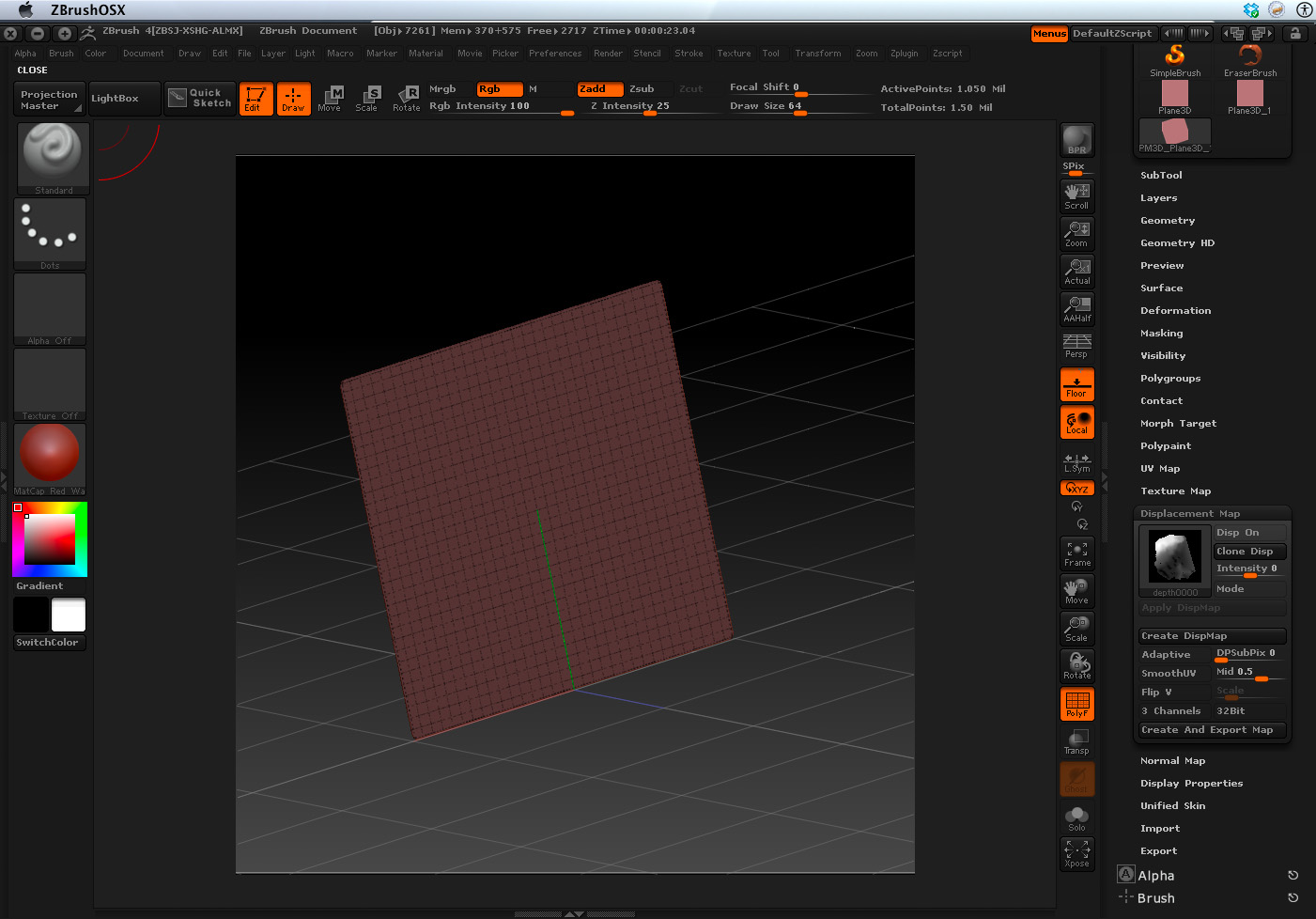
I am trying to follow your steps but I am not getting the displacement to happen yet. I imported a 16 bit grayscale image into the alpha pallet. I made a plane and converted it to a poly mesh. I think it comes with a uv map already. But I don’t know how to look at the uv map to check. I increased the mesh resolution to 1.5 million points. Then I imported the gray scale image into the displacement map panel as you can see in the attached image. However when I click on the Disp On button I get a message that says “Note: Displacement mapping requires texture map. Please apply a texture map and try again”.

Another thing I would like to know is how to rotate the plane so it is lying flat on the ground rather than standing on its edge.

Any help would be greatly appreciated.

Thanks,
-Joe

Attachments

zexample.jpg

After drawing out your plane, making it a PolyMesh and subdividing.
Go to Tool>>Texture Map and hit New From UV Map.
Make sure the gray scale image is loaded in the Alpha Pallet.
Go to Tool>>Displacement Map click on the image icon and sellect your image.
The Disp On button should light up and now you can adjust the intensity slider.
You will probably want to have the Mode button turned on and rotate your model at an angle so you can see the displacement better.
When you are happy with the displacement hit Apply DispMap

Thank you,

I got the displacement to work. The thing about displacement requiring a texture was confusing.

-Joe

An easier way to do this if you sont want to mess around with textures, is to simply apply the greyscale image as an alpha to the displacement brush, set the stroke type to DragRect, set the Zintensity to 50 or 60 or so, and drag it out to the corners of a subdivided plane while it is parallel to the screen.

Quality (and performance) will be impacted by the resolution of your alpha, and the subdivision level of your target mesh.

This has the benefit of allowing you to more quickly try out different things, and adjust the Zintensity until you get the elevation you’re after, without having to bother with textures and UVs.

Or you could even do the same thing with projection master, which will allow you more control over the size, placement, and even rotation of the displacement.