ZBrushCentral

Bumpmap & Cavity map Questions.

Alright, this is getting really frustrating… I’m trying to follow the steps that’s supplied by Mr. Spencer.
Okay so I’m learning that for the Bumpmap Viewer approach is only available if you’re actually painting new bumpmaps over the the model. This won’t help me much because the model I have already has alot of details itself.
I put on the displacement map in MAYA and it’s not rendering enough detail. I tweaked it higher but Maya would simply just not bother render it.

Okay… I should have used project master to apply the little small details but I already did it on the model.

Now I know the cavity map will help me pull some more details off my model.
I’ve been following the directions but I can’t seem to understand these things in the directions. I’m using Zbrush3 and I can’t seem to find the options Mr. Spencer is using.


Turn Ambient (turn ambient from where?) all the way up. With Render:Best on, adjust the CavityColorize(Where are all these Cavity options in Zbrush3?), CavityRadius, and CavityIntensity until the wrinkles in your model are shaded as you like. (CavityIntensity is probably a good one to start with.) You should get a posterized effect denoting where the areas of the map will be cavity-shaded.

Once you have a diffuse (cavity) map to your liking press Texture:GrabDoc to make the document into a texture, and then export using Texture:Export.

The diffuse map can be added in Maya similarly to the bump map. In the attributes for your shader attach a file node to the diffuse channel. Dark areas will render darker and light areas will be normal. You may want to adjust the map in a photo editing package if the effect appears too strong or adjust the file node settings.

nevermind. I found it.
I’m having trouble understand the bumpmap tutorial though…
I’m stuck here…


  1. You may now enter Projection Master with only color enabled and paint with black or white on your model, varying intensity to adjust bumpiness.
  2. When you leave Projection Master, the modifications to the texture will appear as bumps on the model’s surface. Make sure that you enter Projection Master with only the Colors option checked, and your brushes are using RGB only, do not use ZAdd or ZSub. This will ensure that you do not inadvertently modify geometry as you paint the bump map.
  3. Once the map is done, you can export it and use it in Maya.

I already have the model detailed as I wanted it to. Am I supposed to make a whole new bump map? I thought it’ll pick up all the little details that the displacement map can’t pick up? There’s no way for me to just get the bumpmap out without painting anything? I like the way my model is right now.

or was that cavity map?

If you want a bump map for details you’ve already created, just create a displacement map between the two highest levels and export it. It’ll probably look almost completely grey, but the details are there, and you can go into photoshop or whatever and adjust the levels until they pop out a bit more. From there it’s just tweaking the intensity of the bump effect until you’re happy with it.

Hey thanks for helping out.

just create a displacement map between the two highest levels and export it.

I’m not understanding this quote.
Basically you mean create a displacement map from SubD 1 right? Then it’ll create the displacement map of the SubD6?

1.-The displacement map need to be created in the lower level you have
2.-Once created, turn in the color panel to midgray AND change the material to fast shader, press ctrl+F to fill the canvas with your dispmap
3.-In render panel>Adjustment>Adjust ON
4.-There play with contrast to see your details
5.-In texture Layer>GrabDoc and export if needed.

In the Material Panel>Modifiers you have all the options to modified you are asking for.

Andreseloy

No, if you create your displacement map from level 1, it’ll create the full map. You just want the difference between say, level 5 and 6 (or maybe even 4 and 6), because level 6 is where most (if not all) of your bump detail is.

Thanks alot Adreseloy. I can understand it now. But I have no idea how it’s supposed to look before I export it.

That’s the image I got. from Mr. Spencer’s tutorial.
Am I supposed to make things light as possible and see details?
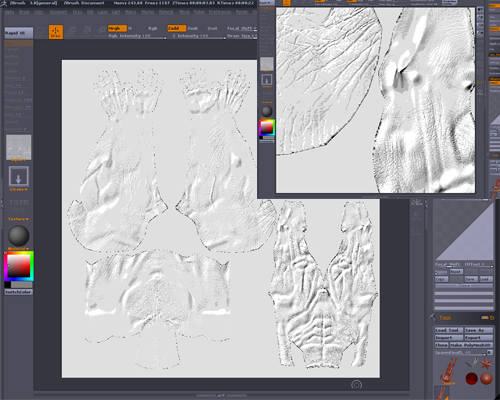
Here’s an example of my map. I turned the Brightness high and contrast high.
I don’t know if I’m doing this right… I adjusted it and grabdoc in Texture but the colors changed to dark grey, not light like I adjusted it to be. am I doing something wrong? Or am I supposed to edit this in Photoshop?

Attachments

cavitymap.jpg