ZBrushCentral

bump map and paint color at the same time?

the question is : if I paint the bump map in Zbrush, how can I see the bump map’s result on my model and paint the color at the same time?
I checked the previous forum, the version Zbrush 1.5 cannot achieve that in the year 2002. so this problem is still not solved? I’m using Zbrush 4.0 . So if it is not solved, what is your workflow of sculpting the model and paint texture? Are you sculpt the model in Zbrush and then paint in 3Dbody paint or mudbox?
(this is the link I saw:http://www.zbrushcentral.com/archive/index.php/t-7031.html )

Allow me to ask another stupid question, how can I pick the color i currently use??
C key picks the color under your pointer, or you can click and drag from your front or back color swatch to whatever color you’d like to use.

We don’t paint bump maps anymore in Zbrush, never really did. Most people are sculpting that detail, not using a map to drive it. Zbrush can handle such dense meshes there isn’t really a reason to fake it. You can always convert mesh changes into maps to use in other software as well.

Big thanks!

I also have some questions.
So Dose Zb have a layer mode like multiply, add, color,light and so on (like photoshop’s layer mode) when I paint color on the model? Because I paint a tile-like gray color as my base (using projection texture method) and I want create another layer and add different color.

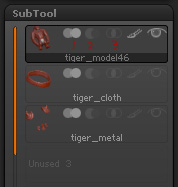
What are those icons stand for and how do they work? (where I marked the number 1,2,3)

Can I change the layer order of subtool?

And last one, when I use “merge” to merge all subtools and continue sculpting, if I don’t smooth the new painting area, seam will be seen obviously. When I use “remesh”, it always cannot work out a exactly same model as I remesh before. So how can I dealt with this problem?

Attachments

subtool.jpg

They can be reordered and combined within the subtool pallette, below the list are arrows to do this. Intersection subtraction and union are the other symbols. http://www.pixologic.com/docs/index.php/Tips_For_Working_With_Subtools#Combining_SubTools
Eye is for visibility and paintbrush is for color/texture.
This might help with layered texture creation.>> http://www.pixologic.com/docs/index.php/Layers

I just wanted to chime in on your first post, you could use Alphas combined with polypaint to paint on the mesh with both “bump” (so to speak) and color at the same time.

Basically what you are doing is polypainting your sculpted detail while you are applying it. To do this, enable polypaint on your mesh (it needs to be a high density since polypaint colors the individual polygons) and make sure “RGB” is turned on, choose a color from the color picker and an alpha from the alpha pallet and when you drag it out onto the model you’ll have sculted detail and paint on the same area.