not one question has been answered 
OK, I’ll give it a shot, then.
i need to know how do you handle the fingers and toes. i imagine sculpting one finger and one toe and copying it over to instance it is faster than sculpting 5 fingers and toes. how do you do it? if you click and work on a different model, or “tool” you lose the chance to keep editing the first model. please help! thank you!
OK, the first thing you need to realize is that ZBrush does a lot of things differently from other 3D packages. The first of which you’ve already discovered: each model or “tool” is a separate entity. When you click to get another tool (say, Cylinder3D), you essentially drop the model as if to say “I’m done here, moving on” and you cannot edit the model any further. Except that isn’t entirely true, as I’ll explain.
Lower down on the Tool menu is a submenu called “Subtools” and it is here that you’ll create all the bits and pieces for your model: clothing, hair/fur, and other bricabrac. In short, DO NOT click on another Tool until you’re done.
But if you do, you can just hit CTRL+N to clear the canvas and draw your tool out again. Just remember to hit the “Edit” button (or “T” key) immediately after drawing it out. Then you can continue working.
To make fingers and toes, you have a bunch of options, so which one you’ll follow depends on how you prefer to work. Since you mention making instances of the fingers and toes, I’ll start there.
Under the Tool>Subtool menu, click either the button marked “Append” or “Insert”. From the flyout menu that appears, click another subtool, probably Cylinder3D.
When it appears on the canvas, it’ll be a darker color than the Rex body, meaning it isn’t the currently selected subtool. Select it from the list of Subtools, then use Transpose, the Tool>Deformation sliders, or just pulling verts to make a finger or toe. Use Transpose and Deformation>Offset to move the finger/toe into position. (I just realized you may not know what “Transpose” means. Go to the bottom of this post and read the answer to your question about the move, scale and rotate functions)
Back to the Subtool menu, where you’ll click the button marked “Duplicate” to make a copy of your finger or toe. Then use Transpose or the Deformation>Offset to move it into place. Do this for all your fingers and toes until you have what you want.
The above process will make fingers and toes for one side of the body, so you’ll want to duplicate them for the other side.
First, merge the fingers and toes into one group each (One for fingers, another for toes). Do this by moving the fingers and toes in the Subtool menu until they stack neatly, and select the finger on the top of the stack. Click the button under Subtool>Merge marked “Merge Down” which will merge the finger you selected with the finger directly below. Do this until all fingers are merged. Do the same process for the toes.
Next, make a mirror duplicate of the fingers. You can either use Tool>Geometry>Modify Topology>Mirror and Weld, or use ZPlugin>Subtool Master to mirror a duplicate along the X-Axis. If you use Mirror and Weld, be aware the parts you want to mirror must be on the side of the red line at the axis origin. You’ll just get an error if they aren’t, so don’t be too concerned; use Deformation>Mirror, then use Mirror and Weld.
To merge the fingers and toes with the body, you can either use the Subtool>Remesh All function, Merge all subtools together and turn them into a Dynamesh using Tool>Geometry>Dynamesh, or doing it the hard way and deleting faces and using the Curve Bridge brush. Since you’re just starting out, I suggest using Dynamesh, since it’s easier.
Whew! If you want an easier method to creating fingers and toes, turn your Rex into a Dynamesh, then push and pull out fingers and toes. When the geometry gets too stretchy (you’ll know it when you see it), CTRL+Left Click+Drag on an empty space of your canvas to re-mesh. Then continue working.
If you haven’t already, check out the videos on Dynamesh here: http://pixologic.com/zclassroom/homeroom/lesson/dynamesh/
also the scale rotate and move tools are being completely weird. what is wrong with it?
If you mean the Move, Scale, and Rotate buttons at the top of your screen (next to the Edit and Draw buttons), those are the Transpose tools. Check out the tutorial videos here:
http://pixologic.com/zclassroom/homeroom/lesson/transpose/
If you mean the ones along the right side of your screen, those are only for navigation, and essentially do the same job as regular click-dragging (to rotate), ALT+Drag to Pan, and ALT+Drag+Release ALT to Zoom.
Finally, a word about using a tablet: Use one. Practice with it, especially since you seem uncomfortable with staring at a monitor without being able to draw directly on it. If you really want to train for it, get a sketchbook and pencil then practice drawing an item without looking down at your pad. In my drawing classes, it was called “Drawing what you See, not what you Know” and helped tremendously when it came to my first Wacom tablet.
where my hands are and where i see has to be together.
And yet you use a mouse. Using a tablet isn’t that much of a disconnect, just remember it’s not that different from the mouse you use all the time.
Then again, if don’t have access to a tablet, just keep using the mouse. It’ll be like trying to sculpt with a potato, but if it’s all you have…
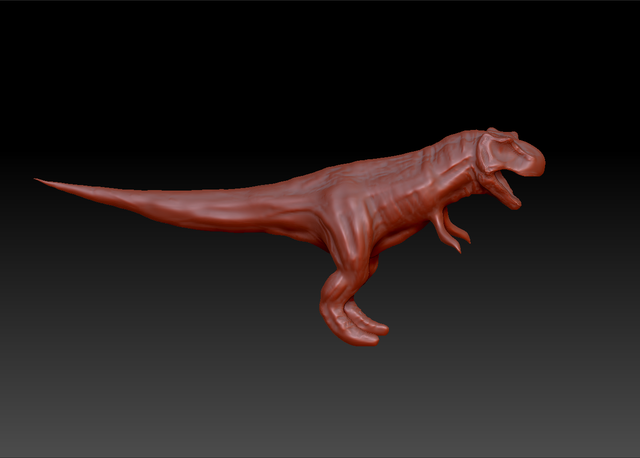
 Happy ZBrushing.