ZBrushCentral

Applying high detail in zbrush to a lower subdivided mesh.

Hello everyone. First let me apologize if this question has already been answered or handled on these forums or in the Zbrush help file. I’m very very new to Zbrush and I’m still trying to learn my way around the interface, the terminology, and I am only on my second Sculpt. I did try performing a search but I’m very much a newb, and I didn’t really even know where to start or what to search for. Also, I’m using Zbrush 3.1.

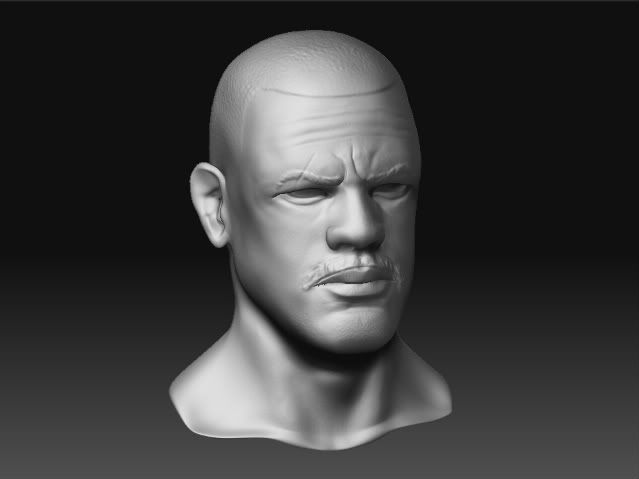
As I said, I'm new to Zbrush, and I just made my first big boo boo...and I'm hoping theres a way to fix it without having to completely redo all my work. First, here's my sculpt as it currently is:

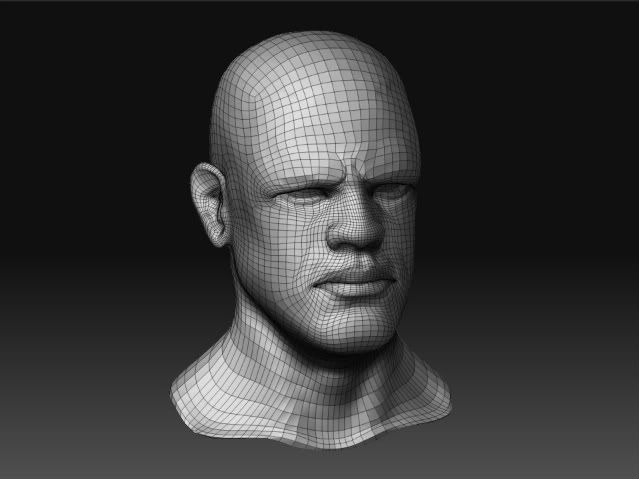
Not quite where I want it, but getting close. I was really growing very proud of the work I had accomplished with this sculpt, but then I realized I'd made a horrible mistake. My ultimate goal is to get this character back into 3d studio max and rig him, and like many others, I made my base mesh in 3D Studio max and imported it to zbrush to subdivide and start sculpting. Now that I'm getting closer to the finish, I started going back to my lower geometry to see how it looked. This is level 1:

A LOT more polys then the mesh I thought I had started with. At first I wasn't sure what I had done, but eventually I realized that when I did “export selected” out of Max, I did it while Turbosmooth was applied to the mesh. D'oh!!! So my question now is, how can I make this right? Aside from the fact that it's subdivided, there shouldn't be any difference in the amount of polys in each object. Is it possible to export out my lower poly mesh in max to zbrush. Resubdivide it in Zbrush, and then apply The detail from one mesh to the other? Is there something that can be done with Morph targets perhaps? And if there is something to be done, could someone run me through the process, or direct me to where I could learn it?

Hi,

Welcome to ZBrush and ZBC. :slight_smile:

There are two methods which would work in this case. The first is probably the best.

A. Reconstructing subdivision

As the mesh you imported into ZBrush is a smoothed version of your low poly model you can use ZBrush’s ‘reconstruct subdivision’ feature to create the lower level. You need to follow this procedure for everything to work out:

  1. At the lowest level of your ZBrush model, press Tool>Texture>Enable UVs. (You don’t need any UVs assigned but they have to be enabled for this to work.)
  2. Press Tool>Geometry>Reconstruct Subdiv. This will simplify your mesh to create a new lower subdivision level. Keep pressing the button until the number of polys is equal to your original low poly mesh. You can find the number of polys by mousing over the large thumbnail in the Tool palette.
  3. Press Tool>Morph Target>Store MT.
  4. Import your low poly mesh.
  5. If you want to generate displacement or normal maps you would do it at this stage, provided your model has UVs. If the mesh that you import at (4) has UVs then they’ll be transferred and all will be good.
  6. Press Tool>Morph Target>Switch. You can now safely move to the higher subdivision levels for creating texture maps using Col>Txr or continuing sculpting.

B. Projecting detail

With this second method the meshes don’t need the exact same topology but the shape must be very similar.

  1. Select the PolyMesh3D tool in the Tool palette and import your low poly mesh.
  2. Subdivide the low poly mesh until it has sufficient polys to hold the sculpting detail you want to transfer.
  3. Select the high poly sculpted mesh and press Tool>SubTool>Append. Select the mesh you imported at (1).
  4. Select the new subtool and press Tool>Morph Target>Store MT.
  5. With both subtools visible, at their highest subdivision levels, and the new subtool selected press Tool>SubTool>Project All. The detail will be transferred.
  6. Use the Morph Brush to tidy any imperfections.

HTH,