ZBrushCentral

Answered: ZB4: still microscopic font

Hi all.
After about two days of struggling with activation, I was finally able to start the new ZB4.
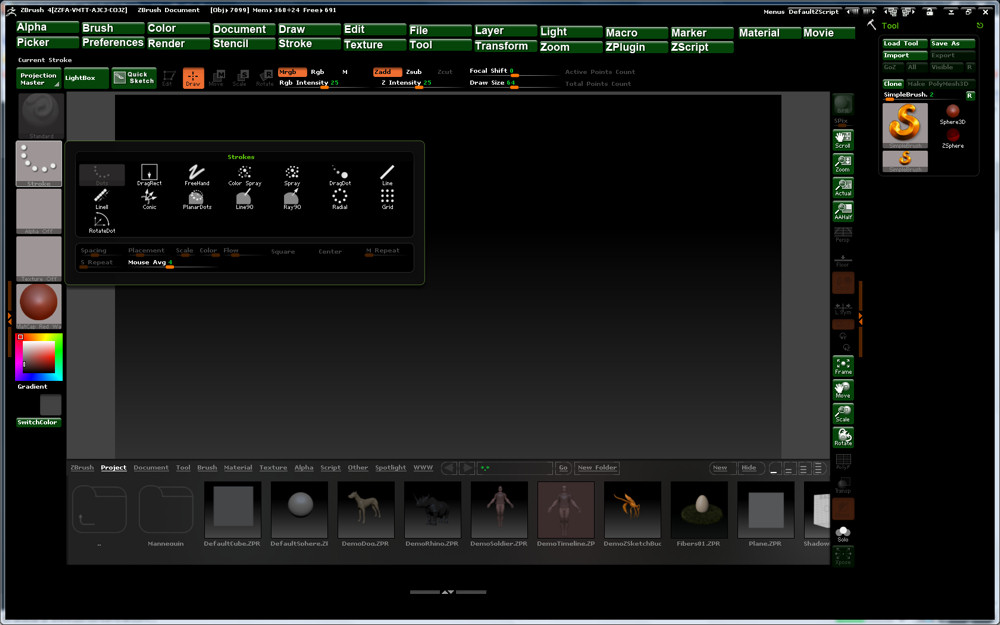
I immediately found, with distress, that the UI still use that microscopic font seen in previuos versions. :cry:
Sincerely I consider unbelievable that such a wonderful program, full of ever surprising new features, still, in 2010, in the age of big monitors with very high resolution, still lacks so dramatically in this aspect, so important for basic ergonomy.
I use a 22" monitor at 1680*1050, quite standard these days, and find really tiring to read the text at that minuscule size.
Anyone knows if it is possible, maybe with some commands at the start, to run ZB at lower resolution, without have to directly change Windows resolution (that is perfectly suitable with 99% of other software)?

Ciao
I use two 30" monitors (5120x1600) and I think the font size is perfect. Probably just a personal preference more than anything else.

But I can see how that could be a problem for someone.
As far as I know there isn’t a way to change the font size.

you can also use the zoom function under the zoom palette.

Hi goast, thank you for your experience and opinion. I posted similar comments about the very small font of the UI in the past, always hoping that the new versions of ZB could solve the problem. Until now no luck:cry:

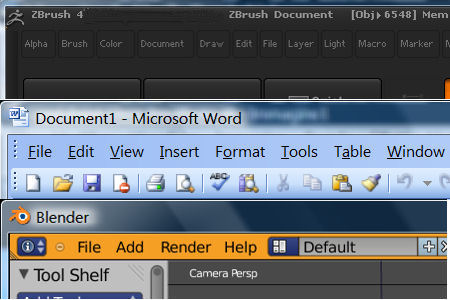
Just to clarify my point, I made a comparison between the menus in ZB4, Word, and Blender 2.5, as seen in my monitor (22", 1680*1050), from which it appears clear (to me) that ZB menu appears very less readable than the others.

[attach=209585]UI ZB Word Blender.jpg[/attach]

Blender in the new 2.5 version makes simple to change the UI font dimension, and actually now it is easily readable. I really would like a similar option in ZB, but maybe it is only a little minority request, I don’t know.

@Support. Thanks for the tip, I use it at present, but it is not so confortable as would be a real bigger font.

Ciao

Attachments

UI ZB Word Blender.jpg

Agree that this is an essential UI need. I work on a 30’’ monitor and for the sake of my old eyes sit back. It is irritating to have to crane forward to read the menus.

Hi tbriggs,
thanks for the reply.

Unfortunately I must say that I almost lost my hopes concerning the possibility to change the font size in future versions of ZB. Year after year, upgrade after upgrade, I write here in the forum about the issue, but it seems that very few users share my (our;)) problems, and Pixologic people kindly suggest to use the zoom function. Probably you already discovered this, but I found that a slight improvement of the menu readability is possible by changing the color scheme. I found the Z3.1_Gray22 quite decent, surely better than the sadistic dark gray on black of the default scheme. Ciao

Zbrush interface Font Size is as others have stated here is impossibly small.
Why the interface font doesn’t have font size adjustment implies someone with authority to give users the utility doesn’t take it seriously.
I can only remind the Zbrush code gods they are mortal and they are going to get older.
So please we beg you to let a bolt of lightning strike Zbrush and enhance the interface with true scaling of adjustment available for the font.
I can only prey that my humble petition is read by higher authority and the Zbrush interface font size will be adjustable
.

It helps of course to set your menu ui color to something other than
‘invisible gray’.

That’s the first thing I do for every ZBrush update.

I usually just switch it to white.

G.

You can also adjust specific text colors in the Preferences>Icolors menu. For example, changing Bt3 to pure white makes button text jump out at you. Sw3, Icn3 and Sl3 do the same thing for switches, icons and sliders. For palette names change the Menu2 color. Again, pure white really makes them jump out against the default grey of the interface.

Thanks for the tip Aurick. Actually by changing colors for the different elements as you suggest makes the UI of ZB almost human;)
One question: I did not find the button for changing the color of the text in Lightbox (the various categories and the file names). Could you please indicate where is the option?

Thank you.

Ciao

You can change the Lightbox background color through Preferences>Icolors>Border and the text opacity through Preferences>Lightbox>Text Opacity. I don’t think you can change the text color.

For a possible solution to the menus text size see here:
http://www.zbrushcentral.com/showthread.php?t=94752

Hi Marcus.
I tried the options under Preferences>Lightbox, but strangely they seem not having any effect. In particular I tried to modify the sliders for “Text Brightness” and “Text Opacity”, but the appearence of text in Lightbox remain unchanged. I don’t know if it is a sort of bug or I am making soke mistake. Did you try to change those values?

Grazie, ciao.

Marcus, you are a benefactor of mankind (or at least of ZB users :smiley: )!
I immediate tried your script, and substituted the original microscopic menus with yours. I also played a bit with customizing UI colors, as suggested by Aurick, and now the situation is quite better than before. This is a preliminary result:

[attach=215758]ZB UI with Large Menus by marcus_civis.jpg[/attach]

I really hope the Pixologic will consider to directly put similar options for font size in next versions of ZB, because I think they greatly increase usability.

The only thing I still am not able to change is the gray color for Lightbox menus, if someone has any ideas would be welcome.

Grazie, ciao.

Attachments

ZB UI with Large Menus by marcus_civis.jpg

Hi Antlab,

You have to close and reopen Lightbox to see the changes. If you set Text Brightness to 0 the text will be black/gray. Opacity of 1 gives the most solid color (white or black). With a light background color this is the effect:

lightbox.jpg

I’m glad you like the large menus plugin. :slight_smile:

Ah, that was the problem. For the others UI elements the changes of colors are immediate, Lightbox instead needs to be closed and reopened. Thanks for the tip :slight_smile:

Ciao

I’m blind in 1 eye and can’t see out of the other so this was my solution to the small Menus font. I put all the menus I use the most in the left tray. Plus you can open them and they won’t close if the cursor happens to slip out of the menu.

Hi Zber2,

nice setup. For me the ideal would be to be able to put the large palettes with icons in horizontal, substituting the small menus. But, as far as I know, the palettes can be put only on the lateral trays, reducing the horizontal real estate for the main viewport. At present I find the script by marcus_civis a suitable solution.

Ciao