ZBrushCentral

Adding detial to 'Lord of the Rings' Oliphant

Hello all.

This is basically a re-post with a different title.

The title I originally chose doesn’t convey the problem I am having and I worried that people who could help me would bypass my thread and my problem might never be solved.

So forgive me while I copy the main information from the old thread and cross my fingers that a solution will present itself.

Cheers

I am having some issues here.

I have created a fairly good model in Maya and now want to add some detail and eventually a texture in ZBrush but have run into a problem.

The reason why I chose ZBrush is mainly because of the Alpha’s. Where you can layer on the other and create a high level of detail to be made into a normal map for Maya to render.

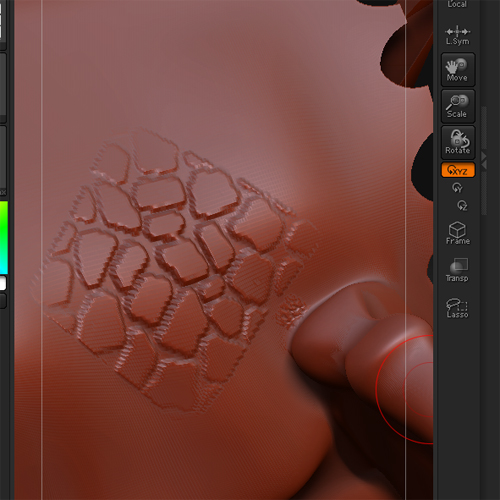
However I have imported my model and divided it to the max of 6 times but the Alphas still come up blockie and completely without detail.

goast666

i am not sure what problem you’re coming across. from the sounds of it you just don’t have enough polys for what you’re trying to do. if you built the model in one piece then it probably needs to be broken using poly groups, then splitting those groups into individual subtools.

If you post up some images of the problem you’re having it would make it much easier for us to help though.

TimLIVID

I think you may be right thinking about it. Here are some pictures to let you know what’s going on

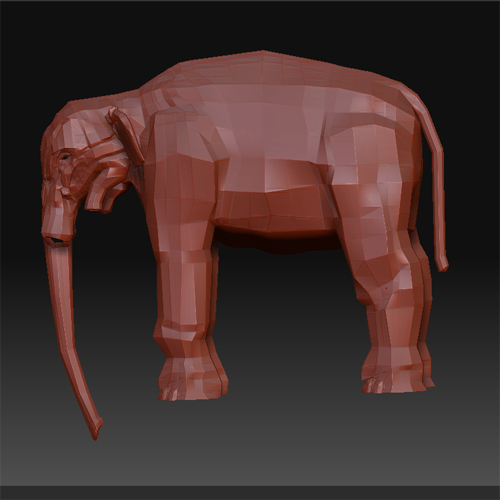
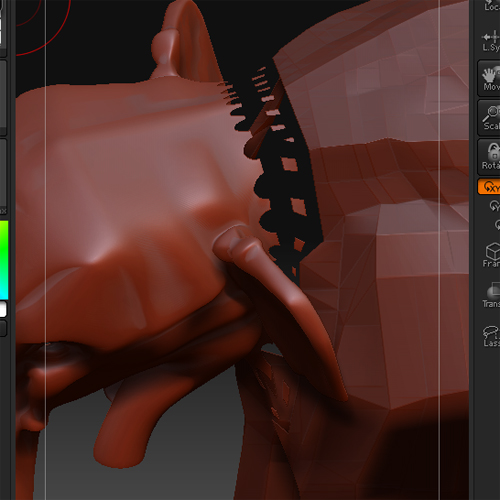
The first is imported mesh.

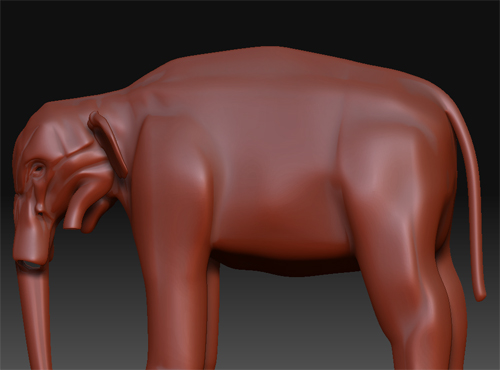
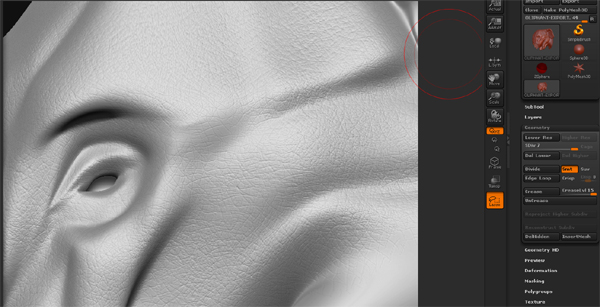
The second is the max smoothed version

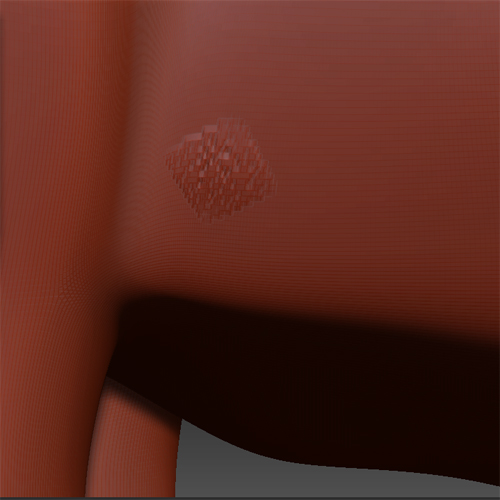
The third is what happens when I try to do some alpha modelling on it.

So if I understand you. I must go into Maya and cut up my mesh into smaller chunks. Import them into ZBrush, divide them, do the detail work, export the normal map and then apply that to my low poly Maya model and things should look sweat as a nut?

Thanks once again.

Attachments

pic-01.jpg

pic-02.jpg

pic-03.jpg

goast666

It is simply your poly counts. You can actually split up your model right in Zbrush.

Look into how to use polygroups.
you’ll then split those polygroups using “grpsplit” in the subtool panel
Then look up how to use subtools if you don’t know.

This will create clear gaps in your geometry though. and may or may not mess up your normal mapping. working on a solid mesh, slash creature gets tricky as your polycount becomes an issue. and breaking the mesh to allow for more polys creates seams. It is a give and take that you have to learn to work with.

But i recommend giving this a try and seeing if you can find a good work around.

You can always use mesh insert to get your model back to one “seamless” mesh, but that again requires high polygon counts.

TimLIVID

Thanks mate.

I have gone into Maya and cut the model up into separate pieces.

The head, the body and the legs are all separate pieces of geometry.

What sort of issues do you think I will encounter with my normal map?

Obviously when it was all one mesh I made a UV map which fitted together quite well but im not sure how it will all work now that I have cut it to pieces.

Right, I have tried again but I have run into some other issues.

Firstly, I managed to get all the pieces together in ZBrush but then when I smoothed the head but the seam has gone a bit weird.

The main problem is still that the level of detial is still not sufficent.

Should I cut up the mesh a bit more? Maybe smooth it in Maya before taking it into ZBrush? Im not sure what to do about the seam.

Attachments

pic-01.jpg

pic-02.jpg

pic-03.jpg

TimLIVID

Well I thought I was going to be clever and go into the preferences and changed the max amount of subdivisions.

However the system told me off when I got to about 8. Clearly that wasn’t the answer.

Next I tried Geometry HD and while I did get the results I wanted to work flow was a bit slow. I didn’t want to work on a tiny bit and then move onto another tiny bit then find out that I couldn’t export the work to Maya for rendering.

The last thing I tried was to have the model smoothed in Maya but all that did was mean I couldn’t smooth it much when I got to ZBrush. Should have seen that coming to be honest.

Ok mate, I have been away on a couple of other jobs but have had time to experiment.

I went into the preferences of Zbrush and increased the number of divisions it would allow but that just killed my computer beyond 8 divisions

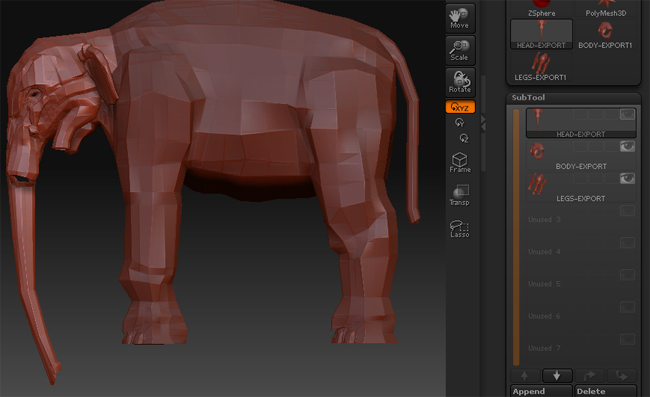
I then took the undivided model into Zbrush and cut it up and turned it into sub tools like you suggested. The first image shows that I have the Head, front legs, body and back legs all divided into separate tools.

I managed to get it to divide to level 9 and that gives me the quality I need but it makes the work-flow so slow I know there has to be a better way.

You can see from the image where I am trying to go with this.

This was made from a simple Alpha with just the head (not even the trunk) turned into a separate subtool divided to 7 so it wasn’t exactly fluid modelling.

My dream is to get images of key parts of the Elephant (eyes, knees, ears etc) then project them and use them as a stencil and use that Alpha you can see to fill in the gaps with a few other modelling tricks.

It’s just the problem of getting started …

Attachments

Untitled-2 copy.jpg

aurick

Before you divide the model (or a subtool), press Tool>Morph Target>Store MT. This is because multi-res subdivision editing means that any changes made to one level are translated to all other levels. Well, when you divide a model, the smoothing process causes it to contract. This then results in shrinkage when you return to level 1.

After returning to level 1, press Tool>Morph Target>Switch to get your original base back. Be sure to switch again before returning to the higher levels, or the base mesh restoration will translate back up the line!

Another thing you can do is to press Tool>Geometry>Crease before dividing. This will prevent the edges from contracting, although the rest of the mesh will still do so.

TimLIVID

Hey Aurick

Thanks for your response. I think that has solved one of my problems. My main aim is to make a normal map to take into Maya and render from there so I trust that either of the two methods you outlined would get me to this goal.

Goast666 is helping me with the other problem (in between Fable II) so together we should get this model finished.

excited clapping

Cheers again.

So I was thinking of conducting a test.

I went to the digital tutors site and had a sample look at some of their tutorials

http://www.digitaltutors.com/store/…?productid=3385

I had a look at lesson 13 and followed along as the Rhino is a demo model that you get with the program. I chose the same brush and intensity and divided the model to the max and low and behold I wasn’t getting the same detail level as the guy in the tutorial.

I don’t want people to think that I am needlessly bumping this thread up for the sake of it but I just feel that the titile I orignally gave it doesn’t fully convey the type of problem that I am having.

It would be usefull if I could change it or start a new thread with a better titile and just repeat the posts that have been posted here.

I just feel that poeple out there must know the solution but are probably not looking at this thread beacuse of the shoddy title I have given it.

Just my thoughts anyway. I will give a day or two and see what I shall do.

Cheers.:cry:

That’s quite an indigestible lump of text, which boils down to, “I can’t get the resolution I need in my high frequency details because the model is too low poly.”

Have you not tried applying the fine detail as a bump (displacement) map? This is independent of mesh density. If you have a texture in the current texture slot and have applied an intensity value in Tool/Displacement, then any alpha you have in the current alpha slot will show up as bumps on the model.

Cheers,

R

Or split the model into parts. Each SubTool is divided independently, which lets you get higher poly counts for the model as a whole, and focus those counts where you specifically need them.

Thanks for getting back to me guys.

You are right. It is a lot of text, I should have thought more about it but thankfully we have Rory_L’s mini version.

aurick, I have tried that before. Cutting up the model both in Zbrush and in Maya but I still can’t seam to subdivide it to the level that I need or that the tutorials I am following. I can’t see how they are doing it and I can’t seam to when (as far as I know) I am following them to the letter.

Rory_L, this sounds like a new line of investigation. If I understand you correctly. I should be adding this detial to a bump/normal map which is unrelated to the size or poly count of my model. So this would give me the detial I need.

I do think I have tried your workflow and that is how I got the results you can see.

I will try again when I get home from work and get back to you but I a farily sure I have tried this. If I understand you that is.

Once again thank you.

Well I have tried two things.

Firstly to just take a piece of the geometry and crease it, then divide it to 8 and start brushing away with a default Alpha selected.

Then I took the same piece of geometry, creased, divided to 8 and then applied a default texture and material before doing the same thing with the Alpha.

Now im not 100% sure if there is a difference but I think there might be. I could just be a placebo effect (if that’s possible)

Would you expect to see a difference in those two techniques?

So I will start adding some detail using the second method and get back to you on my progress.

Cheers.

A bit of a shameless bump to be honest but I pretty much tried everything else and I just know there has to be a solution out there somewhere.

Tim_LIVID:

The way a creature like and Oliphaunt generally gets built in a VFX pipeline is to model and sculpt the creature’s large and medium size forms/masses (large muscle masses, the larger skin folds, etc) in a 3d modelling/sculpting package. Any detailing finer than that get painted with conventional texture mapping techniques using multiple high resolution maps. In your case, you’d use this map as either a bump map, or better yet, displacement maps.

Hi Tim.

For the size and level of detail youre trying to stamp in, Lone Deranger is right…that type of detail would be indistinguishable from conventional greyscale bumpmapping with a large enough texture.

However, let me leave you with some general hints for working with very dense meshes for the highest frequency detail.

  1. Upgrade to a 64 bit OS :wink: Probably not practical advice, but the fact youre having trouble doing this makes me think youre probably on a 32 bit sytem. ZB on a 64 bit OS and at least 2 gigs of ram (preferably more) should have no trouble reaching the neccesary subdivisions for this kind of detail. A fairly straightforward unibody mesh like that should be able to handle any kind of detail you want to put into it at 12 million polys or so.

If youre not though, you may have to use some cheats like aurick suggested, in splitting the model up into subtools, which will make for some complications.

General tips:

  1. When working with with very dense meshes at the highest subD levels, only keep small parts of the mesh visible at once. Either manually hide sections with the hise/unhide marquis functions, or assign logical polygroups and toggle them on or off as needed. This will keep your performance acceptable, and improve the pliability of the mesh that is visible.

(note:…dont try to hide/unhide at the highest subD level…this takes forever depending on your hardware…drop to a more manageable subD level, hide/unhide, then move back to the highest subD level)

However…

  1. When working with partially hidden meshes at very high subdivision levels, it increases sculpting performance on the mesh, but oddly decreases navigation performance in the window. This is because Zbrush rather smartly drops a couple subD levels during navigation trasformation operations (scale, pan, rotate, etc) on heavy meshes to keep performance good. But when a mesh is partially hidden, it inhibits this function for some reason, so youre transforming/navigating at full rez.

To help alleviate this somewhat for very heavy meshes, go to Preferences>Draw, and slide the “Adots” slider to the left until you find a good result. This basically makes the mesh revert to a simple wireframe display during transofrmation/navigation, which manuevers much more quickly.

  1. Try stamping in your finest levels of detail with displacement painting in projection master. I often find I get much crisper results using this method than manually painting on the realtime model for some reason. Just go to PM , drop the model, and make sure the “deformation” box is checked, then paint with depth and no color. You’ll find there are advantages and disadvantages to working with PM, but it is well suited for microfine detail painting.

  2. Make sure the alpha you’re painting with is high enough resolution. They are raster images after all, and Ive found that the stock ZB alphas can be too low rez sometimes for fine meshes, and the meshes actually pick up the pixelation from the low rez alpha. Sometimes I have to make larger texturing alphas in photoshop, and sometimes even apply some blur to them to get sooth details ( I recommend manually applyingg blur in photoshop rather than relying on ZBs blur control in the alpha palette.

Im afraid thats all I can do for you, without getting a closer look at what youre trying to do. If you cant get the results you want, Im afraid you may have no choice but to either retopo your model and distribute your polys more evenly , or to more targeted locations as neccessary…or to chop your mesh up into subtools which will give each section its own subdivision limit, but likely give you seam issues.

The easiest thing to do, would be to simply paint a nice high rez bump map :wink:

Good luck!

Well thanks to you both for getting back to me. I think in there I should have some things to experiment with.

Unfortunately I am running a X32 OS but I will have to try and struggle on with it for the time being.

I wish I could use a program like Photoshop to create nice colour and bump maps but at the moment I am not skilled enough. Fingers crossed for the future.

I will post back and let you know how it goes.

Thanks once again.

:smiley:

There’s no reason you cant do it directly in Zbrush. Just apply a white (easier to paint black on white, than vice versa) texture to your model using it’s UVs, and paint shades of black and grey color for the bumps, instead of displacement. Export, invert and adjust as required in your external renderer, and its your bumpmap.

Apply the "bumpmap viewer" material to get an approximation as you paint of what the bumpmapping will look like, subject to your external renderer's settings. You''ll find this to be a much more performance friendly way of achieving virtually the same results youre trying to do right now with actual geometry. Familiarize yourself though with the ins and outs of Projection Master vs polypainiting. You'll get better results for nitty gritty painting with PM and a sufficiently large texture, than with polypainting. Polypainting is more convenient and intuitive, but its better suited for coarser application of color.

And finally, when you want to get more advanced, you can apply that bump as a displacement within Zbrush, and set zmapper to roll it in to your exported normal map as the highest frequency detail…but that is beyond the scope of what I can explain here :wink: Just remember, theres always multiple ways to get somewhere in ZB.

Hi guys

Thanks for getting back to me.

Now the madness of Christmas is over I can get back to the Oliphant. So I will try your suggestions and see what happens and get back to you.

Thank you all once again.