I just tried this and got the same thing. You can clip on the outsides no problem but when you clip on the inside, it doesn’t work. If you mask one side first, then you lose your symmetry.
PINg! 
Anyone?
I think this is just a problem with the clip curve brush. Try clipping from the other leg and see if you get better results, each leg seems to make the curve brush behave differently. If you use the clip circle or clip rectangle they should both work just as you expect. They wont be able to give you the exact shape you want like the clip curve does, but they will get you started in the right direction.
Haven’t tried it myself, but how about this…
- Hide all but one leg (Ctrl-Shift drag with rect select tool)
- Clip on one leg as desired
- Unhide the rest of the mesh
- Ctrl-Drag to mask the clipped leg.
- Use Smart-resym to copy clip changes to opposite leg
- unmask
G.
@js7026: tried the clippingcurve on both legs but each time the opposite leg gets pulled in. The central symmetry axis shouldn’t let this happen and should mirror the clipping effect on the other side. Instead the clipping curve tool treats the model as one, ignores symmetry, and affects all areas lying within the gray shaded area however far they are. Basically anything behind the gray shaded area gets affected.
the ClipCircle and ClipRect do work somehow. I just wish the clipcurve worked too as it allows great control in defining the shape you want.
Any help from Support or anyone on ZBC will be greatly appreciated.
@grey32, yeah that is a workaround. I just wish the clippingcurve brush worked like the other clipping brushes.
I’m having the same problem with the clipRect and all the other clip brushes.
I get a lip or flasking are every edge no matter what clip brush I uses. It works sometimes if I cut straight on.
When I use the brush radius option I don’t seem to have a problem.
I’m attaching it to this thread since since the problem is so similar.
thanks.

PING! i am surprised others aren’t running into this.
Have the same problem
There’s a similar problem using the Mask Curve Brush. With symmetry turned on it follow across the model on each side, with symettry off you mask over the opposite “leg”, and hiding part, as stated, defeats the benefits of symmetry. I think its just the way it works…the shaded part carries across the mesh unless you hide or mask off the part you don’t want to deform.
Anyone, Is there a way to use clip curve without it snapping to the eage of the object ?
Thanks
have you try the clip curve with the lasso? dont work for your purpose?
I am having the same ‘lip’ issue with the clipping brushes. On some irregular shaped objects the lip plane can get quite large. Has there been any resolution of this problem?
I cant believe more people aren’t posting the same clipping issue. It looks so easy in the videos. I’ve tried resetting my brushes but still no improvements. Has anyone solved this issue yet???
Attachments
I cant believe more people aren’t posting the same clipping issue. It looks so easy in the videos. I’ve tried resetting my brushes but still no improvements. Has anyone solved this issue yet???
Attachments
I’m waiting for a response from support which I will share here.
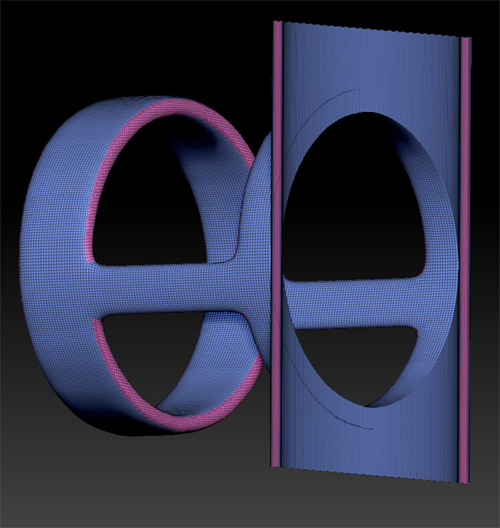
In watching the videos on clipping brushes I picked up a clue. The narrator says, “The clipping brushes do not actually ‘clip’ but force the edge polygons to conform to the path of the brush”.
In other words the clipping brush just collapses the area outside of the path. It does not delete it. I believe that is what causes the ‘flange’ or outline.
I’ll let you know what support says.
Oh! Thanks for the quick reply. Please let me know what you find out. I’d greatly appreciate it.
Thanks!
Attachments
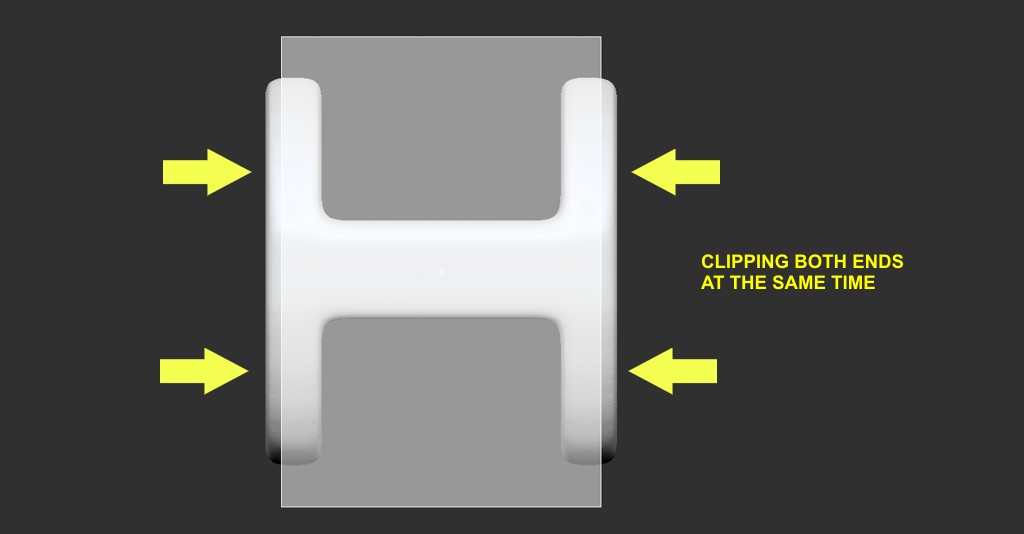
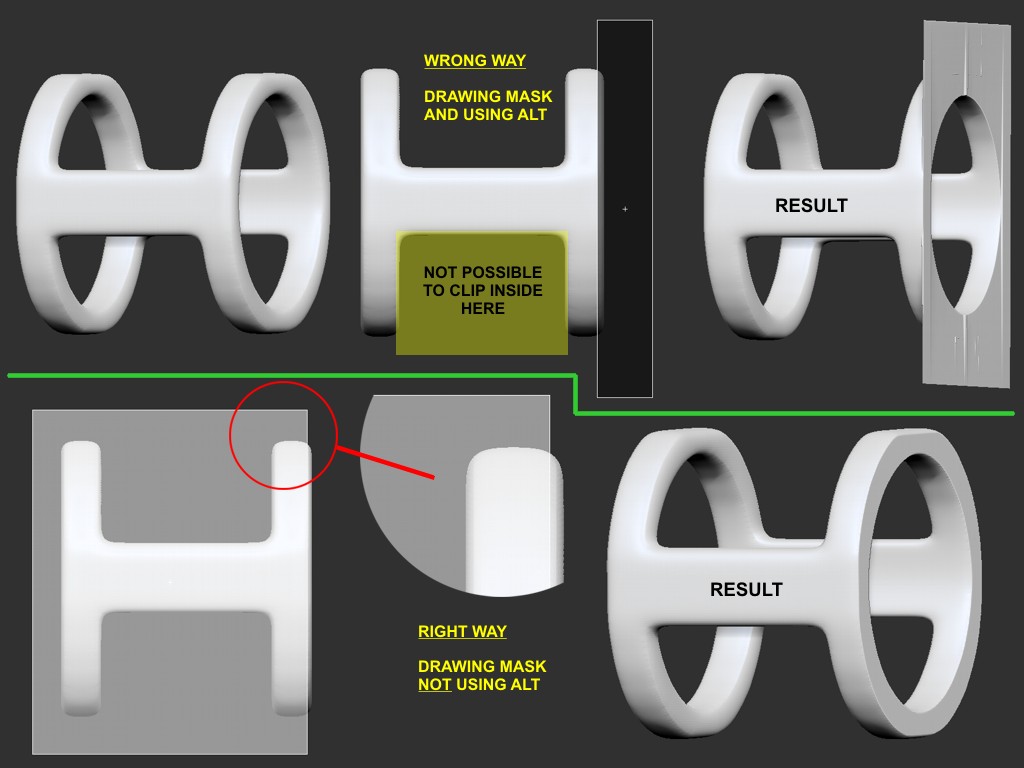
I heard back from support. The issue is that the clipping brushes don’t really “clip” like a pair of scissors or a knife. They’re really more of a collapsing brush. So if you want to cut a barbell in half lengthwise it won’t work as you might expect. You’ll end up with a flat profile of the clipped section of the barbell attached to the end.
I asked if there were another way to actually cut and delete portions of a model. This was their response:
"What you can do is this. Hide the portion of geometry you wish to delete. Then go the the Tool>Geometry Sub-Palette and click on Delete Hidden. Once you have done that then you can click on the Close Holes button next to the Delete Hidden.
Small note. You can not File Holes if the mesh has subdivision levels and before doing the Delete Hidden Mask your whole mesh the highest Subdivision level and then walk down to delete the geometry."
I would add that the “Delete Hidden” button is only available if your model has been converted to a Polymesh3D. The selection tools are available when you hold down Shift+Command. You can then choose from a variety of selection tools from the tool palette.
I hope this helps anyone having problems. Calling these brushes “Clipping” is the root of the confusion.